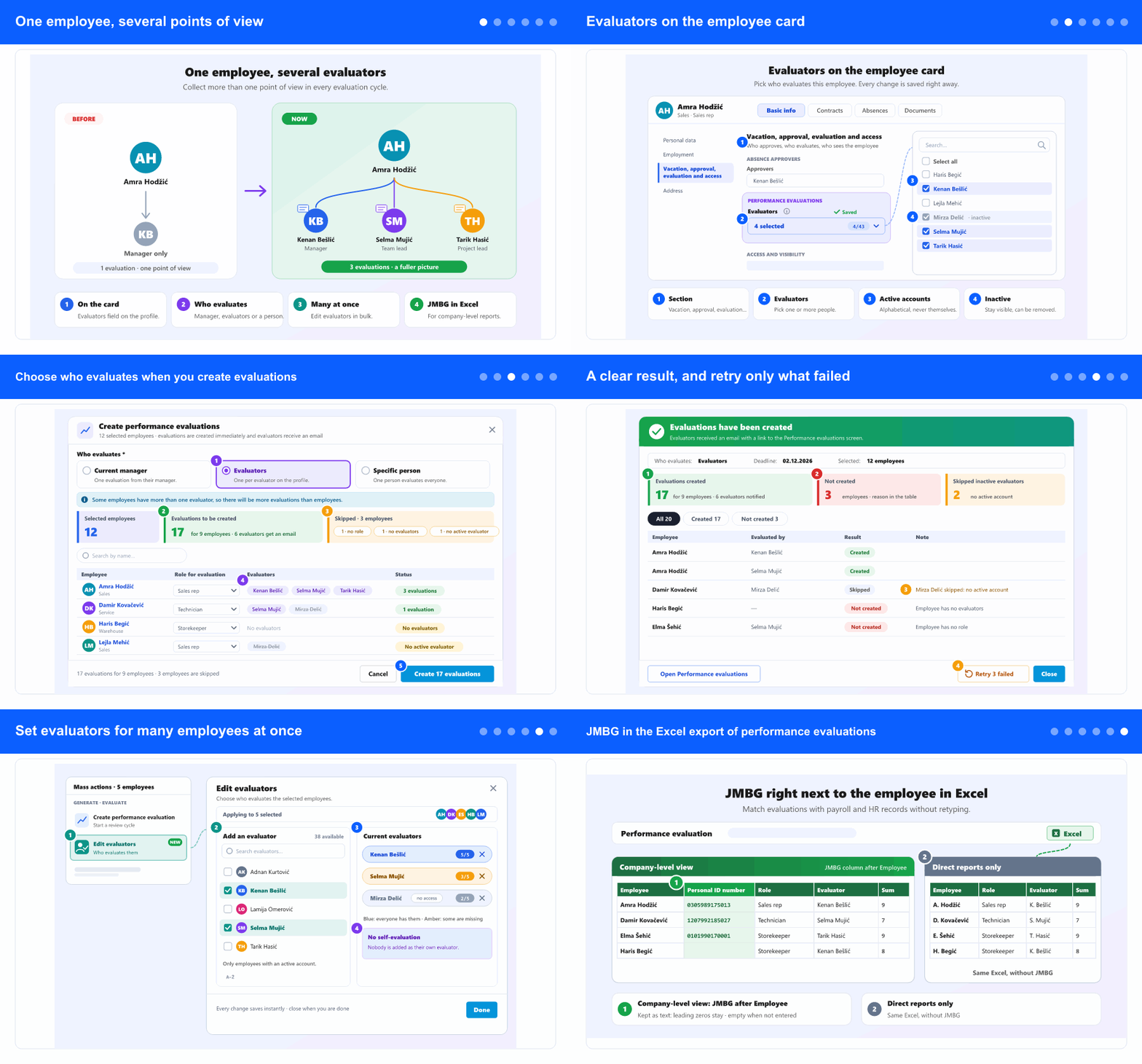
One employee, several points of view
Until now, creating evaluations for a group of employees meant one evaluation per employee, almost always from their manager. In many teams the manager is not the only person who sees someone's work. A team lead, a project lead or a colleague from another department often knows it better.
Now each of them can evaluate. Every evaluator gets their own evaluation and their own email, so you collect several honest views instead of one, and the grades are easier to compare and defend.
Evaluators on the employee card
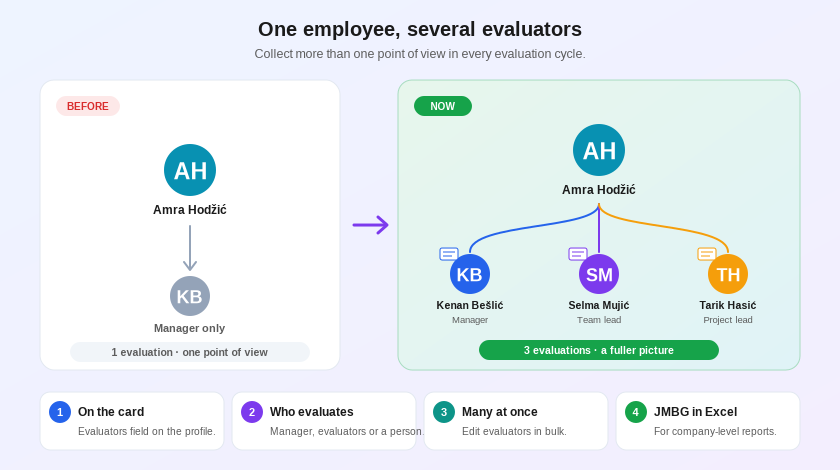
Open an employee's card, tab Basic info. The section Vacation, approval, evaluation and access has a new part, Performance evaluations, with the Evaluators field. Tick one or more people in the list and the change is saved right away; there is no separate Save button.
- Only people who can sign in. The list offers employees of your company with an active user account, in alphabetical order and with search.
- Never themselves. An employee cannot be their own evaluator, so they are not in their own list.
- Nothing disappears silently. If an evaluator's account is later disabled, they stay on the card marked “inactive”, so you can see it and remove them when you want.
Choose who evaluates when you create evaluations
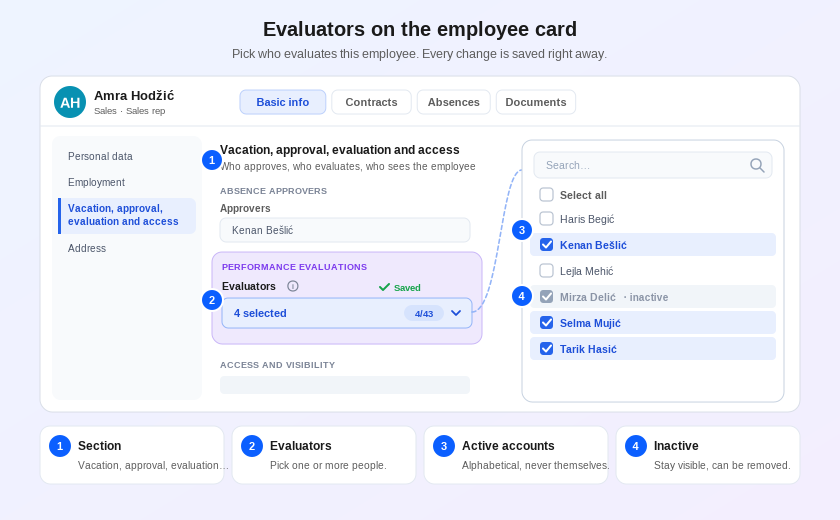
Select employees on the Employees list, open Mass actions and choose Create performance evaluation. The window has a new look, and the old “managers evaluate” checkbox is now a clear choice under Who evaluates:
- Current manager (the default): each employee gets one evaluation from their manager, the same as before.
- Evaluators: each employee gets one evaluation for each active evaluator from their card. Three evaluators means three evaluations.
- Specific person: one person you pick evaluates all selected employees.
Before you click anything, the window shows how many evaluations will be created and how many evaluators get an email. Employees who cannot be evaluated are listed with the reason, for example no role or no active evaluator, so there are no surprises. Search by name and the All / Ready / Cannot be evaluated tabs help you check a long list. The button says exactly what will happen: Create 17 evaluations.
A clear result, and retry only what failed
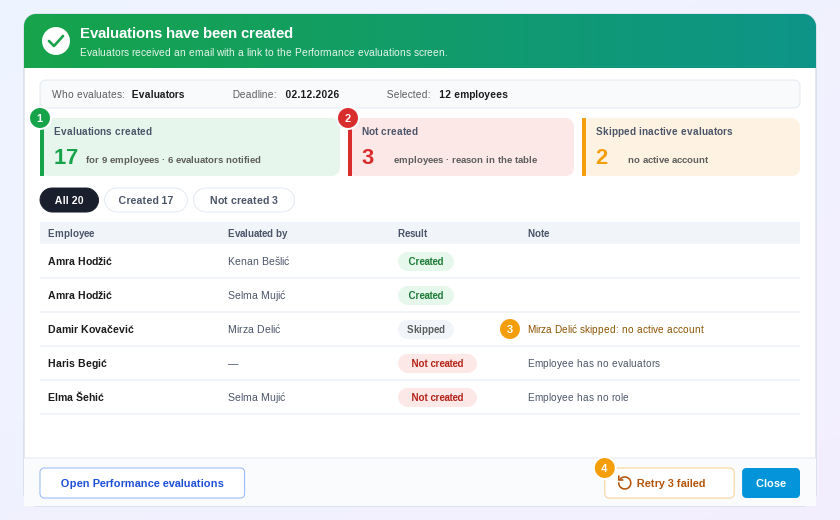
After creating, the same window turns into a summary: how many evaluations were created, how many were not and why, and which evaluators were skipped because they no longer have an active account. Every row shows the employee, who evaluates them and a short note.
- Employees without an evaluator are skipped and reported. They do not fall back to the manager, so nobody evaluates someone by accident.
- Inactive evaluators are skipped; the employee still gets evaluations from their other, active evaluators.
- Retry for the failed ones. Fix the role on the list or the evaluators on the card, then click Retry. Only the employees that failed are sent again, so nothing is created twice.
Set evaluators for many employees at once
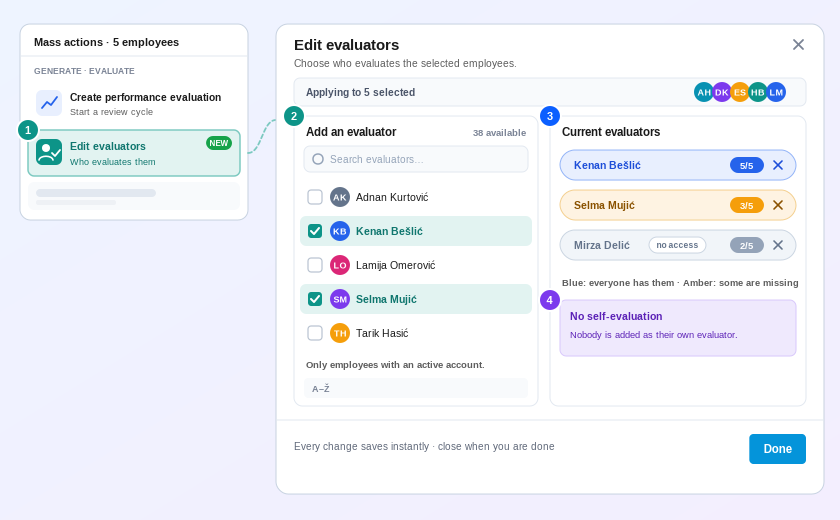
Setting up a whole department one card at a time takes too long. On the Employees list, select the employees, open Mass actions and choose the new Edit evaluators.
- Left: people you can add. Only employees with an active account, alphabetical, with search. Ticking a person adds them as evaluator to all selected employees at once.
- Right: current evaluators of the selected employees, each with a counter such as 3/5, so you see who already has them on everyone (blue) and who is only partly set (amber).
- Remove with one click. The × next to an evaluator removes them from all selected employees, after you confirm. Evaluations that already exist are not changed.
- No self-evaluation. If an evaluator is also one of the selected employees, they are added to everyone else, but not to themselves, and the screen tells you so.
- Evaluators without access are marked “no access”; you can remove them, but not add them again.
Every change is saved immediately, so you just close the window when you are done.
JMBG in the Excel export of performance evaluations
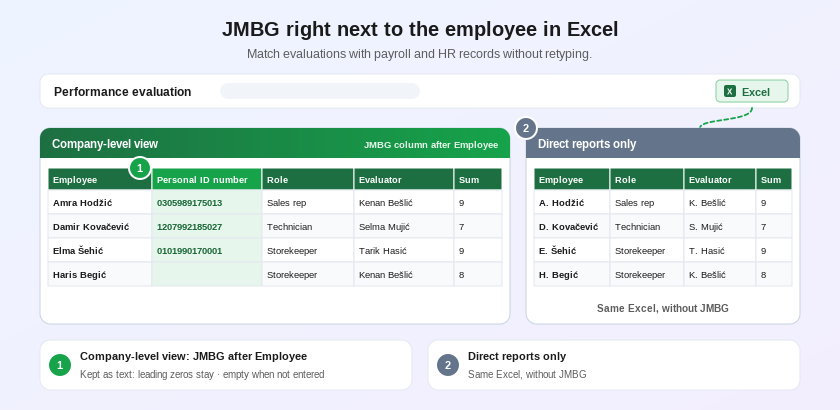
On the Performance evaluation screen, the Excel export now has a JMBG column (“Personal ID number” in the English interface) right after the Employee column. That makes it easy to match evaluation results with payroll or HR records, even when two employees share a name.
The column is there only for users who see the report at company level. Users who are limited to their direct reports get the same Excel without it. The number is kept exactly as entered, with leading zeros, and the cell stays empty for employees without a JMBG. The screen itself does not change.
Where in the app
- Employee card, tab Basic info, section Vacation, approval, evaluation and access: the Evaluators field.
- Employees list, Mass actions: Create performance evaluation (with the choice of who evaluates) and Edit evaluators.
- Performance evaluation screen: the Excel button.
Step by step: Set an employee's evaluators · Create performance evaluations · Performance evaluation report and Excel.
Why it helps
- Fairer evaluations. Several people who know the employee's work each give their view.
- Set once, use every cycle. Evaluators live on the employee card, so you do not pick them again for each round.
- Fast setup for whole teams. Add or remove an evaluator for dozens of employees in one step.
- No surprises. You see how many evaluations will be created before you click, and exactly what happened afterwards.
- Only the right people. Evaluators must have an active account, nobody evaluates themselves, and disabled accounts are skipped.
- Cleaner reporting. JMBG in Excel links evaluation results to the rest of your HR data.