1. Open Performance evaluation from the menu
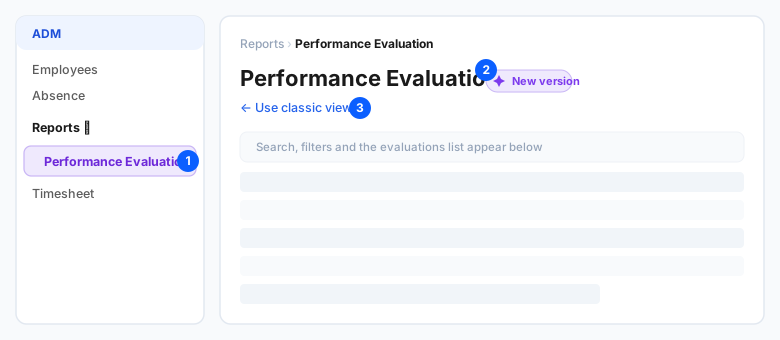
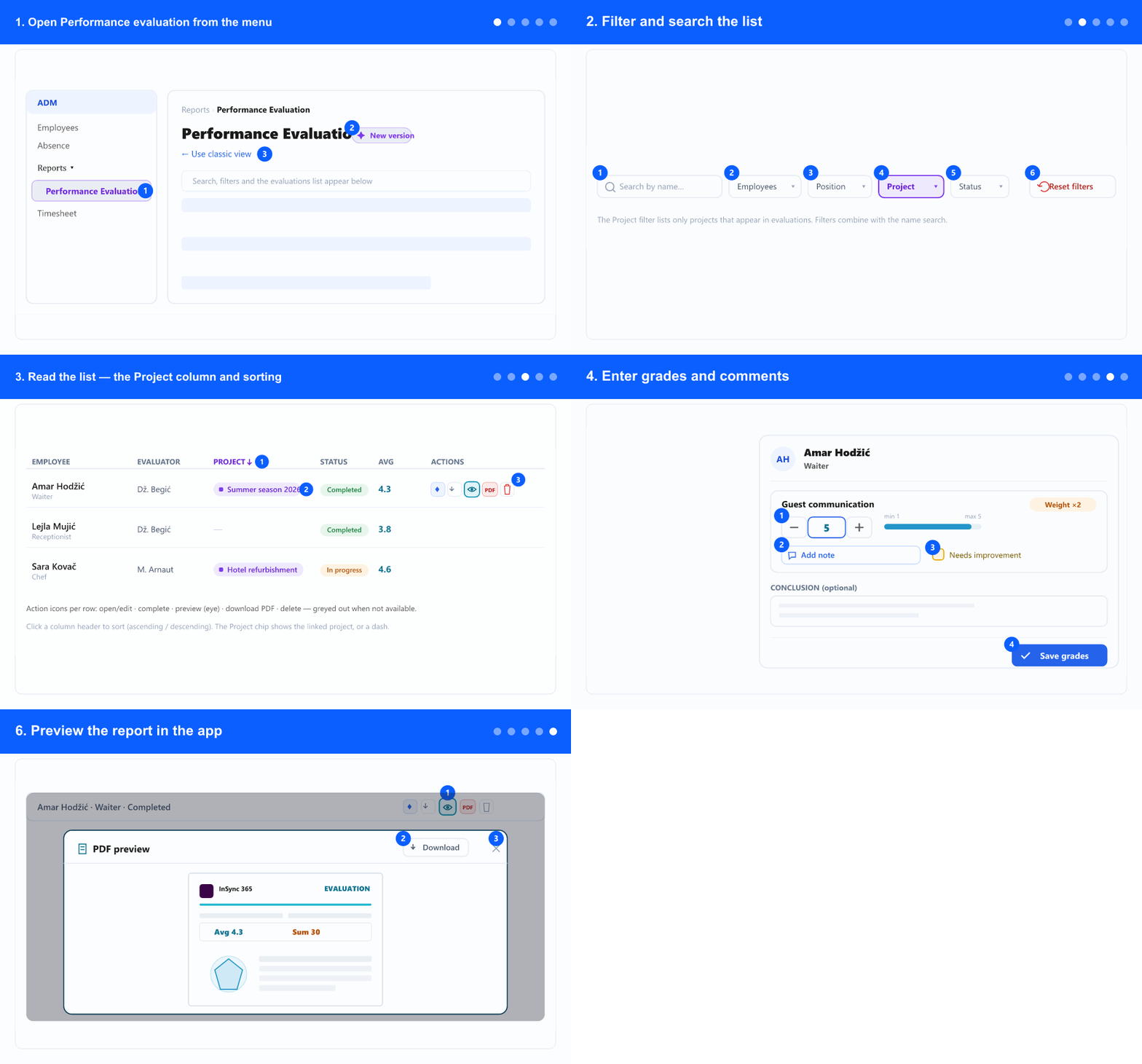
- In the left menu, under the ADM tab (if shown), open Reports and select Performance Evaluation. The tabs appear only when your company uses more than one module — otherwise the items are shown right away.
- The screen opens on the New version (marked with a chip). If you prefer the previous layout, use the Use classic view link at the top; you can switch back any time.
- Don't see it? The screen is available to users granted access to Performance Evaluation — administrators see it automatically. Contact your administrator if it's missing.
2. Filter and search the list

- Type in Search by name… (far left) to find a person quickly.
- Use the Employees, Position and Status filters to narrow the list; each lets you pick one or more values.
- Use the new Project filter to show only evaluations for the projects you choose. The list offers only projects that actually appear in evaluations.
- All filters and the search combine. Click Reset filters to clear them and see everything again.
3. Read the list — the Project column and sorting
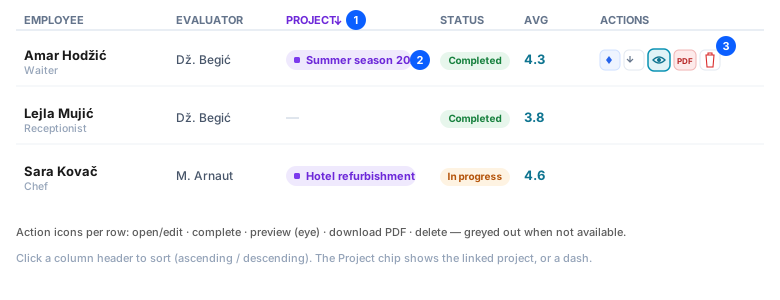
- Each row shows the employee (with their evaluated position), the evaluator, the Project, the deadline, status, progress, average and sum.
- The Project column shows the project the person was evaluated for; evaluations with no project show a dash (—).
- Click a column header — including Project — to sort the whole list ascending or descending; click again to reverse.
- The action icons at the end of each row let you open/edit, complete, preview, download the PDF, and (for administrators) delete; unavailable actions are greyed out.
4. Enter grades and comments
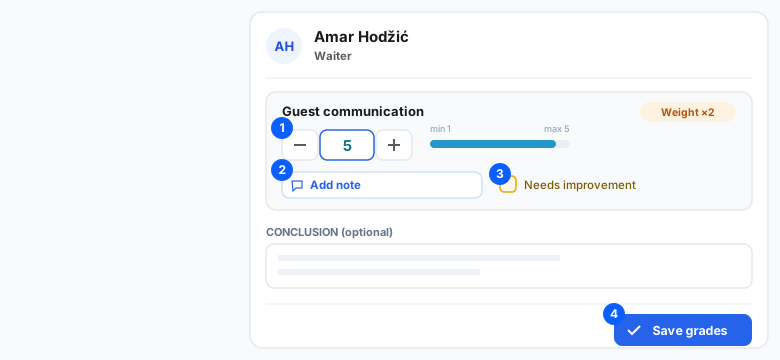
- Click a row (or the edit icon) to open the grade-entry panel. You can enter grades only while you are the assigned evaluator and the deadline hasn't passed; otherwise the panel is read-only.
- For each skill, set the grade with the − / + stepper or by typing a value within the shown range.
- Use Add note to record a short comment for that skill, and tick Needs improvement where relevant.
- Add an overall Conclusion if you wish, then click Save grades.
5. Complete, unlock, extend or delete
- Complete an evaluation once every skill is graded — this locks it and makes the PDF available. (You'll be prompted if any grade is missing.)
- Administrators can Unlock a completed evaluation to edit it again, Extend the deadline, or Delete an evaluation. These actions are on the row's action icons and are greyed out when they don't apply.
6. Preview the report in the app
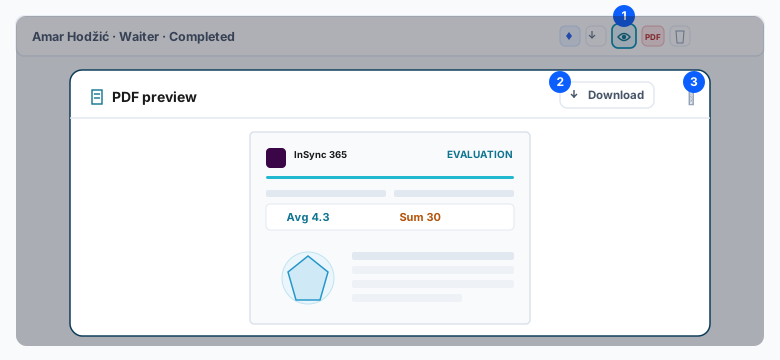
- On a completed evaluation, click the preview (eye) icon in the row. The report opens in a wide viewer inside the app — no file is downloaded.
- From the viewer, click Download if you want to save or sign the PDF.
- Click Close (or outside the viewer) to return to the list where you left off.
- Preview follows the same rule as download: it's active only once the evaluation is completed, and greyed out (with a tooltip) until then.
7. Export to PDF or Excel
- Use the PDF icon on a completed row to download that single report.
- Use the Excel button above the list to export the whole filtered list — it respects your active filters, search and sort, and includes the Project column.
Exact tab and menu names depend on your app language and roles. The peer-comparison section in the PDF appears when there are enough completed evaluations to compare against; the “Target (GMC)” column and row are shown only for companies that use them.