1. What has to be in place first
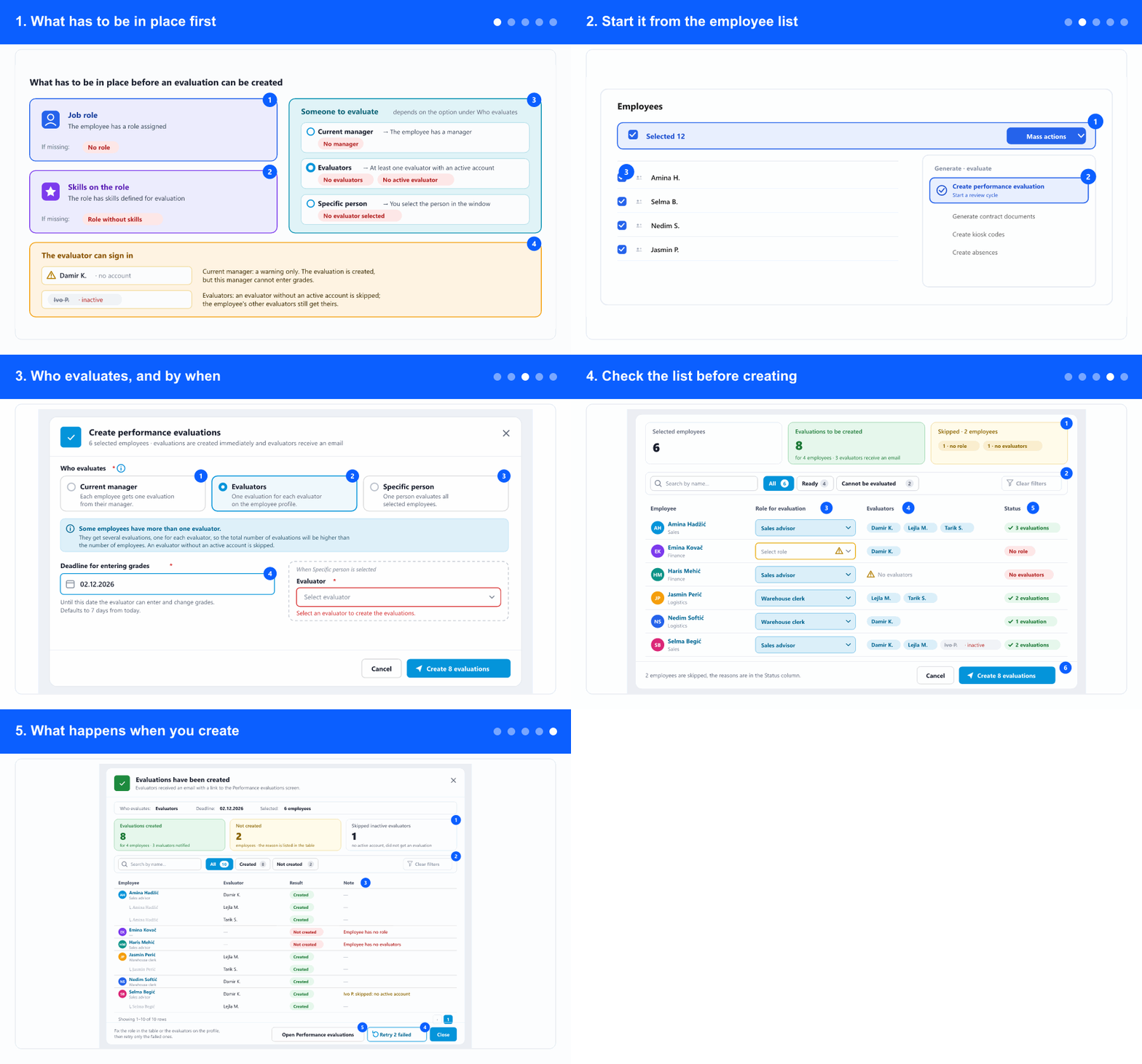
- The employee needs an assigned job role. Without one the status is No role. You can also pick a role for the evaluation directly in the window (step 4).
- That role needs skills defined for scoring. A role with no skills would produce an empty evaluation, so the status is Role without skills — see Job roles and their skills.
- Someone has to evaluate, and what that means depends on the option you choose in step 3: Current manager — the employee needs a manager (otherwise No manager); Evaluators — the employee needs at least one evaluator with an active account (otherwise No evaluators or No active evaluator); Specific person — you select the person in the window (until then No evaluator selected).
- The evaluator should be able to sign in. A manager without an active account is shown with a warning (⚠ · no account) but does not block anything: the evaluation is created, yet that manager cannot enter grades. With Evaluators, an evaluator without an active account is simply skipped; the employee's other evaluators still get theirs.
- Each person ends up Ready (with the number of evaluations) or with the reason as their status. Fix the reason and create again, or use Retry after creating (step 5).
- Fixing these before you start is faster than fixing them after. A missing job role takes ten seconds on the employee record; discovering it among sixty people does not. If you plan to use Evaluators, set them first — on the employee profile or for many people at once, see Set the evaluators of employees.
2. Start it from the employee list
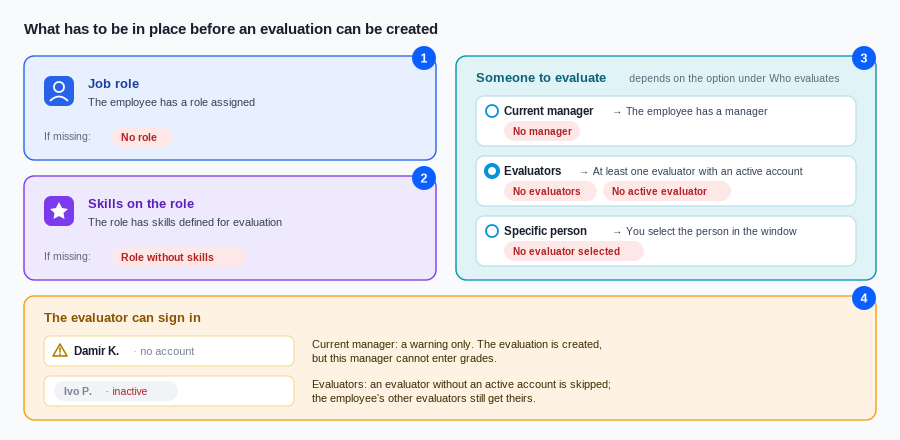
- In the left menu, under the ADM tab (if shown), select Employees and tick everybody who should be evaluated. Use the filters first — by department, office or job role — so the selection is a real group rather than a hand-picked list.
- Open Mass actions and choose Create performance evaluation, under Generate · evaluate. The window Create performance evaluations opens.
- The same window also opens from the classic employee list and from the employee list of a project. Started from a project, the header shows the project and the evaluations are linked to it.
- With Current manager and Specific person one action creates one evaluation per selected employee; with Evaluators it creates one per employee and evaluator. There is no single shared evaluation for a team.
- Nothing is created yet. The window first shows what will happen, and you can still close it with Cancel.
3. Who evaluates, and by when
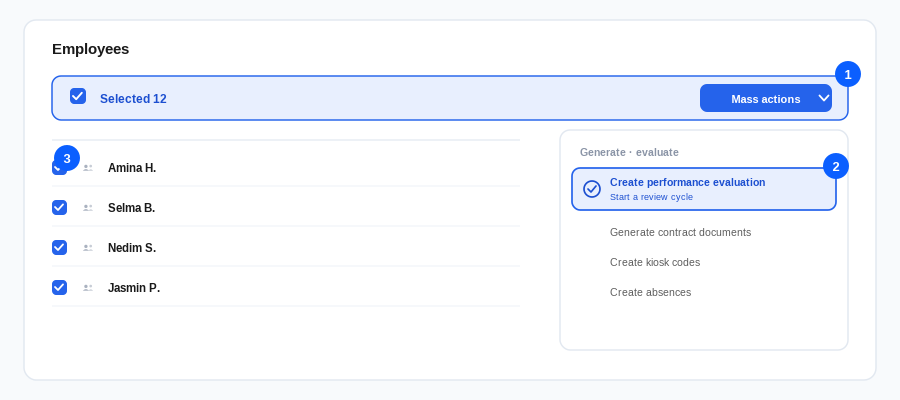
- Current manager (selected by default): each employee gets one evaluation from their own manager. This is the usual case.
- Evaluators: one evaluation for each evaluator on the employee's profile. Use it when several people should grade the same employee — for example a manager and a team lead. A blue note reminds you that the total number of evaluations will be higher than the number of employees. Evaluators are set on the employee profile, in the Vacation, approval and access section, or for many employees at once with the mass action Edit evaluators — see Set the evaluators of employees.
- With Evaluators, an employee who has no evaluators is skipped — the manager is not used instead. An employee whose evaluators all lack an active account is skipped as No active evaluator. A single evaluator without an active account is skipped on their own and does not count as the employee's failure: the others still get their evaluations.
- Specific person: one person evaluates all selected employees — right for a department head reviewing a whole team, or an owner reviewing managers. Pick the person in Evaluator; the list is alphabetical, searchable and shows only employees with an active account. Until you pick someone, the field is marked red and the window cannot create anything.
- Set the Deadline for entering grades: until this date the evaluator can enter and change grades. It defaults to 7 days from today and is required — without it nothing can be created. After it passes, grades are read-only until an administrator extends the deadline.
- Give a realistic window. Two or three weeks is usual; a deadline of tomorrow guarantees either rushed grades or an extension request. The ⓘ next to Who evaluates summarises the three options if you need a reminder.
4. Check the list before creating
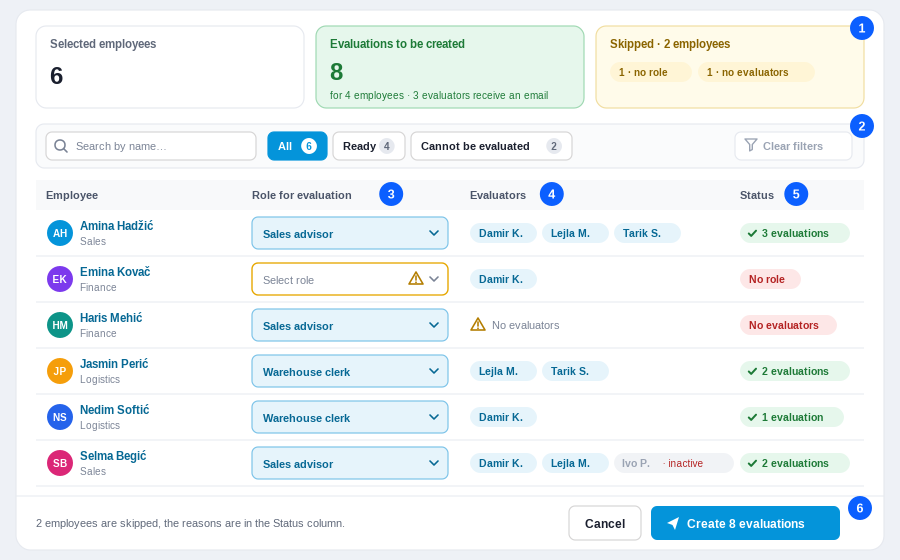
- Three cards sum it up before anything is created: Selected employees, Evaluations to be created (with Evaluators also for how many employees and how many evaluators receive an email) and Skipped, with one chip per reason — for example 1 · no role.
- Use Search by name… and the tabs All, Ready and Cannot be evaluated. Cannot be evaluated is the useful view: exactly the people you need to fix. Clear filters brings back the whole list.
- Role for evaluation shows each employee's role. You can pick a different role for this evaluation — for example when the employee has no role, or their role has no skills; a ⚠ marks those rows. The × in the field restores the current role.
- The next column shows who evaluates: the manager under Current manager (⚠ when there is none, or · no account), the chosen person under Specific person, or one chip per evaluator under Evaluators. An evaluator without an active account is crossed out and marked · inactive; if there are many, the rest are behind +N (hover to see them).
- Status says Ready or how many evaluations the person will get (3 evaluations), or why they are skipped — No role, Role without skills, No manager, No evaluators, No active evaluator.
- The bottom line tells you how many employees are skipped, and the button names the exact number — Create 8 evaluations. It is disabled when there is nothing to create or a required field is empty. If the skipped number is not zero and you create anyway, those people simply have no evaluation this cycle — fix them now, or create for the ready ones and retry the rest afterwards.
5. What happens when you create
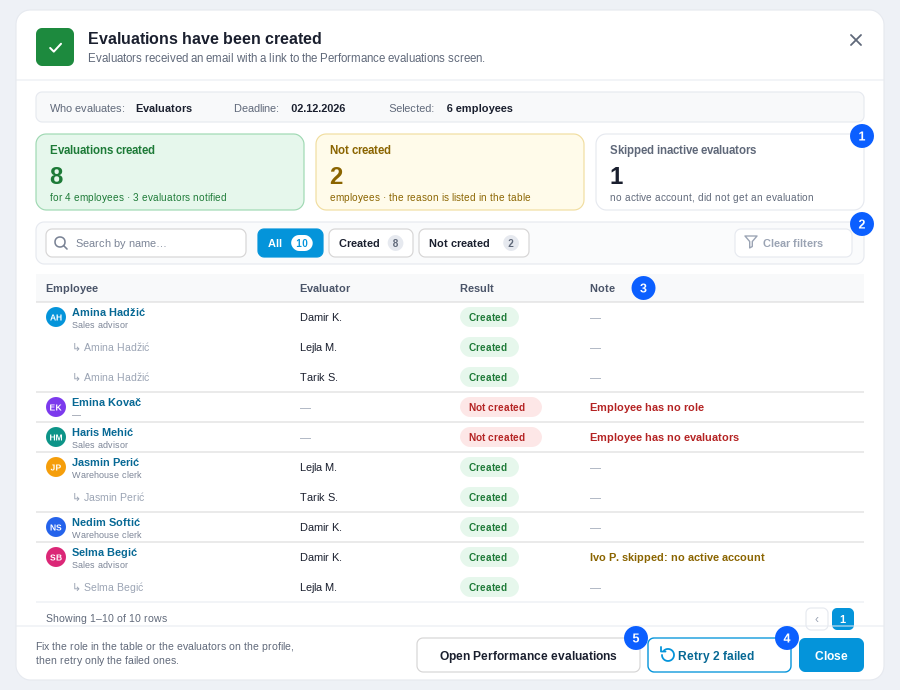
- The window switches to the result: Evaluations have been created (or No evaluations were created), with a line repeating who evaluates, the deadline and how many were selected. A short message confirms it; a second one appears if some were not created. The cards show Evaluations created, Not created and — with Evaluators — Skipped inactive evaluators.
- The table has one row per evaluation: employee, evaluator, Result (Created / Not created) and Note. Several evaluations of the same person are grouped under them. Search by name and the tabs All, Created and Not created work as before.
- The Note gives the reason for each employee who got nothing — for example Employee has no role, Employee has no evaluators, No evaluator has an active account. A skipped inactive evaluator is noted on the employee's row (… skipped: no active account) and is not counted as a failure.
- To finish the rest, fix the role in the table or the evaluators on the employee profile, then click Retry N failed. The window opens again only for the employees who failed, with the same option selected; the evaluations already created are not created again. The button is not shown when everything was created.
- Each evaluator receives one email with a link to their evaluations, even when they evaluate several people. Open Performance evaluations opens the evaluation screen in a new tab, where the new evaluations are listed with evaluator, creation date and deadline — see the evaluation screen guide for extending a deadline, completing or unlocking.
- Creating again for the same people creates another evaluation, without a warning about open ones. That is how a second cycle is started; it is also how duplicates appear if you re-run by mistake — use Retry for the failed ones instead.
Default case: tick a department, leave Current manager selected, set a deadline two or three weeks out, check the Cannot be evaluated tab, then create. When several people should grade each employee, set their evaluators first and choose Evaluators.
Related: Set the evaluators of employees · The evaluation screen: entering grades and exporting · Reading conclusions in the list · Job roles and their skills · The skills registry · The employee list.