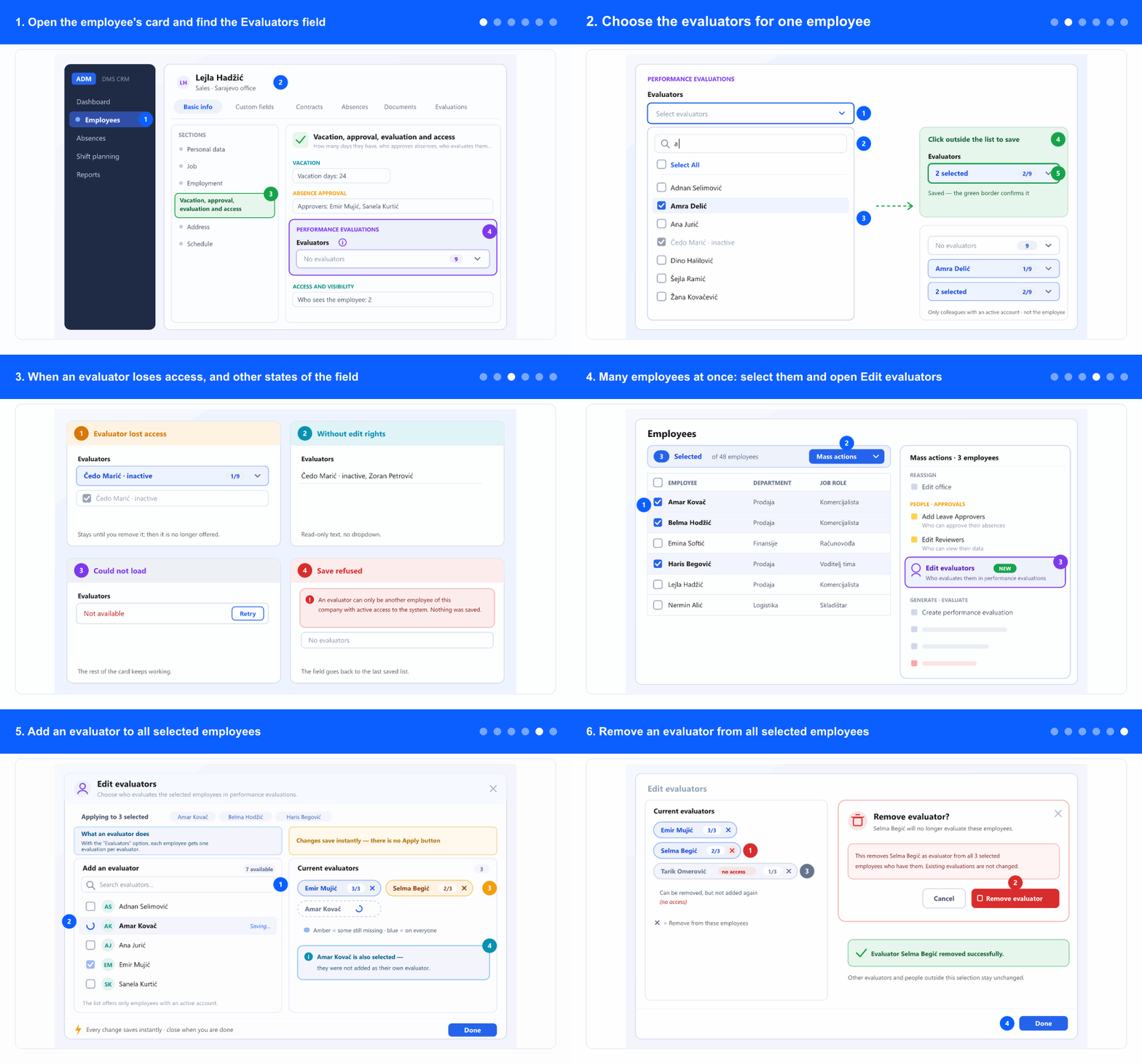
1. Open the employee's card and find the Evaluators field
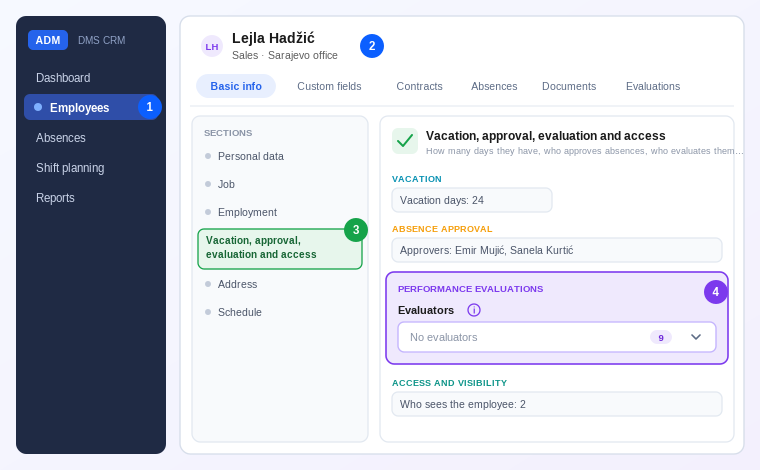
- In the left menu, open the ADM tab (if the tab strip is shown — it appears only when your company uses more than one module) and select Employees. The employee list opens.
- Click the person's name. Their card opens on the Basic info tab.
- In the section list on the left of the card, click Vacation, approval, evaluation and access (or scroll down to the section with that title).
- Under Absence approval you'll find the sub-section Performance evaluations with the field Evaluators. The small i next to the label explains the field when you hover over it.
2. Choose the evaluators for one employee
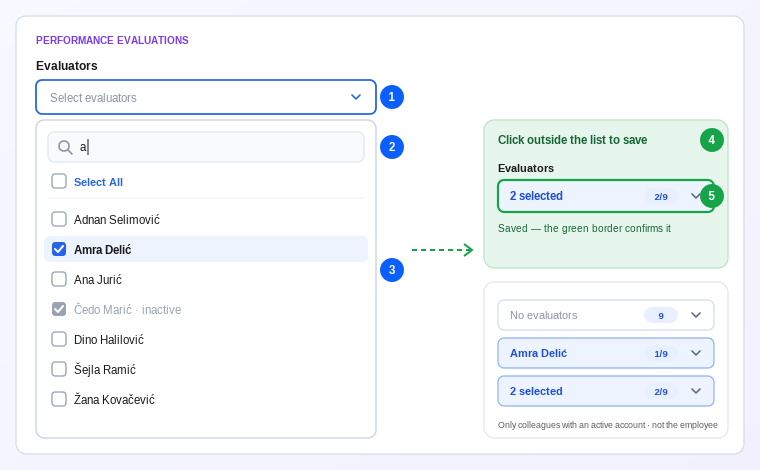
- Click the Evaluators field. A list opens with a search box, Select All and one checkbox per person, in alphabetical order.
- Type part of a name to narrow the list.
- Tick everyone who should evaluate this employee; untick anyone who should no longer do it. An employee can have as many evaluators as you need.
- Click outside the list. The choice is saved at that moment — a small spinner shows in the field, then a green border confirms it. There is no Save button.
- The closed field shows No evaluators, the evaluator's name when there is one, or N selected when there are several (hover to see all names). The counter on the right shows how many are chosen out of how many can be chosen, for example 2/9.
- To remove all evaluators, untick everyone (or use Select All twice) and click outside the list. The field then shows No evaluators.
The list offers only colleagues from the same company who have an active account (they can sign in). People without an account, with a disabled account or deleted employees are not offered, and the employee cannot be their own evaluator.
3. When an evaluator loses access, and other states of the field
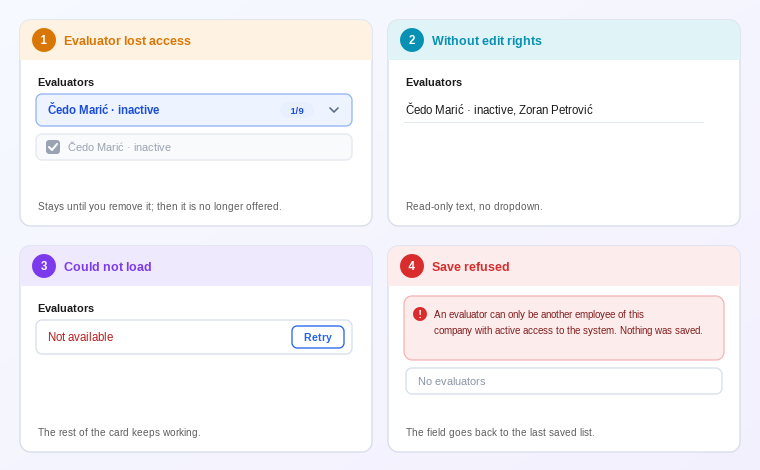
- If an evaluator's account is disabled later, they stay on the list, greyed out and marked · inactive. Saving other changes does not remove them. You can untick them; once removed, they are no longer offered and cannot be added back until their account is active again.
- Without the right to edit employees — or when the employee's card is read-only because the employee is deactivated — the field shows only the names as plain text, with no list to open.
- If the evaluators cannot be loaded, the field shows Not available with a Retry button. The rest of the card keeps working.
- If a save is refused — for example because the colleague you just ticked lost access in the meantime — a red message explains why, nothing is saved and the field goes back to the last saved list. Refresh the page and try again.
4. Many employees at once: select them and open Edit evaluators
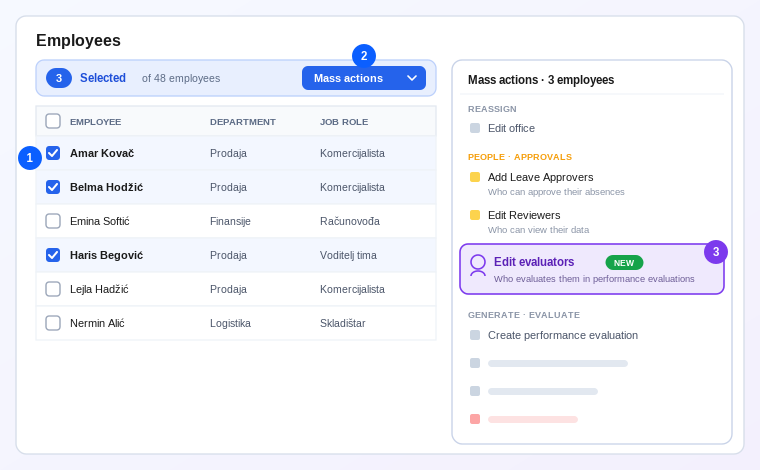
- In the left menu select Employees. Use the search and filters to narrow the list if needed, then tick the employees whose evaluators you want to change. The checkbox in the column header ticks every row on the current page.
- In the selection bar above the list, click Mass actions.
- In the group People · approvals, choose Edit evaluators (Who evaluates them in performance evaluations, marked NEW). The Edit evaluators window opens.
- Don't see the item? It is shown to administrators and to users who are allowed to edit employees. If nobody is ticked, a message reminds you to select employees first.
5. Add an evaluator to all selected employees
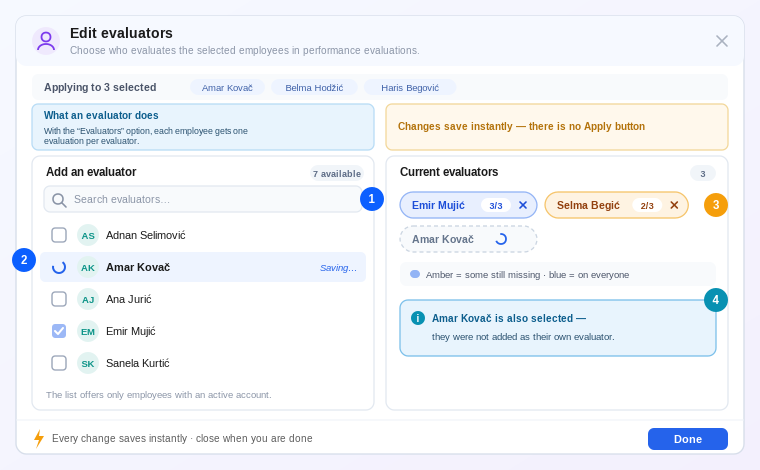
- At the top, Applying to N selected lists who you are changing. Read the warning: changes save instantly — there is no Apply button.
- On the left, Add an evaluator lists the possible evaluators alphabetically — only employees with an active account. Type in Search evaluators… to find someone.
- Tick a person. They are immediately added as evaluator to all selected employees; the row shows Saving… and then a confirmation message. Evaluators the employees already had are kept — nobody gets the same evaluator twice.
- On the right, Current evaluators shows everyone who evaluates at least one of the selected employees. The number on each pill, e.g. 2/3, says how many of the selected already have that evaluator. A blue pill is on everyone; an amber pill means some are still missing — tick that person on the left to fill in the rest. A person who is already on everyone is ticked and locked on the left.
- If the person you tick is also one of the selected employees, they are added to everyone else but not to themselves, and a short message tells you so.
6. Remove an evaluator from all selected employees
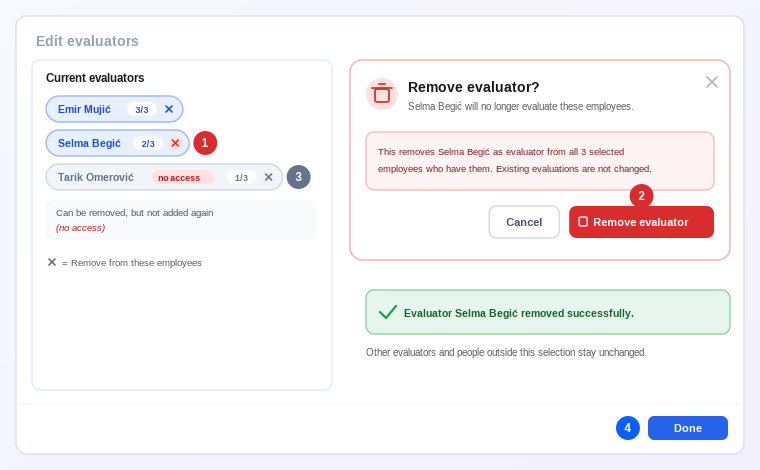
- Click the × on an evaluator's pill (Remove from these employees).
- The window Remove evaluator? names the person and how many selected employees it affects. Click Remove evaluator to confirm, or Cancel to keep everything as it is. The evaluator is removed from all selected employees at once. Other evaluators stay, already created evaluations are not changed, and the person stays an evaluator of employees outside this selection.
- An evaluator whose account is no longer active is marked no access. You can remove them with ×, but they are not in the list on the left, so they cannot be added again.
- When you are finished, click Done. The window closes and the employee list refreshes. Everything was already saved while you worked.
The mass action only adds or removes one evaluator at a time; it does not replace each employee's whole list. To give everyone exactly the same evaluators, add the ones they should have and remove the ones they should not.
7. What the evaluators are used for
- When you create performance evaluations for many employees at once, you can choose Evaluators as the way to assign them: each employee then gets one evaluation for each evaluator on their list, so the total can be higher than the number of employees.
- An evaluator without an active account is skipped; an employee with no evaluators gets none.
- The steps for creating evaluations are in Starting a performance evaluation cycle (section “Who evaluates, and by when”).
You only ever see and change employees of your own company. Field labels follow your product language; which actions you see depends on your permissions.