Where you'll find it
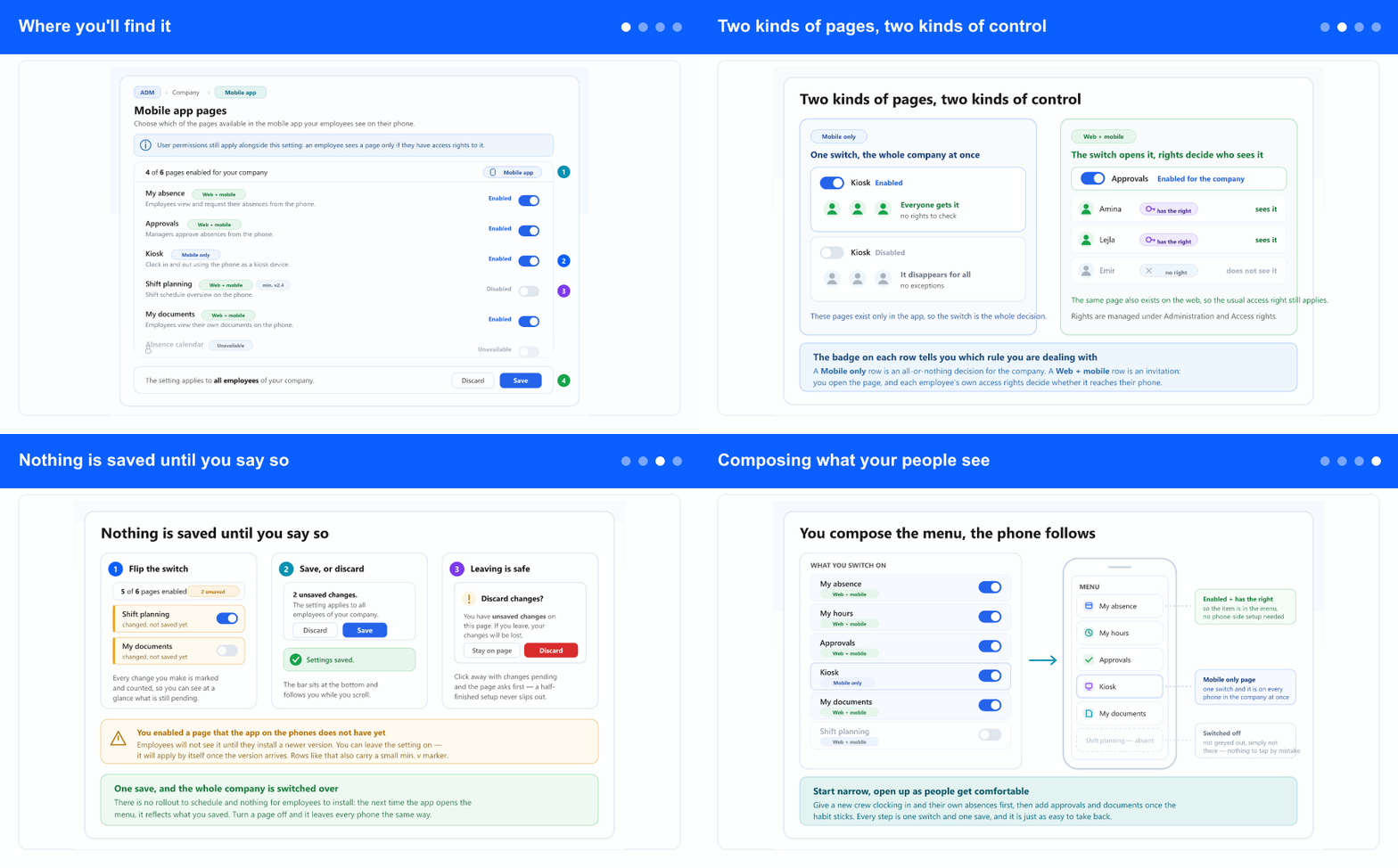
In the left menu, open Administration, then Company, and go to the Mobile app tab (under the ADM tab, if the tab strip is shown). The first section is Mobile app pages.
Every page the app can offer your company is one row: its name, a one-line description of what employees do there, and a switch on the right that reads Enabled or Disabled so you never have to guess a switch's position. Above the list a counter keeps the score — for example 4 of 6 pages enabled for your company.
Occasionally a row appears as Unavailable with a small padlock and cannot be switched. That is not something you can change here — if your company needs that page, contact support and they will open it for you.
Two kinds of pages, two kinds of control
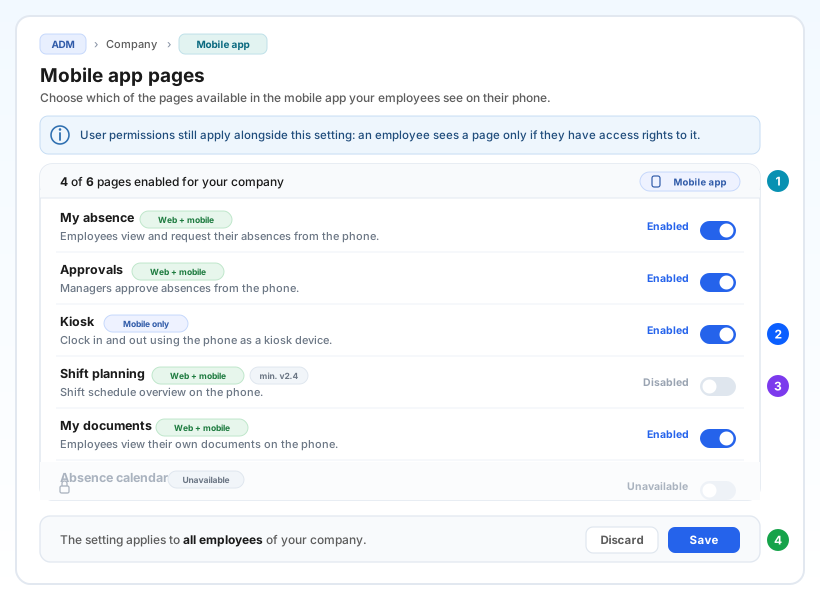
The badge on each row tells you which rule applies, and it is the single most useful thing on this screen.
Mobile only pages exist nowhere except in the app — the mobile kiosk is the classic example. For those, the switch is the whole decision: turn it on and it appears for every employee at once, turn it off and it disappears from every phone at once. There are no per-person exceptions to set up, nothing to grant individually, and nothing that can leave one group behind.
Web + mobile pages are the ones your people already know from the web — their absences, their documents, approvals. Here the switch is an invitation, not a guarantee: you open the page for the company, and each employee then sees it only if they hold the access right for it. That is deliberate — the same rules that protect a page on the web protect it on the phone, so you never have to maintain a second, parallel set of permissions. Rights are managed where they always were, under Administration → Access rights.
A small min. v marker on a row means that page needs a reasonably recent app version. Employees on an older install will not see it until they update.
Nothing is saved until you say so
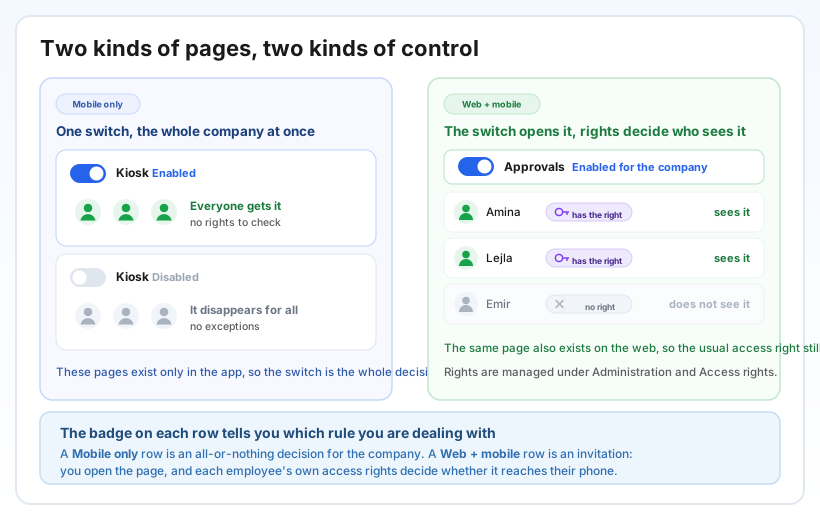
Switches do not take effect the moment you touch them. Each row you change is highlighted and counted, the counter above the list shows how many changes are still unsaved, and the bar at the bottom of the page spells out the consequence in words: The setting applies to all employees of your company. From there you either Save or Discard and go back to how things were.
If you click away while changes are pending, the page asks Discard changes? first, so a half-finished setup never leaves the screen by accident. After a successful save you get a short confirmation, and the list refreshes itself if something changed elsewhere in the meantime.
One helpful warning: if you enable a page that the app version on your people's phones does not have yet, the screen says so plainly. You can leave the setting on — it will start working by itself once employees update, with nothing for you to come back and switch again.
Composing what your people see
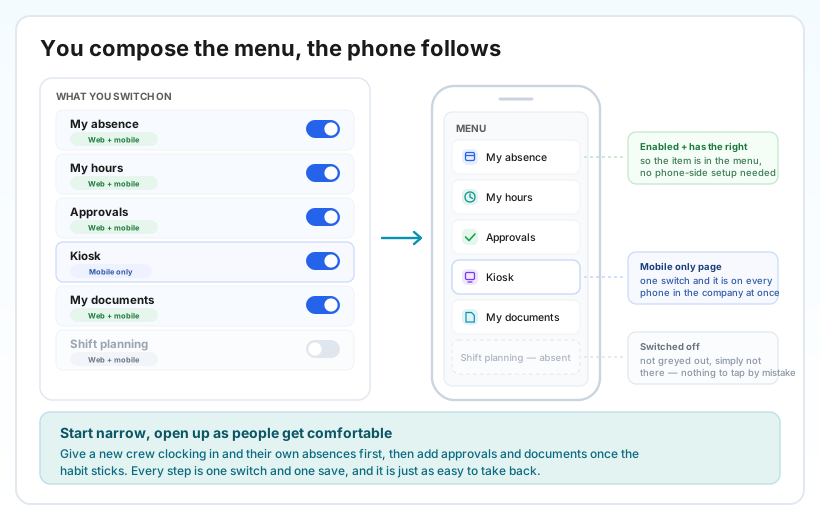
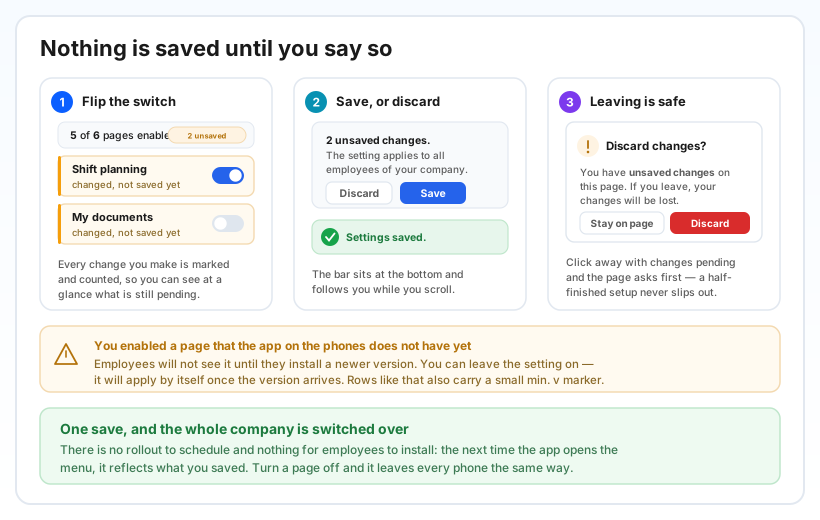
Think of the list as the shape of the app for your company. A construction firm might give the crews clocking in and their own absences and stop there. An office might skip the kiosk entirely and open approvals, documents and the shift schedule instead. Nobody has to install anything different: the same app reads your settings and builds the menu accordingly.
A page you leave off is not shown greyed out on the phone — it is simply not in the menu, so there is nothing for an employee to tap and no support call about a button that does nothing. That also makes a staged rollout easy: start with one or two pages, let the habit settle, then come back and open the next one.
When you want to confirm the result for one specific person, the section directly below this one does exactly that — see See exactly what an employee gets in the mobile app menu.
Why it helps
The app fits your company, not the other way around. You are not handed a fixed menu — you decide which parts of InSync 365 your people carry in their pocket, and you can change your mind at any time.
Rollouts are one save, not a project. There is no version to distribute, no device to visit and nothing for employees to configure. Flip a switch, save, and the next time the app opens the menu it is there.
Less noise for your people. Pages nobody in your company uses simply are not in the menu, so the app stays short and obvious for the people who only need two or three things from it.
One set of permissions, not two. Because pages that also exist on the web keep using the rights you already maintain, nobody has to remember a separate mobile permission — and nobody can be given more on the phone than they have on the web.
Step-by-step: Mobile app pages: enabling them for your company · Checking what an employee sees in the mobile menu