What changed, at a glance
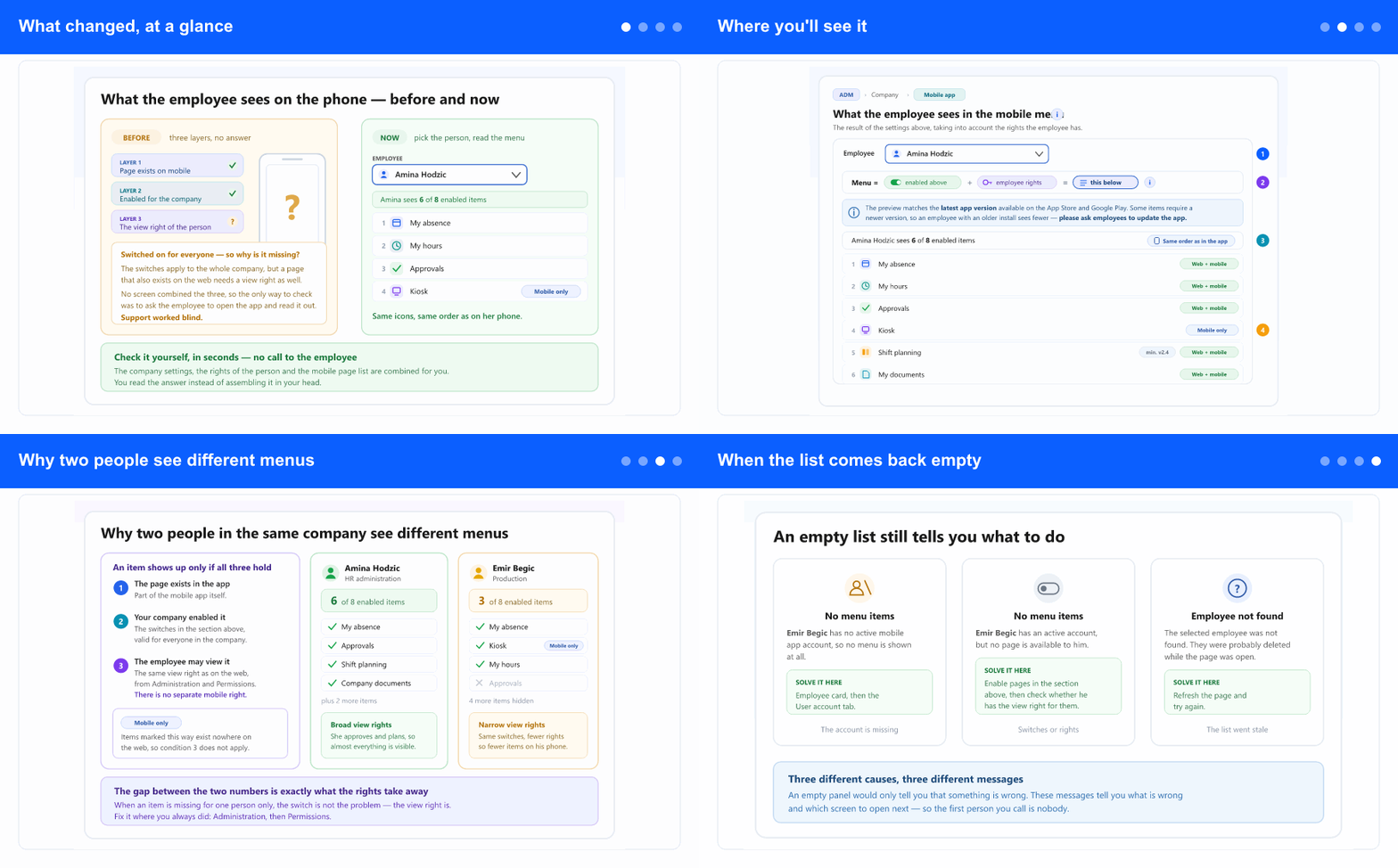
Whether an item appears in someone's mobile menu was never a single setting. It depended on the app itself, on what your company enabled, and on the rights that particular employee holds. Each of those lives on a different screen, so an administrator who had switched a page on could still be told by the employee that it simply is not there — and had no way to check without asking them to open the app and read the menu out loud.
Now there is one place that answers the question. You choose an employee and the panel lists exactly the items that person gets, in the order the app shows them. Nothing you have set up changes: the same switches, the same rights, just the result made visible.
Where you'll see it
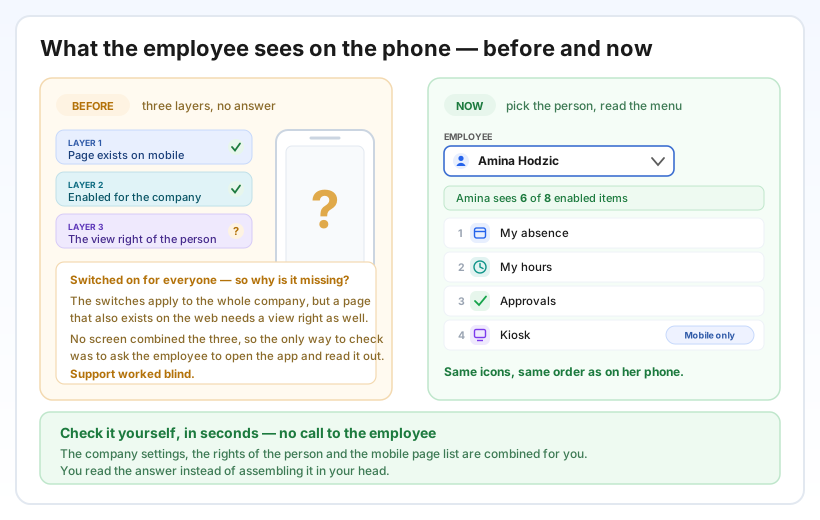
In the left menu, open Administration, then Company, and go to the Mobile app tab (under the ADM tab, if the tab strip is shown). Underneath the switches you already use, there is a new section: What the employee sees in the mobile menu.
Choose someone from the Employee list — you can type a few letters to find them — and the menu appears. Every row carries the same icon and the same position as in the app, numbered 1, 2, 3… so you can compare it line by line against a phone in front of you. Above the list a counter reads, for example, Amina sees 6 of 8 enabled items, and a badge confirms the order matches the app.
Each row also tells you what kind of item it is: Web + mobile means the page also exists on the web and therefore needs a view right, while Mobile only means it exists nowhere else and is governed purely by the switch above. Items that require a newer app release carry a small min. v… marker.
The panel is read-only. Nothing here changes a setting, so it is safe to open, show to a colleague, and close again.
Why two people see different menus
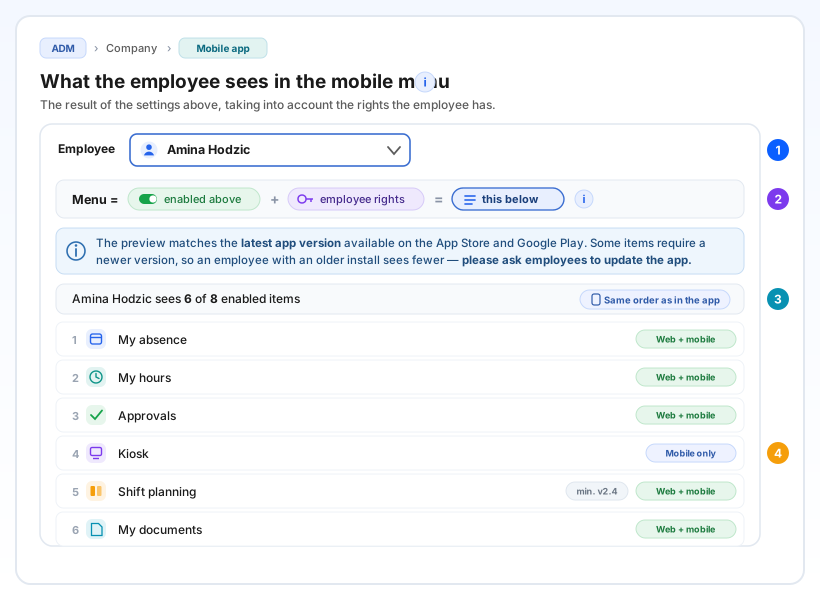
The bar under the picker states the rule in one line: Menu = enabled above + employee rights = this below, and the small i next to it opens the full explanation. An item reaches a phone only when three things hold at once — the page exists in the app, your company has enabled it, and that employee is allowed to view it.
The third condition is the one that surprises people, so it is worth saying plainly: the mobile right is the ordinary view right, the same one you grant under Administration → Permissions. There is no separate mobile permission to look for. Pages marked Mobile only are the exception — they exist nowhere on the web, so only the company switch decides.
That is why two colleagues in the same company can open the app and see different things, and why the counter is the fastest diagnosis you have: if an item is enabled for the company but missing for one person, the switch is not the problem — their rights are.
When the list comes back empty
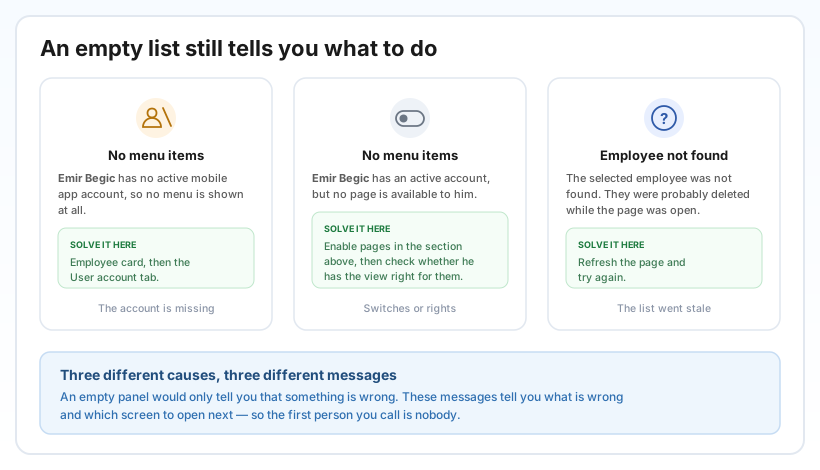
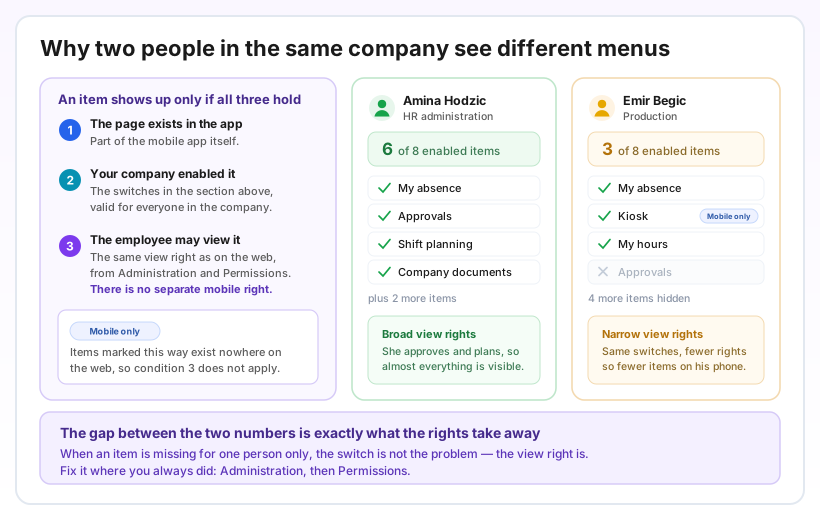
An empty menu is itself an answer, so the panel never leaves you staring at a blank box. If the person has no active mobile app account, the message says so and points you to their employee card → User account tab. If they have an account but no page is available to them, it tells you to enable pages in the section above and then check their view rights. And if the employee was deleted while you had the page open, it says they were not found and asks you to refresh.
While the menu is loading you get a short waiting state, and if the data cannot be fetched you get a plain error message rather than an empty list that looks like a real answer.
One more thing: app versions
The preview always shows what the latest app version on the App Store and Google Play would display. Some items only appear from a certain release onwards, so an employee running an old install can genuinely see fewer items than the panel shows — which is why the note above the list asks you to remind people to update the app. If a colleague insists an item is missing and the preview says otherwise, the app version is the first thing to check.
Why it helps
Support stops guessing. The question "what does this person actually see?" now has an answer you can read in a few seconds, without arranging a call or asking anyone to send a screenshot.
Setup mistakes surface immediately. Enable a page for the company, pick a couple of employees, and you know at once whether it reached them — instead of finding out weeks later that half the workforce never got it.
The right fix, the first time. Because the panel separates the company switch from the personal right, and names the screen for each empty case, you go straight to the setting that is actually wrong rather than toggling things to see what sticks.
Step-by-step: Checking what an employee sees in the mobile menu · Mobile app pages: enabling them for your company