1. Opening the Mobile app tab
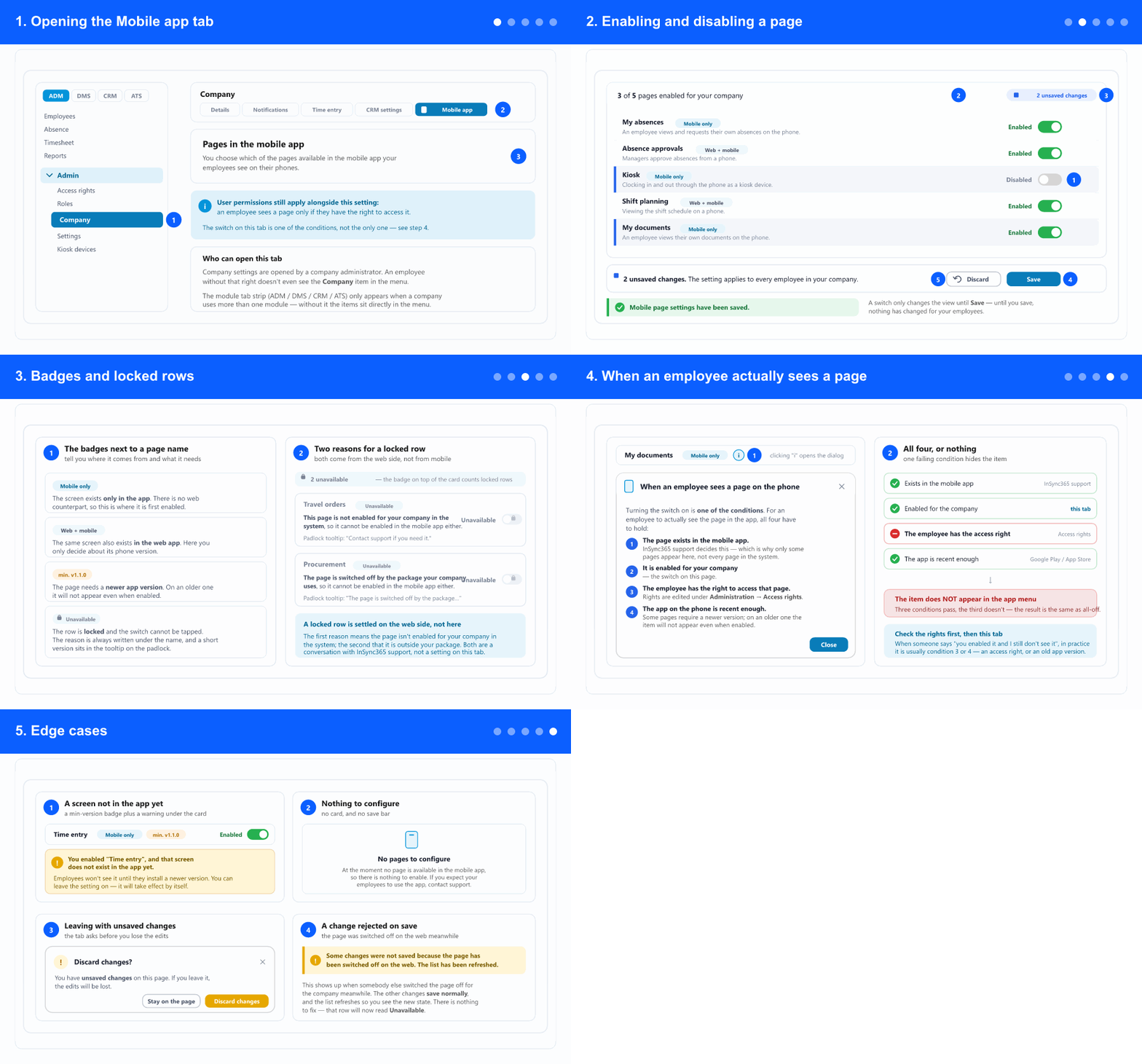
Open the “Mobile app” tabopens in a new window · you need to be signed in
- In the left menu open the ADM tab (if the tab strip is shown), then Admin and inside it Company.
- In the company settings tab strip pick Mobile app — the last tab, with a phone icon.
- Access requires company administrator rights. An employee without that right doesn't even see the Company item in the menu.
- The heading states what this tab does: you choose which of the pages available in the mobile app your employees see on their phones. The list is shorter than the list of pages in the system — see step 4.
- The blue note under the heading is a reminder of what gets forgotten most: user permissions still apply alongside this setting. An employee sees a page only if they have the right to access it.
2. Enabling and disabling a page
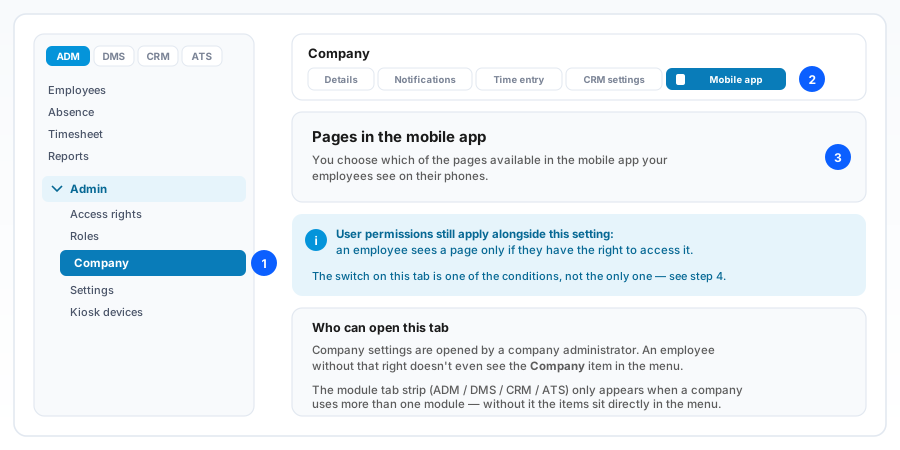
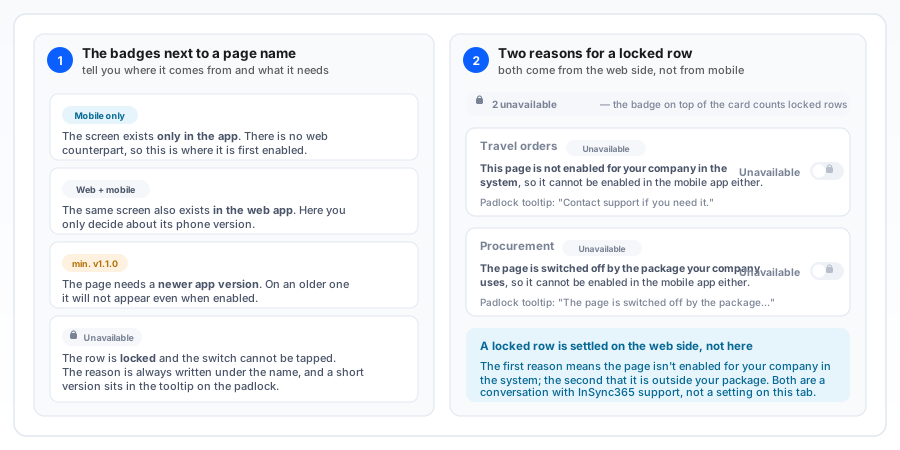
- Each page is one row with a switch on the right. Next to the switch the state is spelled out — Enabled or Disabled — so you never have to infer it from the knob position.
- Tap the switch to change the state. Under the page name sits a short description of what the employee gets on the phone, e.g. "Clocking in and out through the phone as a kiosk device".
- At the top of the card is a counter: X of Y pages enabled for your company. Use it as a check — if the number isn't what you expect, somebody has been changing things.
- While you have unsaved edits, an N unsaved changes badge appears on top of the card and the edited rows are lightly marked. The bar at the bottom of the screen carries the same count.
- Click Save. The button is inactive while there is nothing to save, so you cannot "save" without a change. The confirmation reads Mobile page settings have been saved.
- A switch on its own changes nothing for employees — until you save, the change exists only on your screen.
- If you got it wrong, Discard returns every switch to the last saved state. The button only appears when there is something to discard.
- The setting applies to every employee in your company, as the save bar says. There is no per-person or per-department enabling — that is what access rights are for.
3. Badges and locked rows
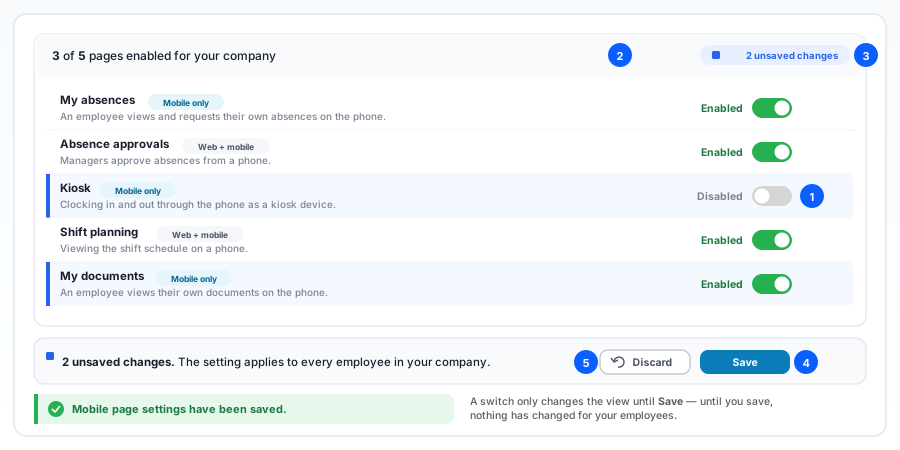
- Mobile only means the screen exists only in the app and has no web counterpart — this is where it is enabled for the first time.
- Web + mobile means the same screen also exists on the web; here you decide only about its phone version. Switching it off here does not touch the web version.
- min. v1.1.0 (or another version) means the page needs a newer app version. On an older one the item won't appear even when enabled — see step 5.
- Unavailable with a padlock means the row is locked and the switch cannot be tapped. The full reason is written under the name, and a short version sits in the padlock tooltip.
- The first reason: the page is not enabled for your company in the system, so it cannot be enabled on mobile either. The second: the page is switched off by the package your company uses.
- Both reasons come from the web side, not from mobile, and are not settled on this tab — that is a conversation with InSync365 support.
- When at least one row is locked, the badge on top of the card reads N unavailable instead of Mobile app, so you don't have to scroll to notice that something is blocked.
4. When an employee actually sees a page
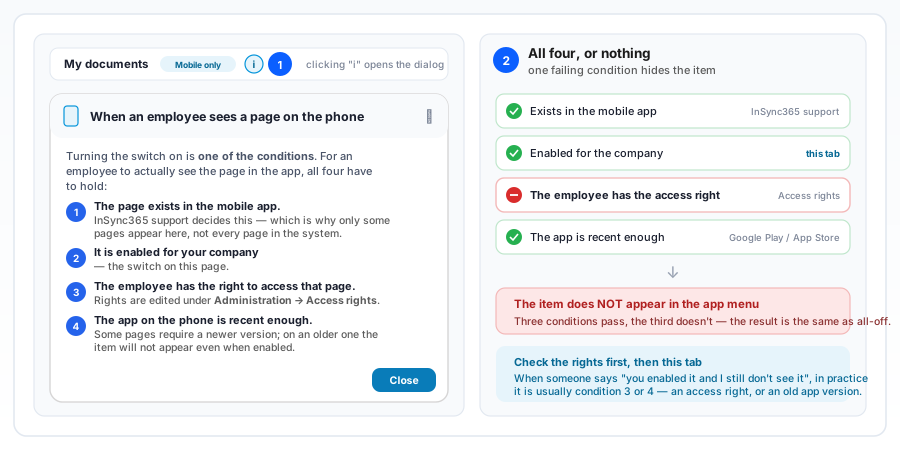
- Next to the name of some pages sits a small "i" icon. Clicking it opens the When an employee sees a page on the phone dialog.
- Condition 1 — the page exists in the mobile app. InSync365 support decides this at system level; that is why only some pages appear on the tab, not every page in the system.
- Condition 2 — it is enabled for your company. That is the switch from step 2, the only condition you control from this screen.
- Condition 3 — the employee has the access right to that page. Rights are edited under Administration → Access rights. An enabled page without the right does not appear.
- Condition 4 — the app on the phone is recent enough. A page with a minimum-version badge will not appear on an older app even when enabled.
- All four have to hold. When somebody reports they can't see an item, in practice it is usually condition 3 or 4 — an access right, or an old app version. Check those before touching the switch.
- For the menu list in the app to change, the user usually needs to reopen the app. If an access right was just granted, signing out and back in is the safer route.
5. Edge cases
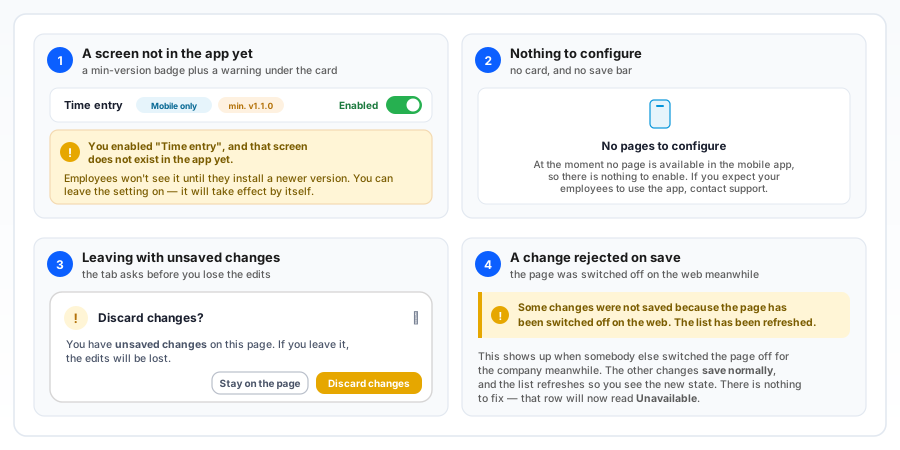
- If you enable a page that does not exist in the app yet, an amber warning naming that page appears under the card. You can leave the setting on — it will take effect by itself once employees install a newer version.
- If the card is entirely empty and reads No pages to configure, no page is currently available in the mobile app. That is not a setting you can change — contact support. In that state there is no save bar either.
- If you try to leave the tab with unsaved edits, you get a Discard changes? question with two options: Stay on the page or Discard changes. Edits are never lost silently.
- The message Some changes were not saved because the page has been switched off on the web means somebody else switched that page off for the company meanwhile. The other changes were saved normally and the list was refreshed — that row will now read Unavailable.
- If an error appears while saving, press Save again. The switches stay as you left them, so you don't have to walk the whole list again.
6. Checking the result for one employee
- Scroll below the card of switches. The second section of the same tab is What the employee sees in the mobile menu.
- Pick a person in the Employee field and you get the exact list of items they receive on their phone — same icons, same order, numbered so you can compare line by line.
- The counter reads X of Y enabled items: Y is what you enabled here, X is what that person reaches. A gap between the two is what their access rights removed.
- Use it right after saving, on one or two employees, to confirm the change landed where you expected. The section is read-only and changes nothing.
- Full walkthrough: Checking what an employee sees in the mobile menu.
This tab decides only what is available on the phone — it does not change the web app and it does not grant rights. If the screen still shows a notice that settings are "stored but not applied yet", that note is left over from an earlier version; the setting does apply.
Related: Checking what an employee sees in the mobile menu · Roles · The mobile kiosk: clocking in from a phone · Company notifications · Creating a user account