1. Opening the preview
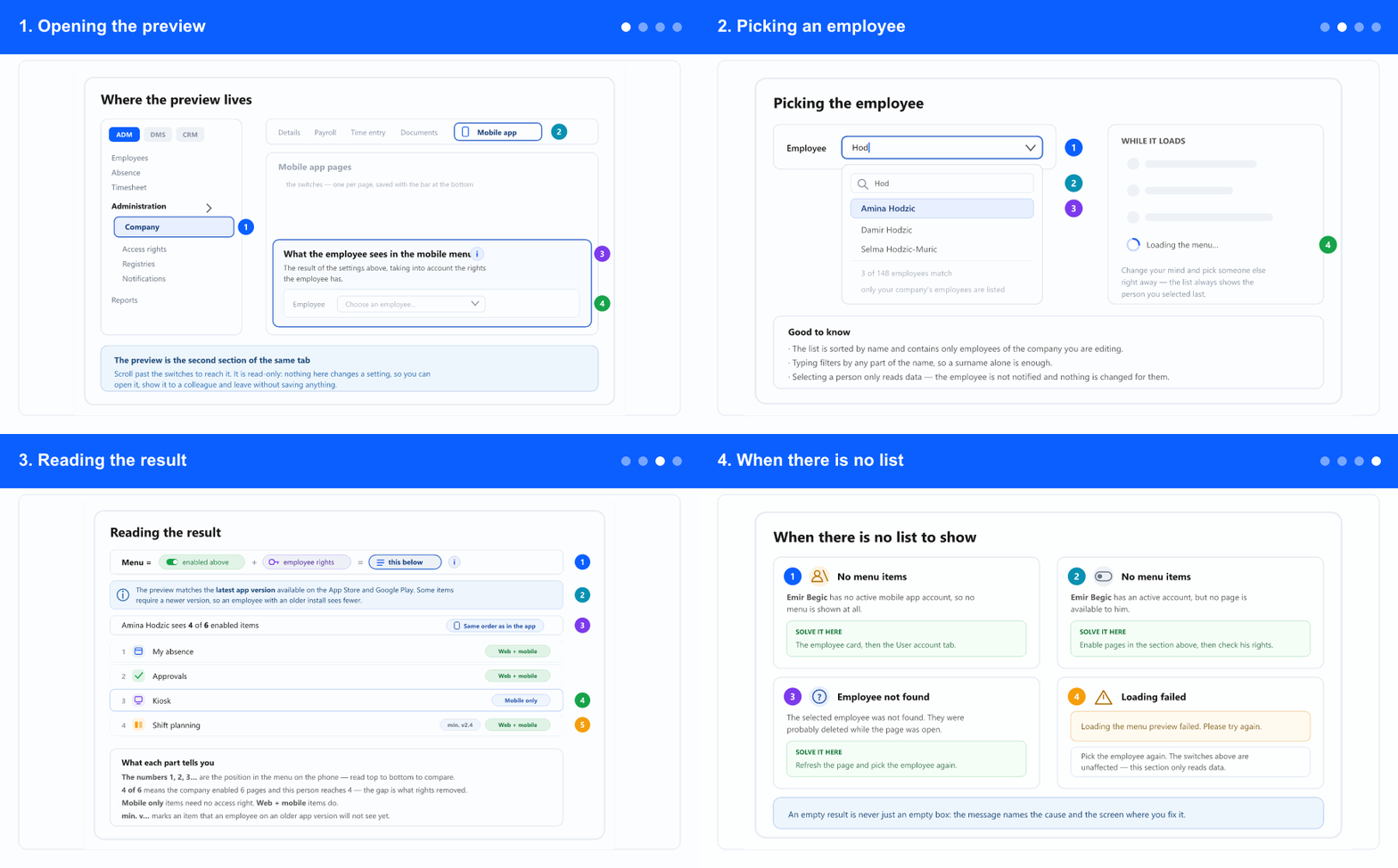
Open the “Mobile app” tabopens in a new window · you need to be signed in
- In the left menu open the ADM tab (if the tab strip is shown), then Administration and inside it Company.
- In the company tab strip pick Mobile app — the tab with a phone icon.
- Scroll past the switches. The second section is What the employee sees in the mobile menu.
- Next to that heading is a small i icon. It opens How it is decided what an employee sees — read it once and most questions about this screen answer themselves.
- Access requires company administrator rights, the same as the rest of the tab.
2. Picking an employee
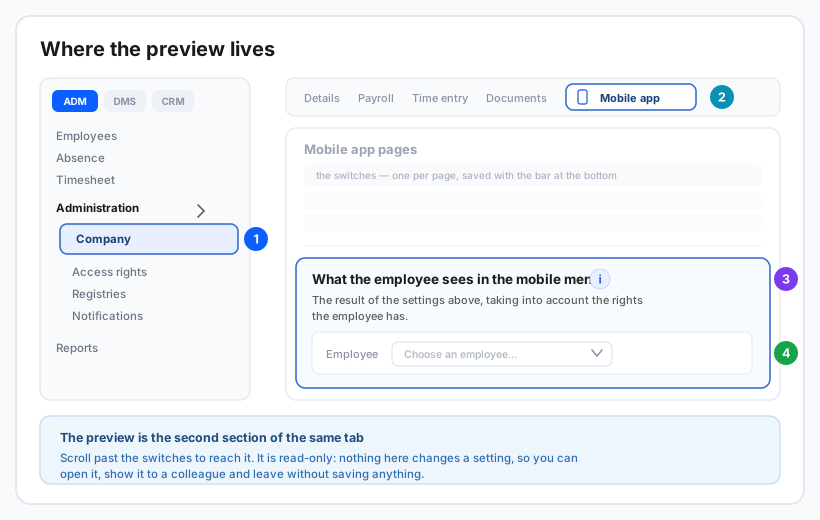
- Click the Employee field. The list is sorted by name and contains only employees of the company you are editing.
- Type a few letters to narrow it down — any part of the name works, so a surname alone is enough.
- Click the name. The menu loads immediately; there is no Show button to press.
- While it loads you see three placeholder rows and Loading the menu…. If you change your mind mid-way, just pick somebody else — the list always ends up showing the person you selected last.
- Nothing is written anywhere. The employee is not notified, and their settings are untouched.
3. Reading the result
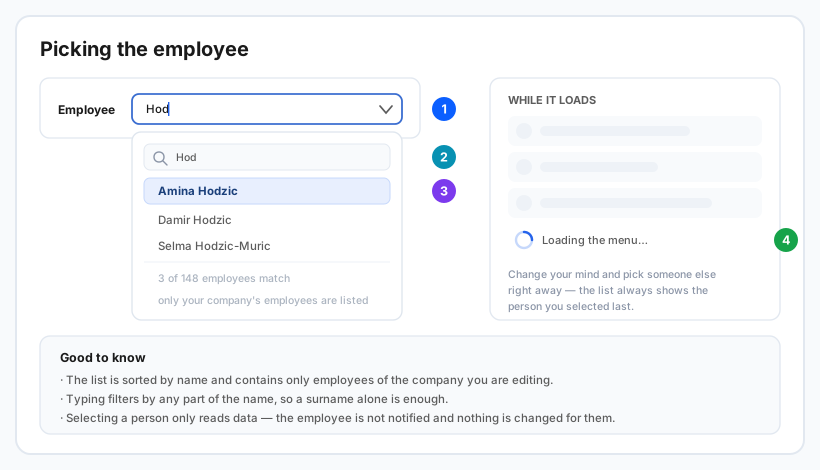
- The bar under the field states the rule: Menu = enabled above + employee rights = this below. The i at its end opens the same explanation as in step 1.
- The blue note reminds you the preview matches the latest app version on the App Store and Google Play. An employee running an older install can see fewer items than you do here.
- The counter reads <name> sees X of Y enabled items. Y is what the company enabled, X is what this person reaches — the gap is exactly what their access rights removed.
- Each row shows the position number, the icon and the name as they appear in the app. Read top to bottom to compare against a phone in front of you; the badge on the right confirms the order matches the app.
- A Web + mobile badge means the page also exists on the web and therefore needs an access right. Mobile only means it exists nowhere else, so the company switch alone decides and no right is involved.
- A min. v… marker means the item requires at least that app version. It is shown here, but an employee on an older version will not have it yet.
4. When there is no list
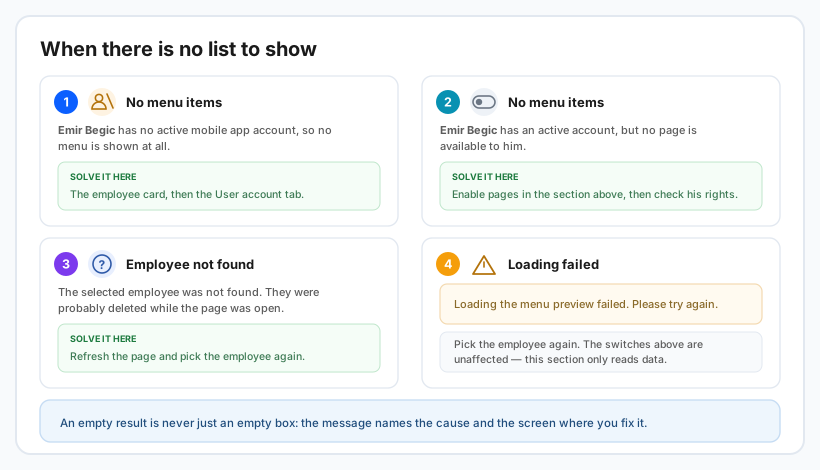
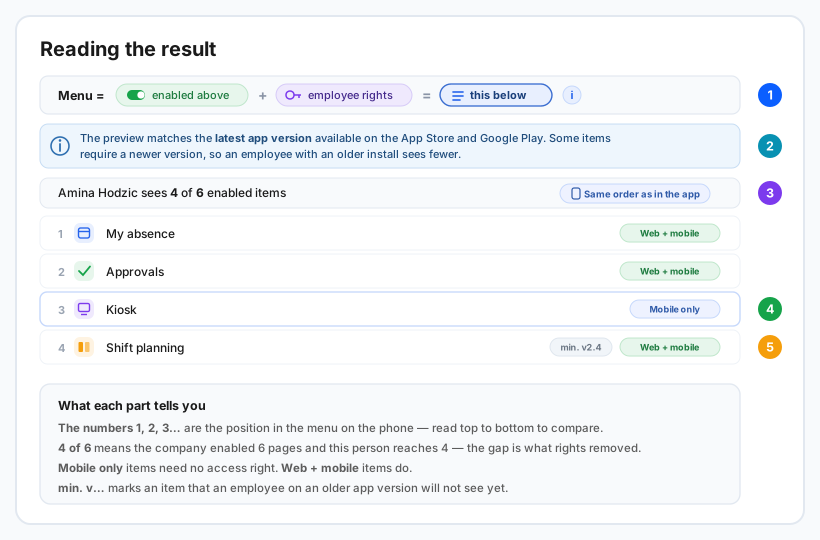
- No menu items plus has no active mobile app account means the person cannot use the app at all. Create and activate the account on their employee card → User account tab, then come back.
- No menu items plus has an active account, but no page is available means the account is fine and the content is not. Enable pages in the section above, then check whether the employee holds the access right for them under Administration → Access rights.
- Employee not found means the person was deleted while you had the page open. Refresh the page and pick them again.
- Loading the menu preview failed is a temporary problem — pick the employee again. The switches above are untouched, because this section only reads.
- Before you touch anything, remember the section shows a blank prompt until you select somebody. An empty panel right after opening the tab is not a fault.
Use this screen as the first step of any "I can't see it in the app" report. If the item is in the preview but not on the phone, the employee's app version is the usual answer — ask them to update. If the item is not in the preview, either the page is switched off for the company or the person lacks the access right, and the badge on the row tells you which of the two to check.
Related: Mobile app pages: enabling them for your company · Roles · Creating a user account