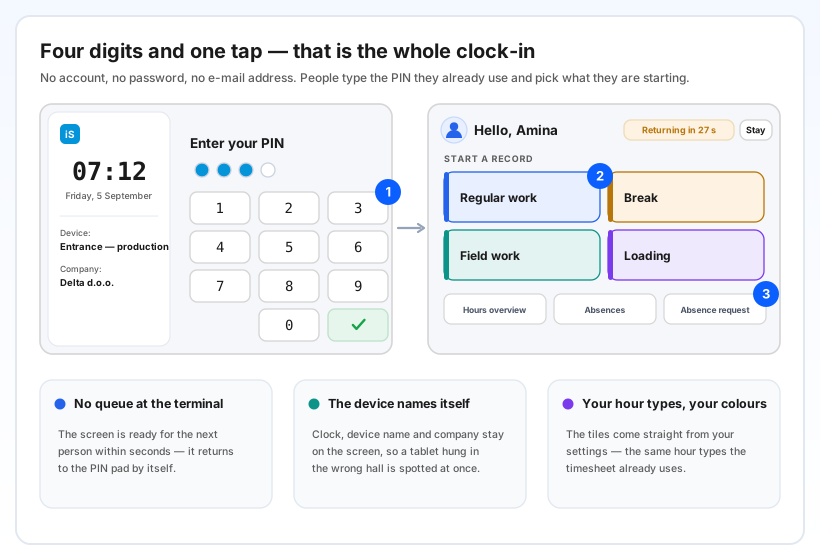
What changed, at a glance
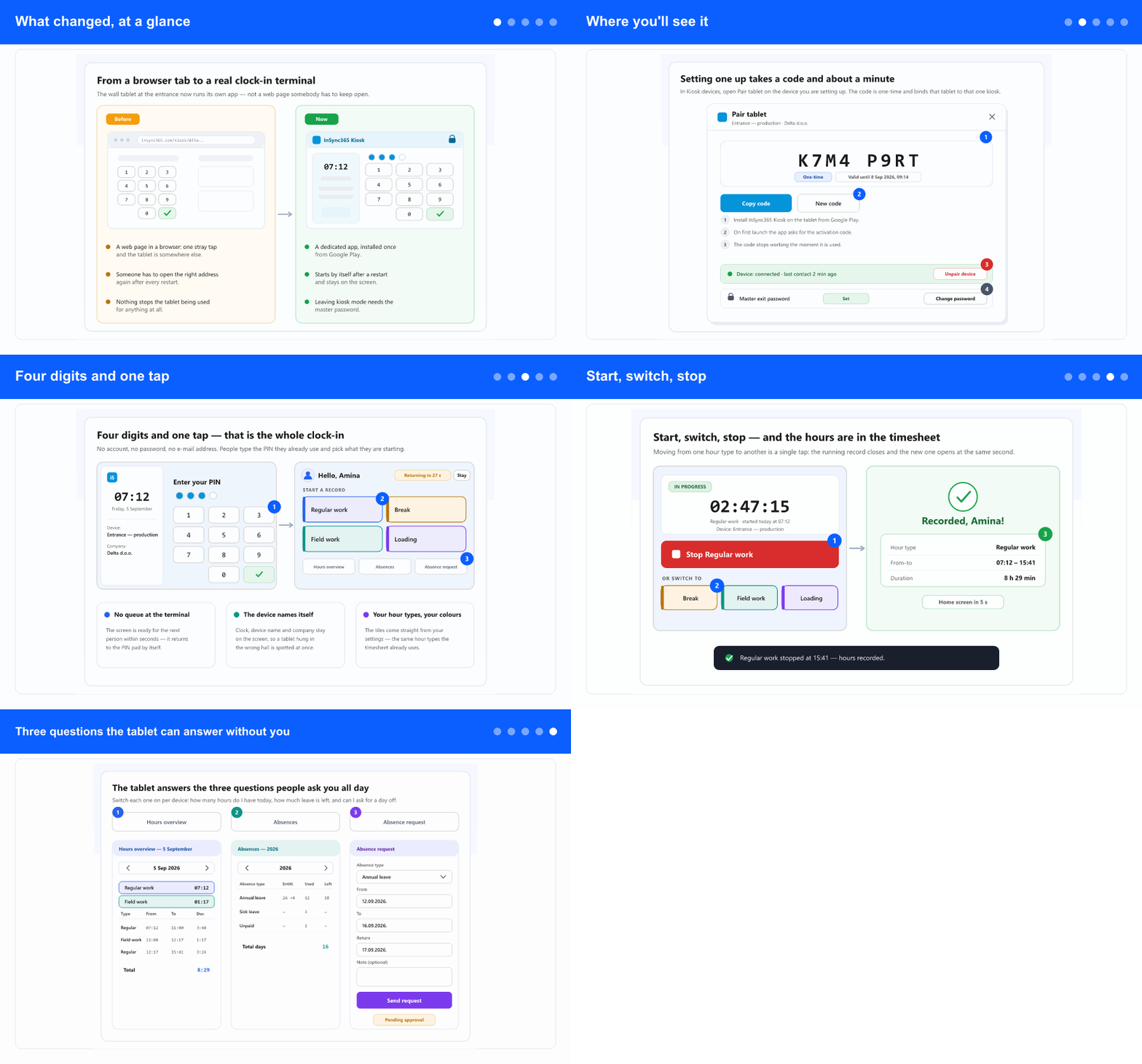
Until now a wall tablet ran the kiosk as an ordinary web page. It worked, but it was fragile in exactly the places where nobody is watching: a stray tap left the page, a power cut left a blank browser, and anyone who felt like it could use the tablet for something else entirely.
The new app removes that whole class of problems. It is installed once from Google Play, it is the only thing visible on the tablet, and after a restart it comes back on its own. There is no address to remember and nothing for a passer-by to close.
Where you'll see it
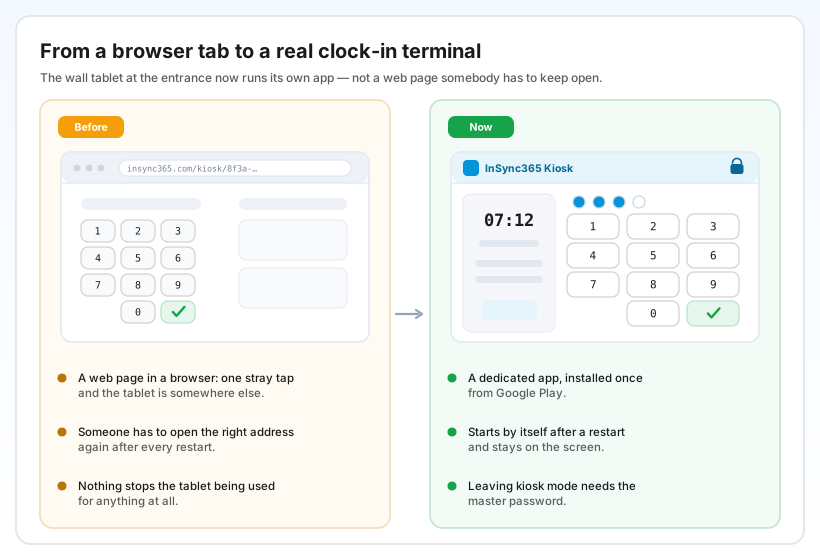
Everything on your side happens where you already manage terminals: in the left menu open the ADM tab (if the tab strip is shown), then Settings and Kiosk Devices. Each device row has a new tablet button — Pair tablet — and opening it shows an eight-character activation code.
On the tablet you install InSync365 Kiosk from Google Play; on first launch it asks for that code. The code is one-time, it expires by itself, and it ties that tablet to exactly one kiosk device — so a tablet cannot end up quietly recording hours for the wrong hall. The same dialog later tells you whether the tablet is still in touch, lets you unpair it if it is replaced or lost, and holds the master exit password that a technician needs to get out of kiosk mode.
What the tablet shows is decided by the device settings you already have: the employee photo, the hours and absence overviews, the absence request, and whether the location must be inside a zone you drew. Nothing new to learn there.
Four digits and one tap
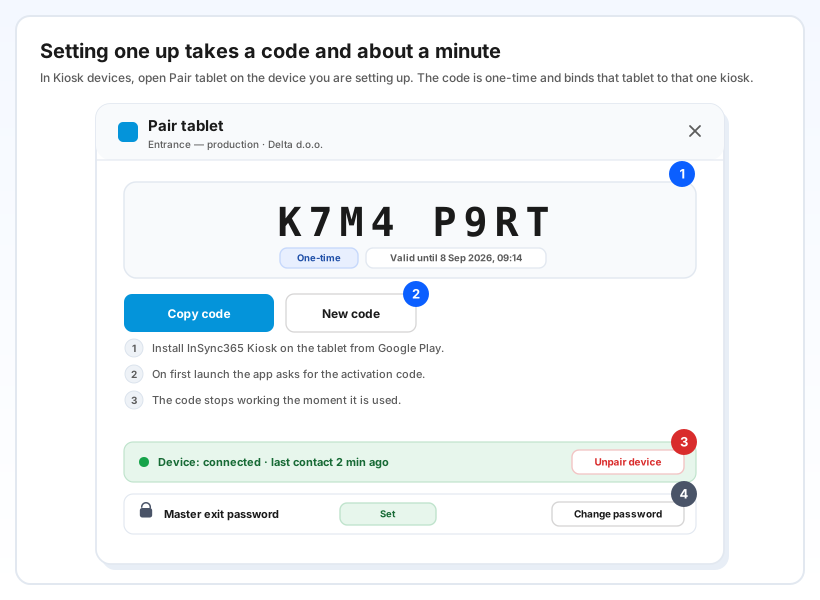
For the people using it, the screen asks one thing: your PIN. No account, no password, no e-mail address — the same code they already use at a kiosk. Then they pick what they are starting from tiles that carry your hour types in your colours.
The tablet says who it is on every screen: the clock, the device name and the company sit permanently on the left. That is deliberate. The clock is the worker's own proof of the time recorded, and the device name means a tablet hung in the wrong place is noticed on the first shift rather than at month end.
Nobody has to remember to sign out either. After an action the screen returns to the PIN pad on its own, with a visible countdown and a Stay button for anyone who wants to keep reading — so the queue behind them never waits, and nobody is thrown off mid-sentence.
Start, switch, stop
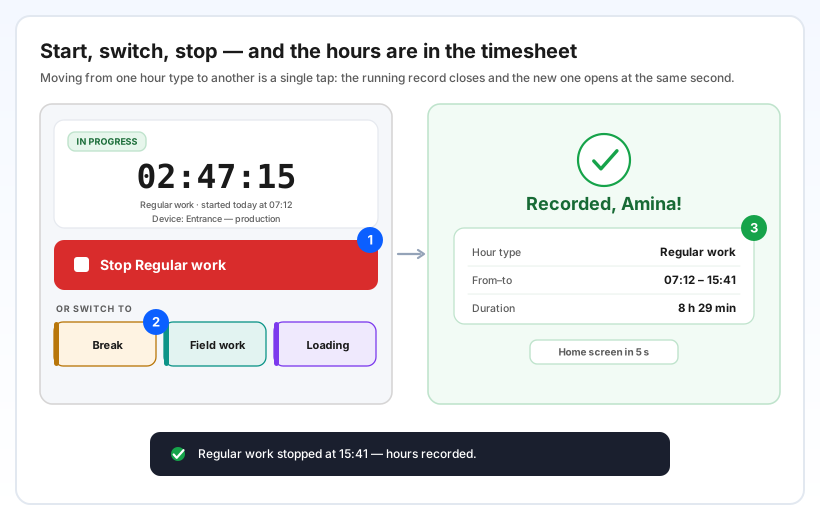
While a record runs, the screen is unambiguous: an IN PROGRESS label, a large running timer, and a red Stop button that is the biggest control on the tablet. Moving from one hour type to another — regular work to field work, work to a break — is a single tap: the running record closes and the new one opens at the same second, with no gap to explain later.
When someone stops, they get a plain summary of what was recorded: the hour type, the from and to times, and the duration. The hours go into the same timesheet as every other clock-in, so approvals, reports and payroll see no difference — and the kiosk dashboard shows tablet records beside the rest.
Three questions the tablet can answer without you
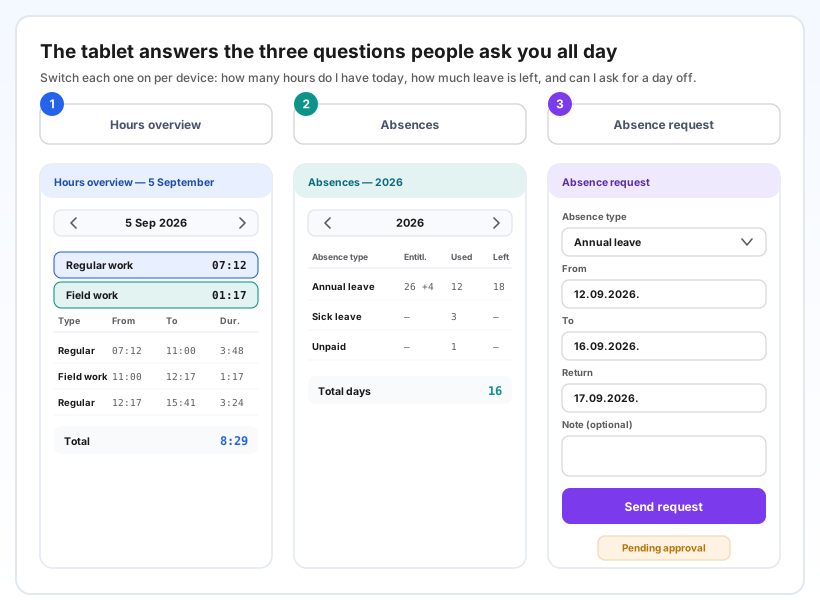
Three buttons can be switched on per device, and each one takes a question off somebody's desk. Hours overview shows the chosen day entry by entry with a total. Absences shows the year: entitlement including carried-over days, what is used, what remains, and the status of each absence. Absence request lets a person ask for leave right there — the request goes to their approver and appears in the web application as pending, exactly like any other.
They are optional on purpose. A tablet at a gate where twenty people pass in five minutes can show only the clock-in; a tablet in a quieter workshop can show all three.
When it will not let someone clock in
Three situations stop a record, and in each of them the tablet says which one it is instead of simply refusing. If you have disabled the device, the screen says so and tells people to contact the administrator. If the tablet has no internet, it says that too and clears itself as soon as the connection returns. And if the device requires a location inside a zone you drew, the buttons stay visible but cannot be used, with a line explaining why — nothing disappears, so nobody concludes an hour type has gone missing.
Why it helps
The terminal stops being someone's chore. No one opens a page in the morning, checks that the right tab is still on screen, or finds the tablet on a news site after the weekend. It boots into the kiosk and stays there.
Wrong-place records get harder. One tablet is bound to one kiosk device by a one-time code, and the device names itself on every screen — two cheap safeguards against hours landing on the wrong hall.
Fewer interruptions for HR and supervisors. Hours today, leave left, a request for a day off: the three most common questions can be answered by the same screen people already stand in front of.
Nothing changes downstream. Records go into the ordinary timesheet with the device stamped on them, so approvals, the kiosk dashboard, reports and payroll carry on exactly as before.
Step-by-step: Setting up the tablet kiosk (administrator) · Clocking in on the tablet kiosk (employee)