1. Open Shift Planning
- In the left menu, open the ADM tab (if shown), then the Shift Planning group, and select Shift Planning.
- Load the month you want to lock. The lock controls described here appear only for administrators.
2. Lock or unlock a single day
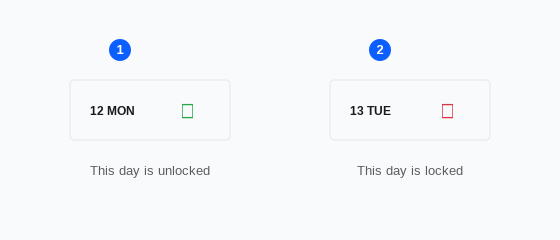
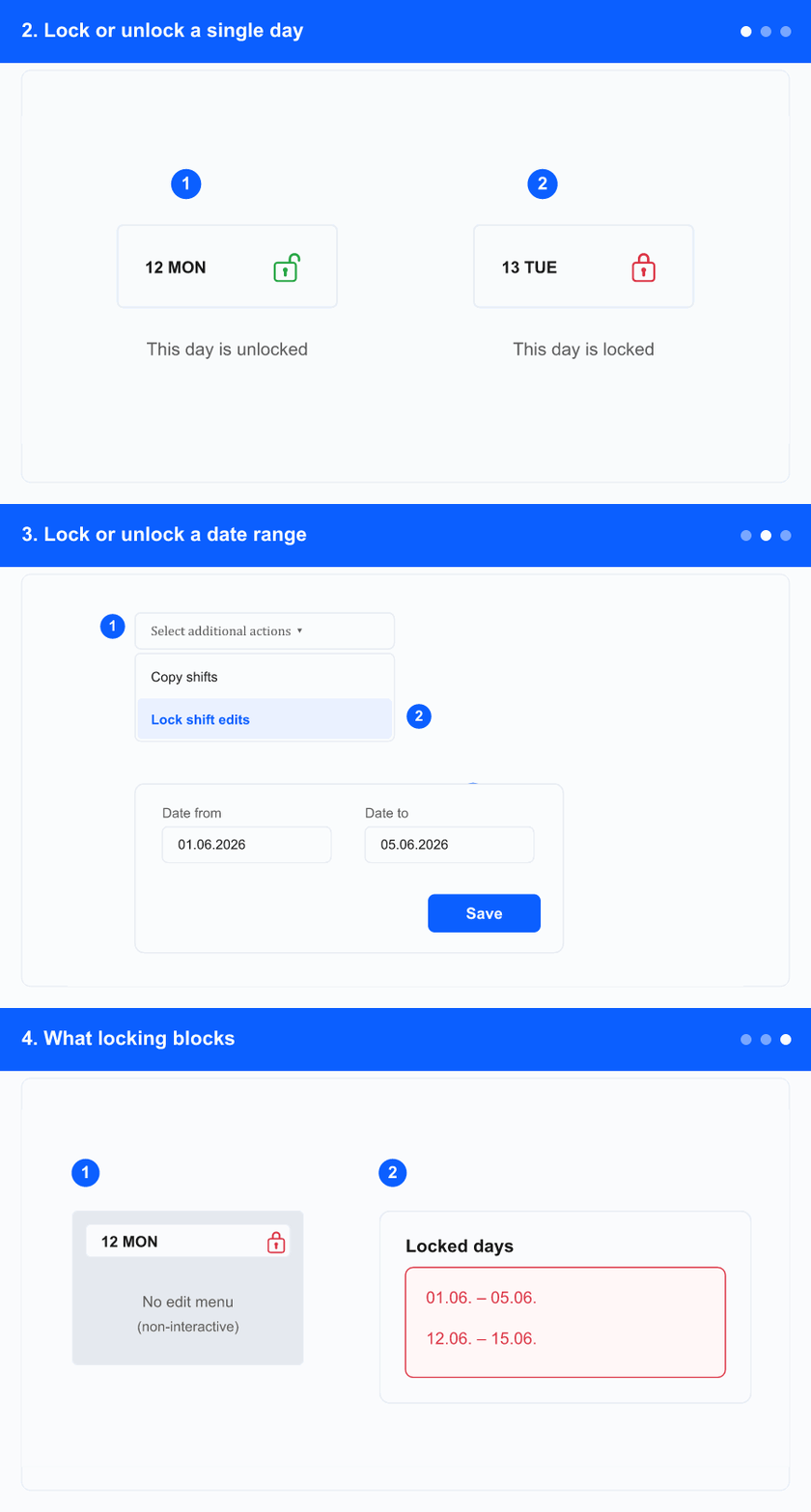
- Each day column header shows a padlock. A green open padlock means the day is unlocked; a red closed padlock means it's locked.
- Click the padlock to toggle that day. Administrators can lock; the people allowed to unlock can unlock (see step 5). An Unlock day window opens where you enter the reason (see step 6). For everyone else the padlock just shows the state.
- The tooltip confirms the state (for example This day is locked. Shift assignments cannot be modified.).
3. Lock or unlock a date range
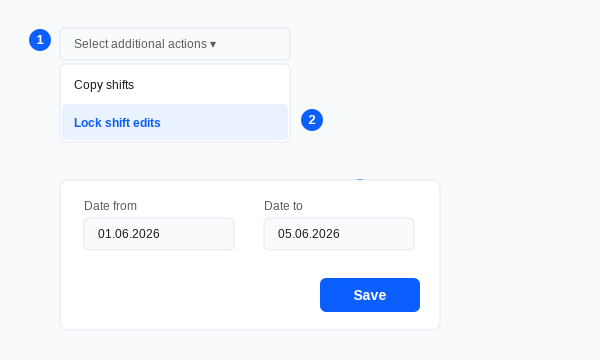
- Open Select additional actions and choose Lock shift edits.
- In the dialog set Date from and Date to (within the loaded month) and click Save to lock that range.
- To reopen days, choose Unlock shift edits from the same menu, pick the range and enter a reason (see step 6).
- Lock shift edits is shown only to administrators; Unlock shift edits is shown to the people allowed to unlock.
4. What locking blocks
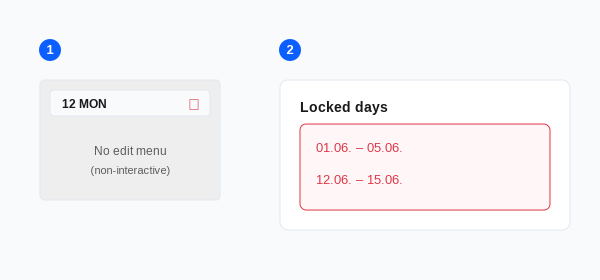
- On a locked day you can't add, edit or delete a shift — the cell doesn't open the edit menu.
- When you assign or remove shifts across a range, a locked-days warning lists the locked date ranges; those days are skipped.
- In Remove Event, absence rows on locked days show a padlock and can't be removed until the day is unlocked.
5. Choose who may unlock the plan
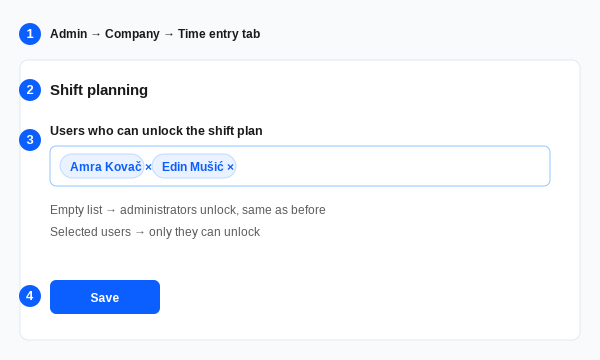
Open the “Time entry” tabopens in a new window · sign-in required
- In the left menu open Admin → Company, then the Time entry tab. Scroll to the Shift planning section.
- In Users who can unlock the shift plan pick the people who may unlock (the list offers users with access to the shift plan) and click Save.
- Empty list: administrators unlock, same as before. Selected users: only they can unlock — an administrator who is not on the list gets the message You are not allowed to unlock the shift plan.
- Locking stays with administrators, regardless of this list.
6. Enter the unlock reason
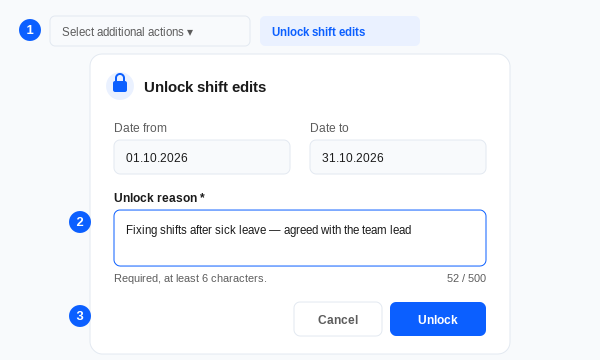
- When you unlock a range (Unlock shift edits) or a single day (the padlock in the header), the window asks for an Unlock reason.
- Type a short explanation, e.g. Fixing shifts after sick leave. The reason is required: at least 6 and at most 500 characters.
- Click Unlock. The message The shift plan has been unlocked. confirms the period is open, and the unlock is written to the history.
7. Review the unlock history
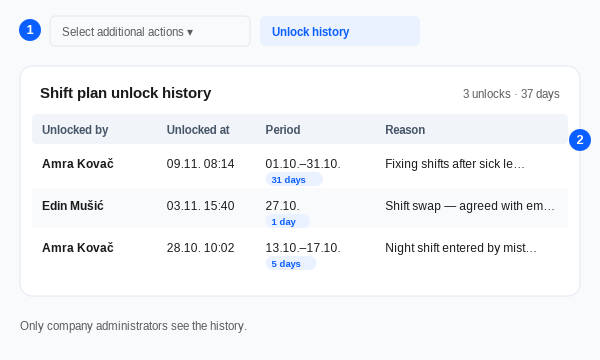
- On the Shift planning screen open Select additional actions and choose Unlock history.
- The table lists every unlock: Unlocked by, Unlocked at, Period (with the number of days) and Reason. You can change the search period.
- Only company administrators see the history.