Week and day — two views of one plan
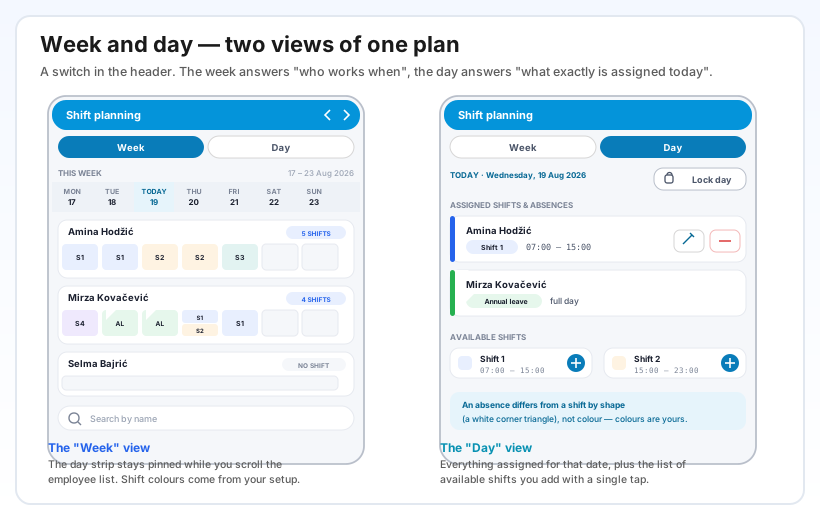
The header carries a switch between Week and Day. The weekly view is one card per employee with seven cells — one per day — and the day strip stays pinned to the top while you scroll the list. Arrows in the header move to the previous or next week; the current week is marked THIS WEEK and today's date TODAY.
A single cell can hold several shifts on the same day — each as its own band, ordered by start time. When there are more than three, the first three are drawn plus a 3+ marker, so the cell stays readable. Next to the employee's name sits a count of shifts for the week, or a NO SHIFT badge if none is assigned.
An absence differs from a shift by shape, not colour — it carries a white triangle in the corner of the cell. The reason is practical: shift and absence-type colours come from your setup, so they cannot be relied on to carry meaning. When the colours are yours, shape is the only dependable difference.
The day view gives the detail of one date: Assigned shifts & absences with from–to times and buttons to edit and remove, then Available shifts — the list of defined shifts you add with a single tap. When you edit a shift you change From, To and the shift type.
If the office is large, use search by name below the list — it filters employees instantly, without reloading the plan.
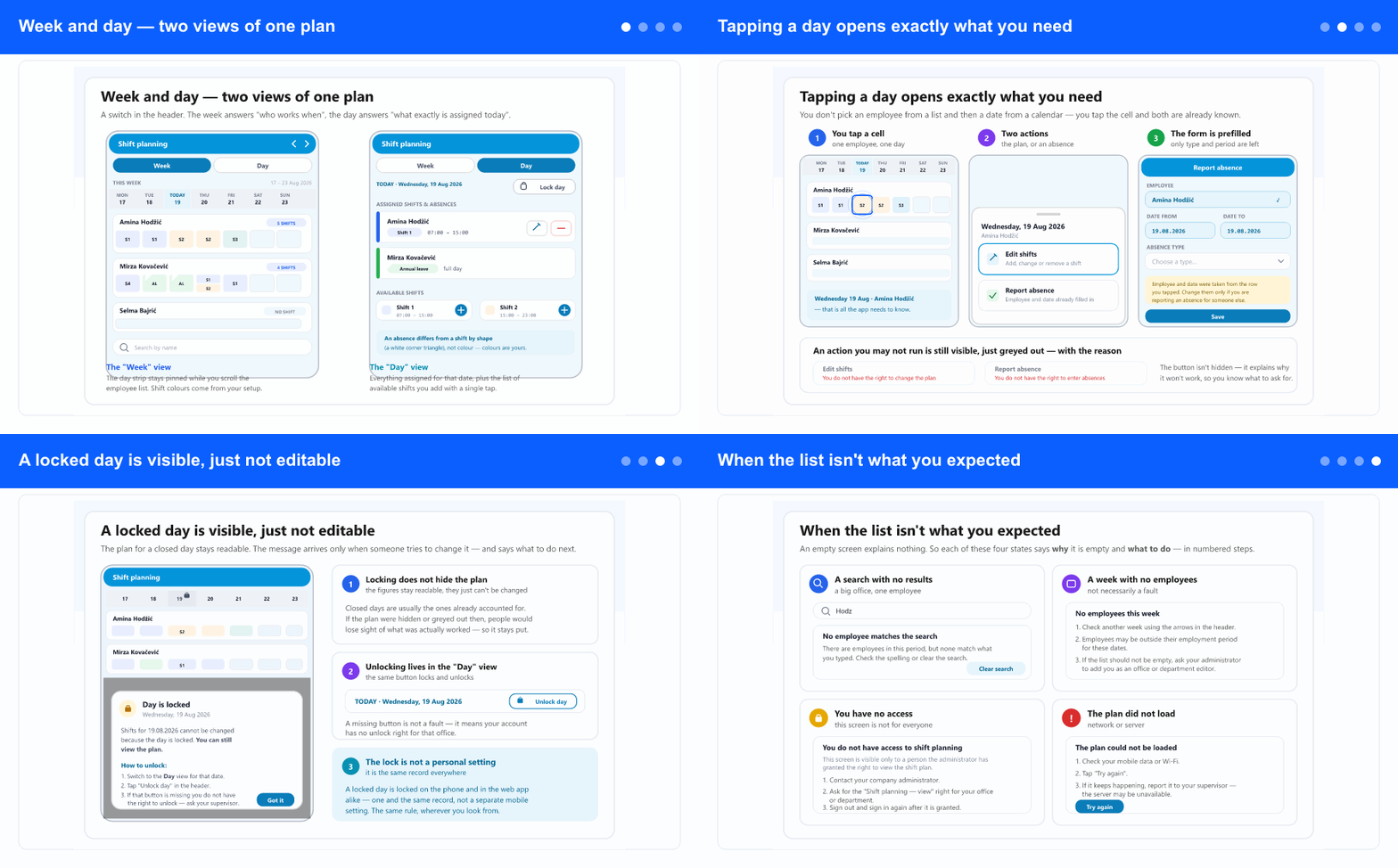
Tapping a day opens exactly what you need
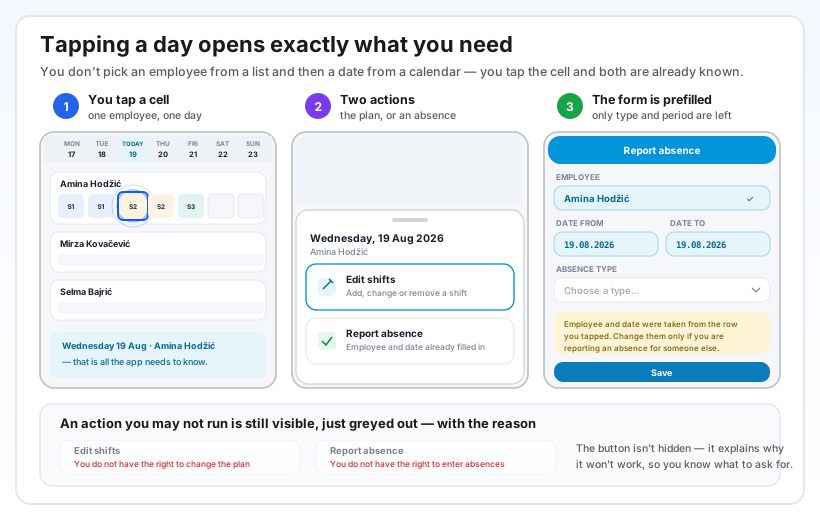
When you tap a cell, the app already knows who and when — that is the whole point of the gesture. A choice of two actions opens: Edit shifts (add, change or remove a shift for that day) and Report absence.
Reporting an absence from there opens a form with the employee and date already filled in, with a note that you only change them if you are reporting for someone else. What's left is the absence type and, if it runs longer, the period. That is the difference between "find the person in a list, then find the date in a calendar" and "tap the cell and finish".
An action you lack the right for is not hidden — it is shown greyed out with the reason: You do not have the right to change the plan or You do not have the right to enter absences. That way you know what to ask the administrator for, instead of hunting for a button that isn't there.
A locked day is visible, just not editable
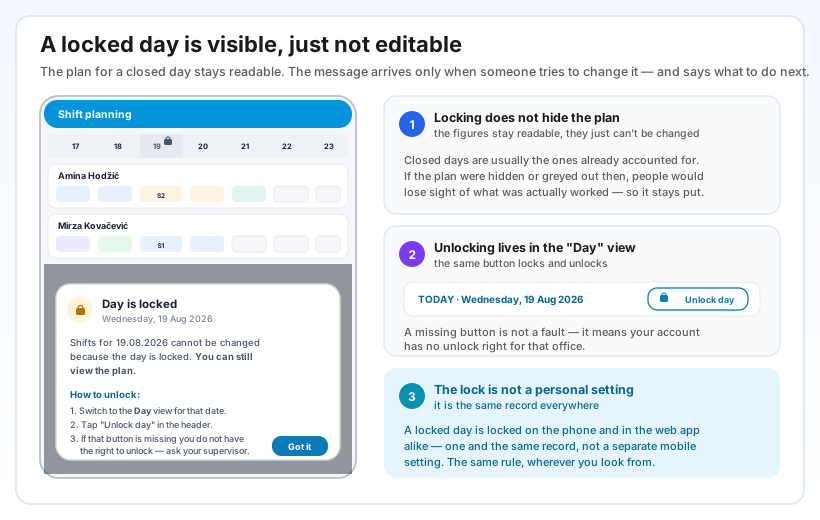
A locked day stays on the screen and stays readable. That is deliberate: closed days are usually the ones already accounted for, and those are exactly the ones people look at most. If the plan were hidden or greyed out then, you would lose sight of what was actually worked.
The message appears only when someone tries to change something, and it doesn't stop at "not possible": it says you can still view the plan, and lists how to unlock — switch to the Day view for that date, tap Unlock day in the header, and if that button is missing, your account has no unlock right and you should ask your supervisor.
The lock is not a mobile setting. A day locked from the phone is locked in the web app too, and the other way round — it is one and the same record.
When the list isn't what you expected
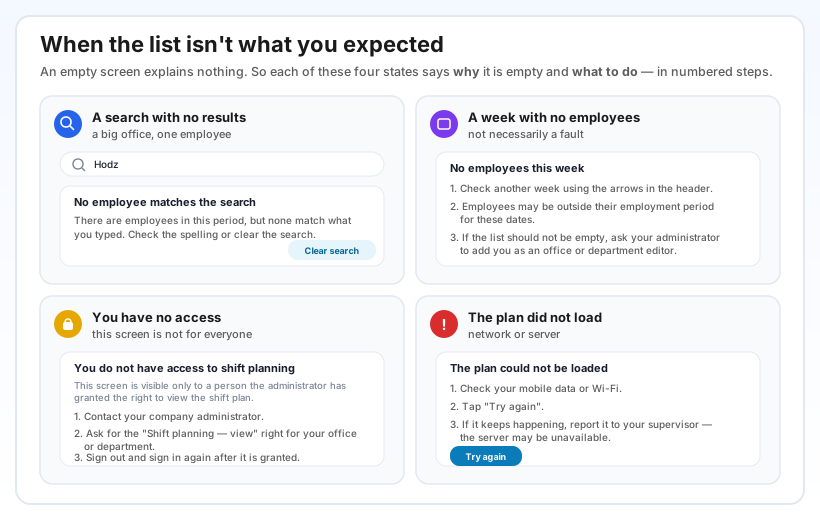
A blank screen says nothing, so the app doesn't have one. Each of the four states where the list isn't what you expected says why and lists numbered steps.
A week with no employees isn't necessarily a fault — you may be looking at the wrong week, or people may be outside their employment period for those dates; the third step says what to ask the administrator for if the list shouldn't be empty. No access explains that the screen is visible only to someone granted the Shift planning — view right, and that you need to sign out and back in once it is granted. The plan could not be loaded walks through the network check, the retry, and when it is time to report it to a supervisor.
Why it helps
A change doesn't wait for the office. Someone calls in to say they can't make it — the replacement is assigned right there, from a car park or a building site, and the plan is correct before the shift starts.
An absence is recorded the moment you learn of it. Instead of a note in a pocket and an entry tomorrow, the absence goes into the system straight away, with the employee and date already filled in.
A week on one screen exposes the gaps. Empty cells and NO SHIFT badges are visible without a single click — so missing cover gets noticed before it becomes a problem.
One plan, two screens. The phone and the web look at the same record: the same shifts, the same absences, the same locked days. Nothing to reconcile, and no two versions of the truth.