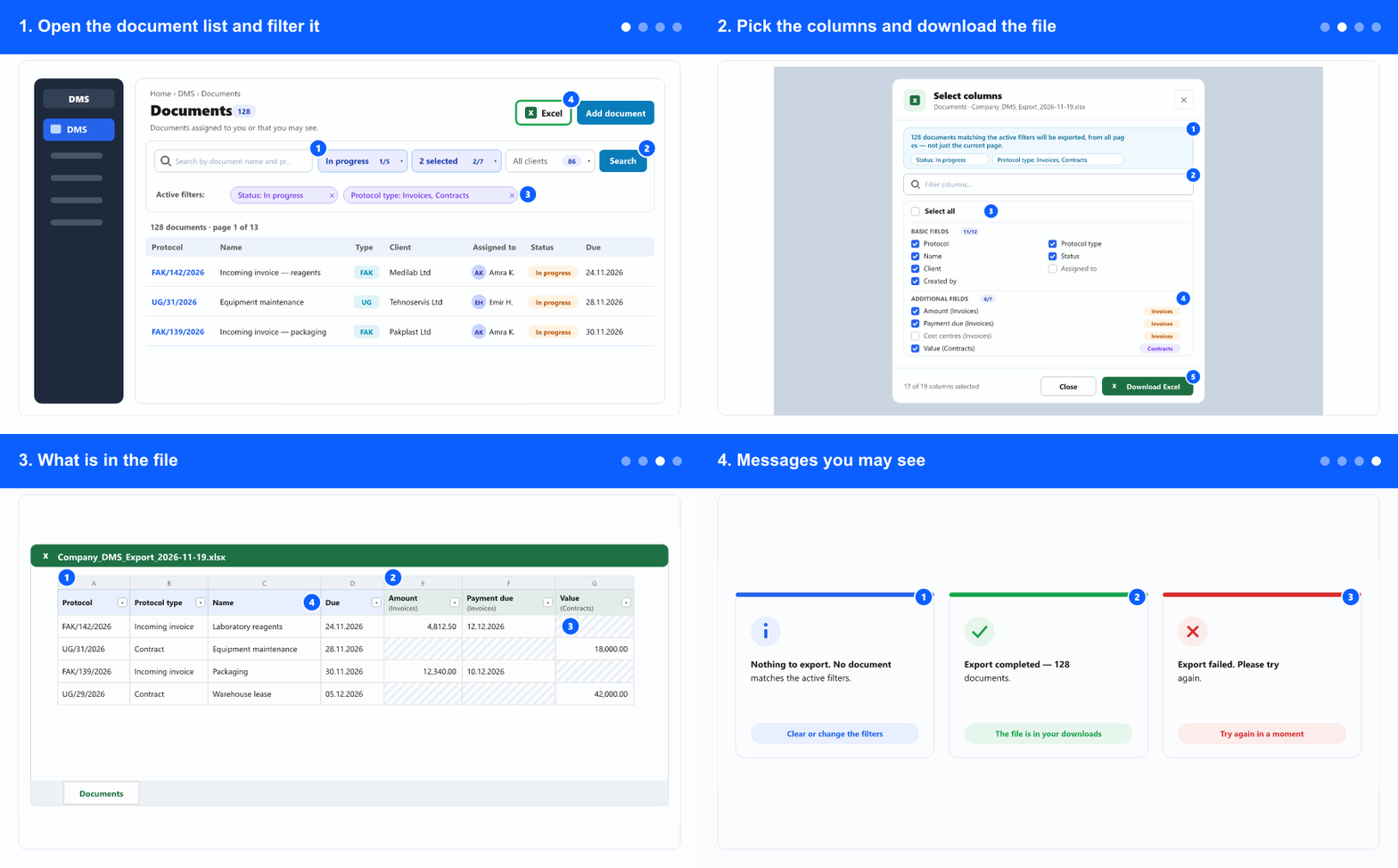
1. Open the document list and filter it
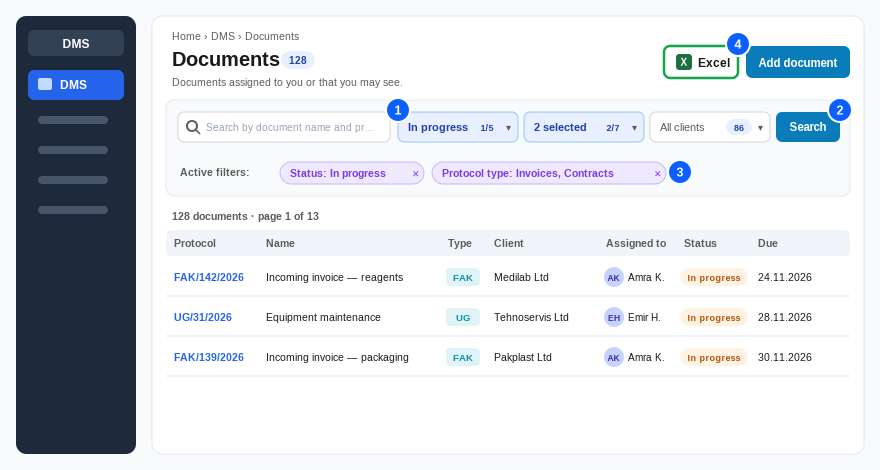
- In the left menu, open the DMS tab (if shown) and choose DMS. The Documents list opens. If you only want some documents, type a term into the search box or pick filters: employee, status, protocol type, client or due date.
- Click Search (or press Enter in the search box). The export only uses filters applied with this button.
- Check the Active filters strip. These are exactly the filters the file will use. With no active filters, every document you can see goes into the file.
- Click Excel in the header, left of Add document. The app prepares the data and opens the column picker.
Documents in the file follow the list’s sort order. The file includes documents from all pages, not just the current one.
2. Pick the columns and download the file
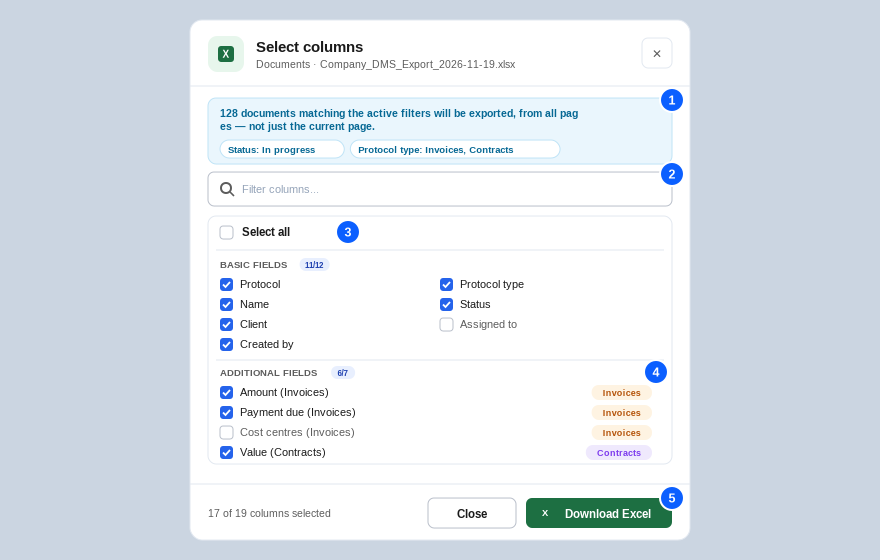
- Read the summary at the top: how many documents go into the file and which filters apply. If the number is not what you expect, click Close and change the filters.
- Type part of a name into Filter columns... to find a column faster in a long list.
- All columns are ticked. Untick the ones you don’t need, or click Select all to tick or untick everything at once.
- The Basic fields group holds the protocol, protocol type, name, status, client, assignee, creator, creation date, due date, departments, sending method and date sent. The Additional fields group holds the fields of the document types in the list, with the type name on the right (e.g. Invoices). Each group shows how many columns are selected.
- Click Download Excel. The file downloads in your browser; its name is the company name, DMS_Export and the date.
The Additional fields group is hidden when the document types in the list have no additional fields. At least one column must be selected.
3. What is in the file
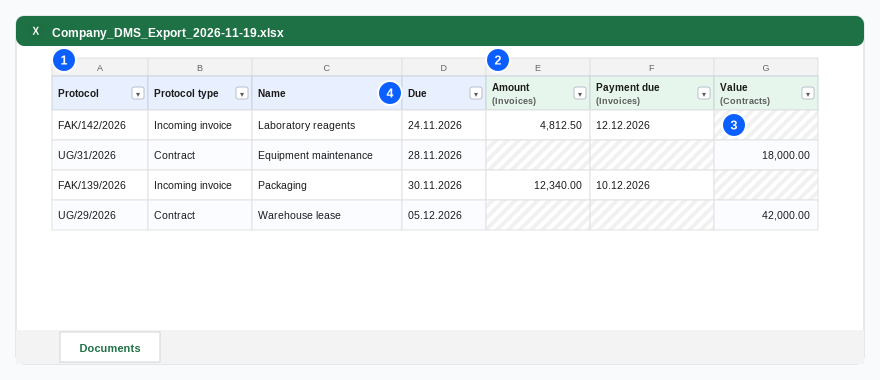
- Each row is one document. Basic columns come first, in the same order as in the column picker.
- Additional fields are named Name (Type), e.g. Amount (Invoices). Amounts and numbers are real numbers and dates are real dates, so you can sum and sort them. Multiple-choice fields are written as values separated by commas.
- If a document’s type has no such additional field, the cell is empty. For example, a contract has no Amount (Invoices).
- Every column header has a filter, and the first row stays visible while you scroll.
The creation date is in Central European time. Notes, attached files and the history of additional fields are not included.
4. Messages you may see
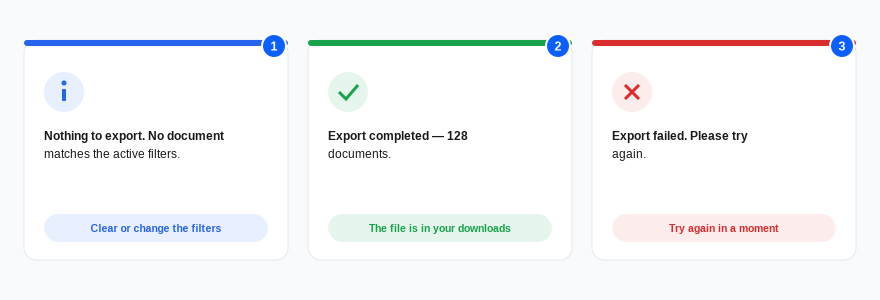
- Nothing to export. No document matches the active filters, so the column picker does not open. Clear or change the filters and try again.
- Export completed — N documents. The file has been downloaded. Look for it in your browser’s downloads.
- Export failed. The file was not created. Try again in a moment. If the message keeps appearing, contact support.
The file only holds documents you are allowed to see in the list. Employees with a DMS role see their own documents and those of the departments they head. A DMS administrator sees all company documents.