Every device clocks in on its own site — hours by location from ZKTeco devices

Added

For company admins, owners and site managers whose ZKTeco devices stand at several locations. You can now give each ZKTeco device a project — the site, warehouse or office where it stands. Every clock-in from that device is recorded on that project.

Until now, hours from all devices landed on one shared project, so nobody could tell which site they came from. Now the reports you already use show hours per location, with no manual corrections.

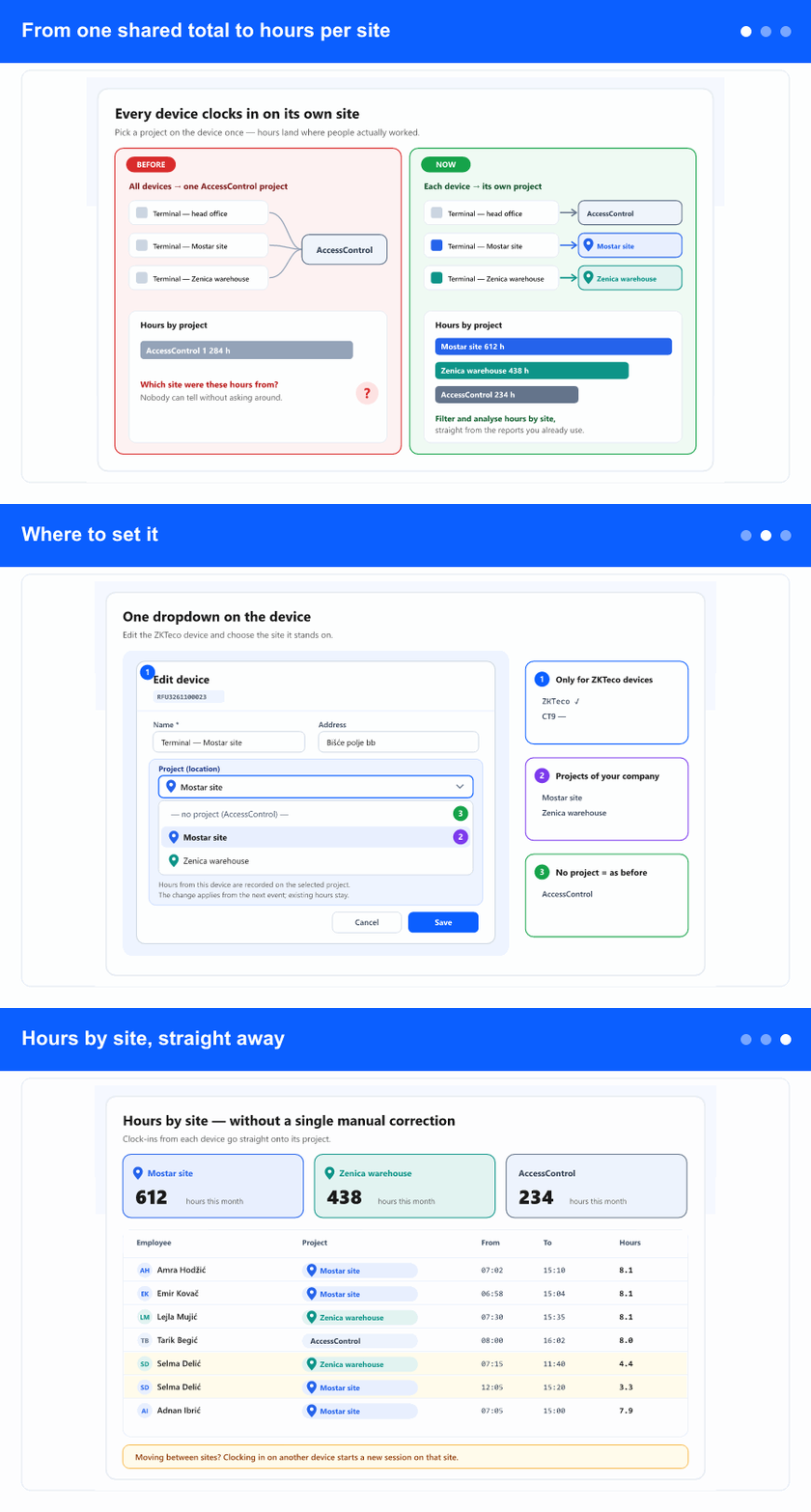
Overview: before, all devices write hours to one project; now each device writes to its own site; the Project dropdown on the device; hours by site in the report.
Before and now · the Project dropdown on the device · hours by site

From one shared total to hours per site
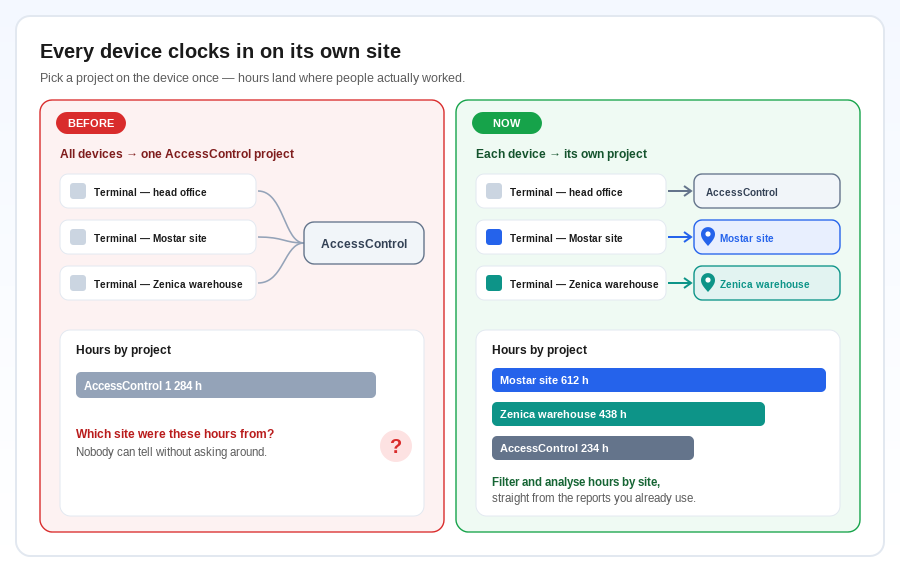
Before and now. Before: three devices all write hours to one AccessControl project, so the report shows a single total and nobody can tell which site the hours came from. Now: the head-office device stays on AccessControl, the Mostar site and Zenica warehouse devices each write to their own project, and the report shows hours per site.
Before: one total for every device · Now: each device on its own site

Until now every clock-in from an access-control device was recorded on a single project called AccessControl. If your devices stand at the head office, on a building site and in a warehouse, all of those hours ended up in one pile — and to find out who worked where, someone had to ask around.

Now each ZKTeco device can carry the project it belongs to. Clock-ins from the site device go to the site project, clock-ins from the warehouse go to the warehouse project. A device without a project keeps working exactly as before.

Where to set it
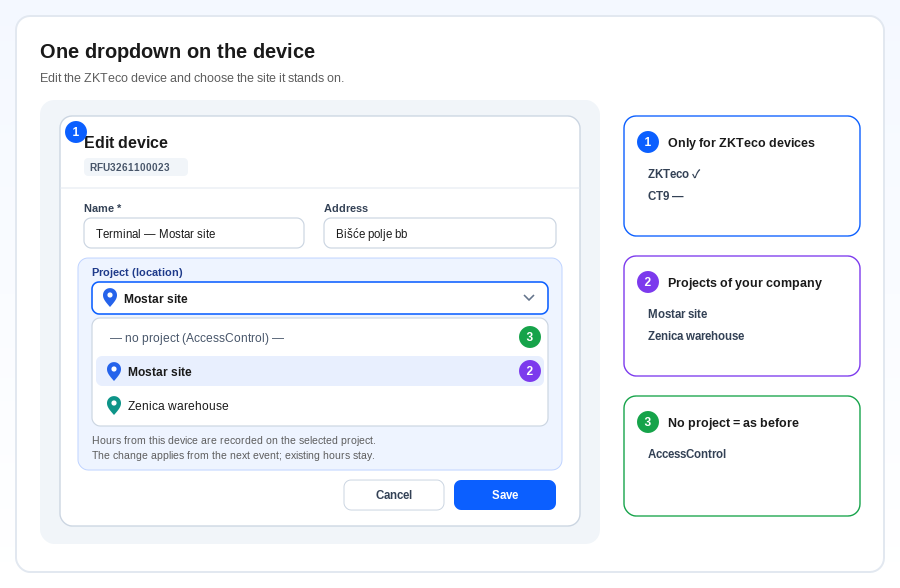
The Edit device window for a ZKTeco device. Below name and address is the new Project (location) dropdown, open: the first option is no project (AccessControl), followed by the company projects Mostar site and Zenica warehouse. On the right: only for ZKTeco devices, projects of your company, no project means everything works as before.
① only for ZKTeco devices · ② your company's projects · ③ no project = as before

In the left menu, under Admin, open My devices and click the pencil next to a ZKTeco device. The Edit device window now has a Project (location) field with your company's projects. Pick the site, click Save — done. The list of devices gets a new Project column, so you can see at a glance which device writes where.

Want a device to go back to the shared project? Pick the first option, — no project (AccessControl) —, and save.

Hours by site, straight away
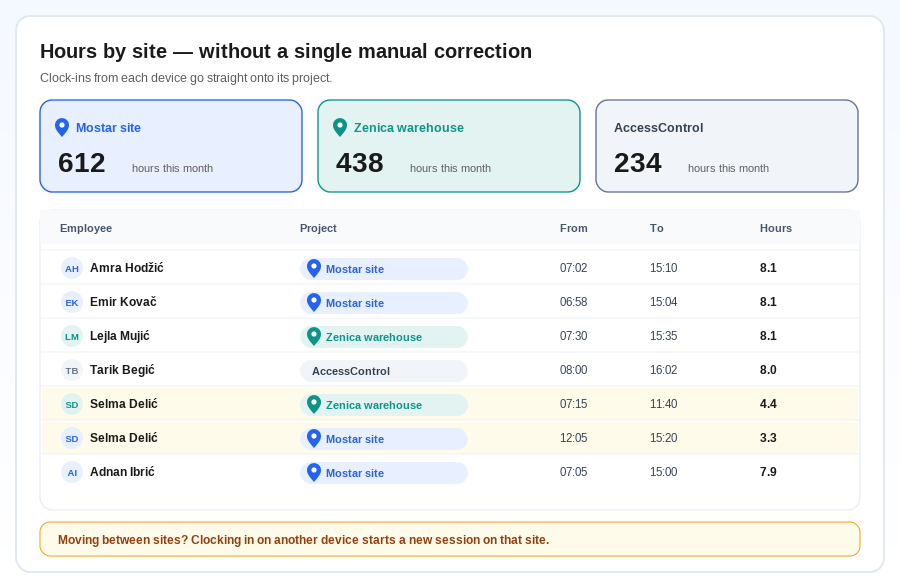
Hours by project for one month: Mostar site 612 hours, Zenica warehouse 438 hours, AccessControl 234 hours. Below, a list of clock-ins with employee, project, from, to and hours; one employee who moved from the warehouse to the site at noon has two rows, one on each project.
Hours per site · moving between sites splits the day by itself

Know where the hours were worked. Every report and filter that works by project now shows hours per location — for planning, invoicing a site, or checking how many people were really on a site last week.

Moving between sites is handled for you. When someone clocks in on another device during the day, a new session starts on that device's project. Half a day in the warehouse and half on the site appear as two rows, each on its own project.

Nothing is lost. Everything that comes from the device is recorded, as before. Changing the project on a device applies from the next clock-in; hours already recorded stay where they are.

Earlier: Your devices, your data — edit a device's name and location yourself · Step by step: Assigning a project to a ZKTeco device

The Project (location) field is shown only for ZKTeco devices, and only to users who already have edit rights on the My devices screen. You can pick only projects of your own company. Devices without a project — and all other device types — keep recording hours on the AccessControl project as before.