Your devices, your data — edit a device's name and location yourself

Added

For company admins who look after clock-in and access-control devices. On the My devices screen every device now has an Edit button. You fix the name, address and exact map location yourself, without writing to support.

A device moved to a new site, or your people call it something else? Fix the record in two minutes, the same day.

Overview: the Edit button in the My devices list, the window with name, address and map, and a before-and-now comparison.
Edit button · name, address and map · before and now

Where to find it

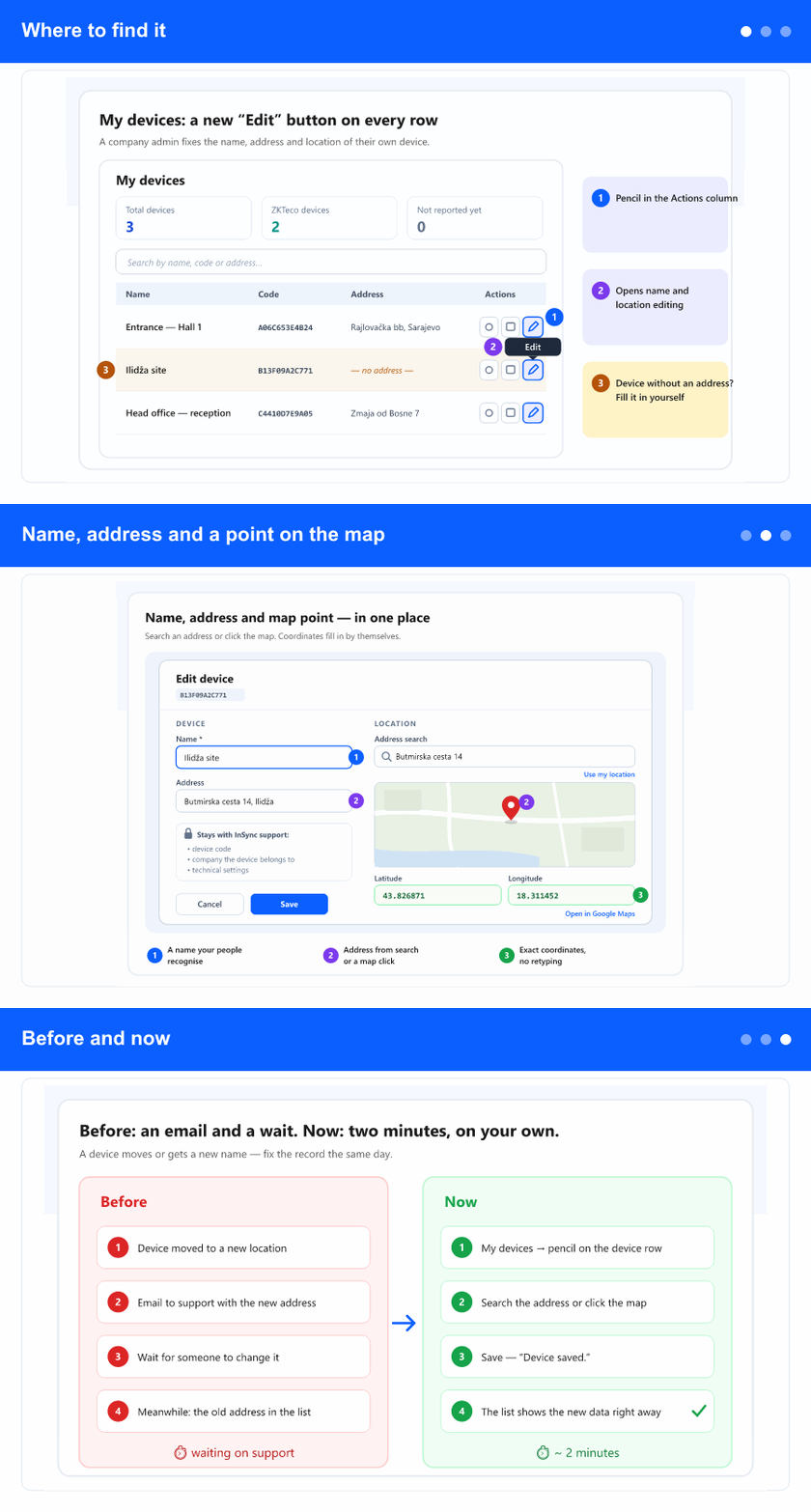
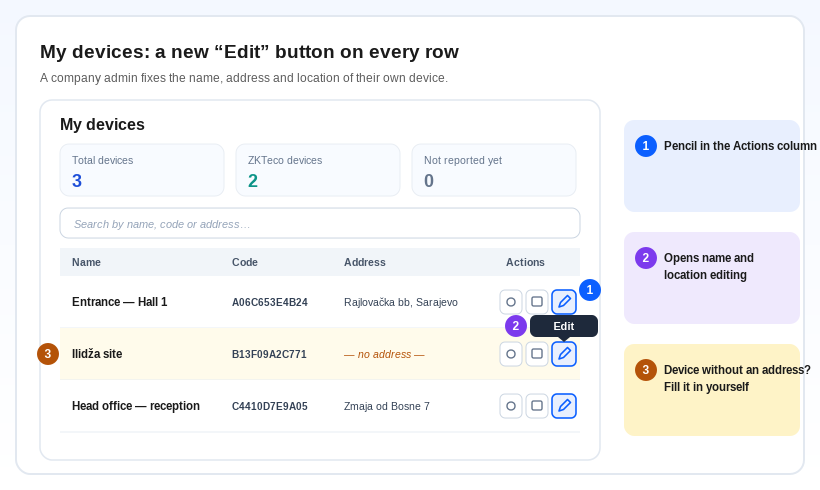
The My devices screen with three devices. In the Actions column every row has a new pencil button; a tooltip reads Edit. The Ilidža site device has no address.
① pencil in the Actions column · ② opens editing · ③ fill in a missing address yourself

In the left menu, under Administration, open My devices. The Actions column now has a pencil next to the existing buttons. Hover over it and it reads "Edit".

Clicking the pencil opens a window with that device's details. It is most useful for devices that show no address, or an old one, in the list.

Name, address and a point on the map
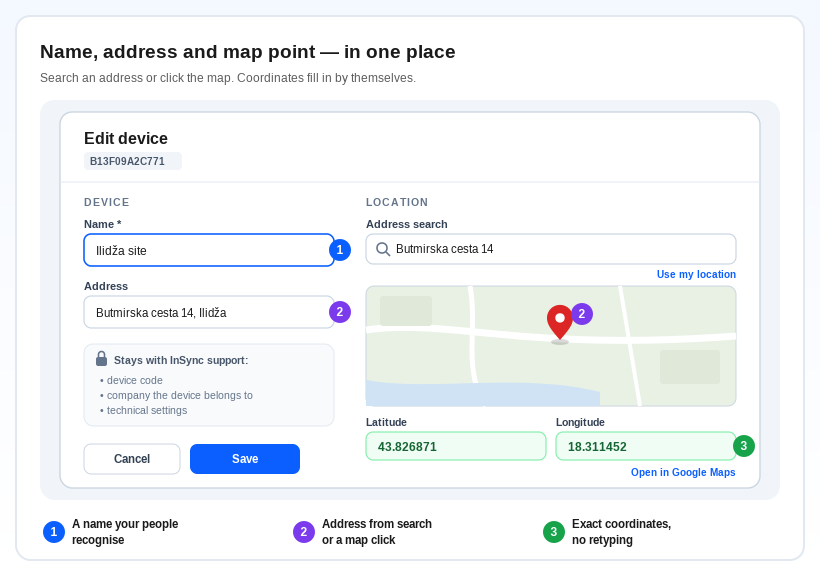
The Edit device window. On the left the Name and Address fields, on the right address search, a map with a red pin, latitude and longitude and an Open in Google Maps link. Below: device code, company and technical settings stay with InSync support.
① name · ② address from search or a map click · ③ coordinates fill in by themselves

On the left you enter a name your people recognise (for example "Ilidža site" instead of a technical label) and the address. On the right is the map: type the address into the search, click anywhere on the map, or pick Use my location if you are standing next to the device. Latitude and longitude fill in by themselves, and the Open in Google Maps link lets you double-check the point.

Click Save. The message "Device saved." confirms the change, and the list shows the new details right away.

The device code, the company the device belongs to and the technical settings stay with InSync support. That way the link between the device and your company can't be broken by accident.

Before and now
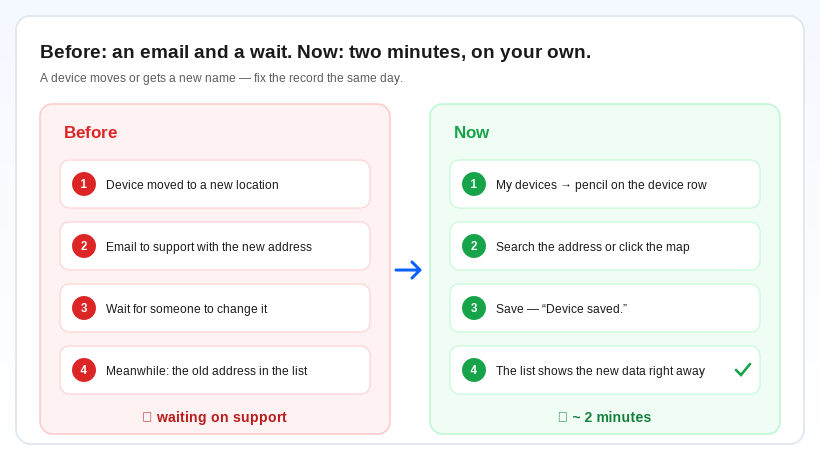
Comparison. Left, Before: moving a device meant an email to support and a wait, while the list showed the old address. Right, Now: pencil on the row, address search or a map click, and Save; the list shows the new data right away.
Before: an email and a wait · Now: a few clicks

No waiting. Until now every change to a device's name or address went through our support. Now it is a two-minute job for your admin.

An exact location. The point is picked on the map, not retyped. For ZKTeco devices the device location travels with the clock-ins from that device, so it matters that it is right.

Clear names. When a device is named after the place it stands, everyone in the company knows which device is meant.

Earlier: Who clocked in with a location — right there in the list

The Edit button is shown to users who already have edit rights on the My devices screen. The name is required. Latitude and longitude go together: fill in both or leave both empty. Deleting a device and moving it to another company still go through InSync support only.