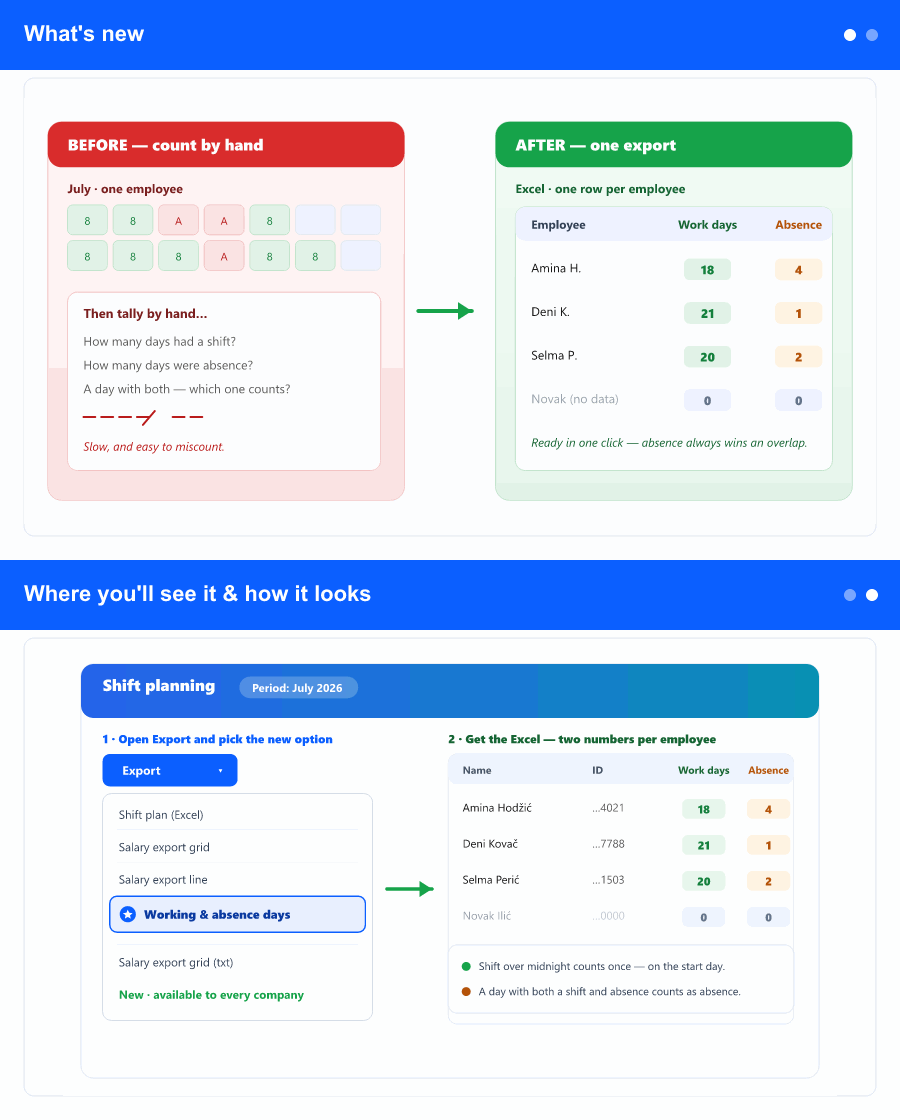
What's new
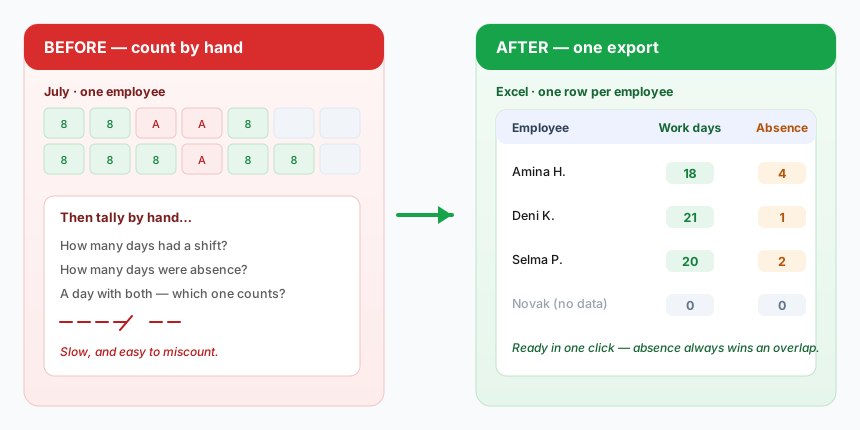
Until now, working out how many days an employee worked—and how many they were away—meant reading it off the shift plan day by day and adding it up yourself. It's slow, and it's easy to miscount, especially when a day has both a shift and an absence.
The new Working & absence days export does the counting for you. For the month you're viewing, it produces an Excel with one row per employee and two figures: Working days and Absence days. It's available to every company—no special setup.
Where you'll see it & how it looks
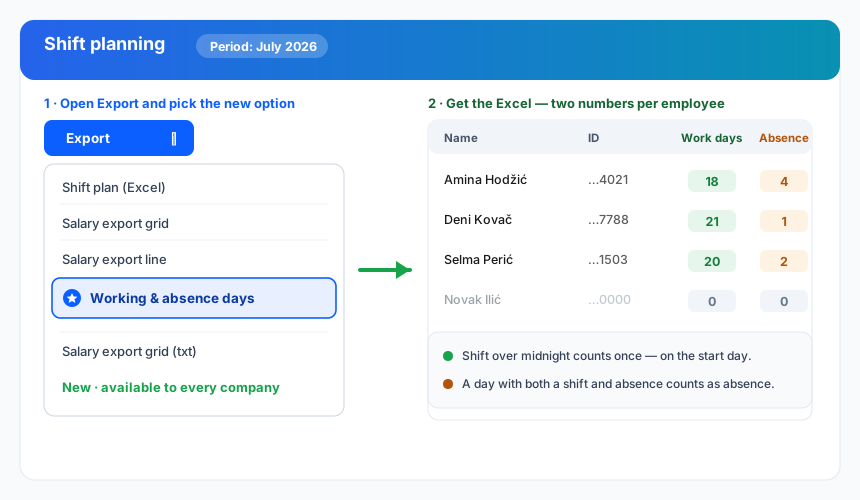
On the Shift planning screen, open the Export menu you already use for the other exports. You'll find a new entry, Working & absence days. Choosing it opens the same column picker as the other exports, so you can keep or drop the identity columns (row number, name, ID) before you download. Press save and the Excel downloads for the month and the employees currently in view.
The figures follow simple, predictable rules:
- Working days — the number of days in the month with a shift that started, counted by the day the shift begins. A shift that runs past midnight (say Friday into Saturday) counts once, on the Friday.
- Absence days — the number of days in the month with any absence.
- When a day has both a shift and an absence, it counts as an absence day, not a working day—so the two columns never double-count the same day.
- Someone with no shifts and no absences simply shows 0 and 0; the export never breaks on empty data.
Why it helps
It turns a manual, error-prone tally into a one-click number you can trust—useful for monthly checks, quick reconciliations, and sharing a clear per-person summary with colleagues. Because it respects the filters and the month you already have on screen, and covers only your own company's employees, what you export is exactly what you're looking at.