Why this was needed
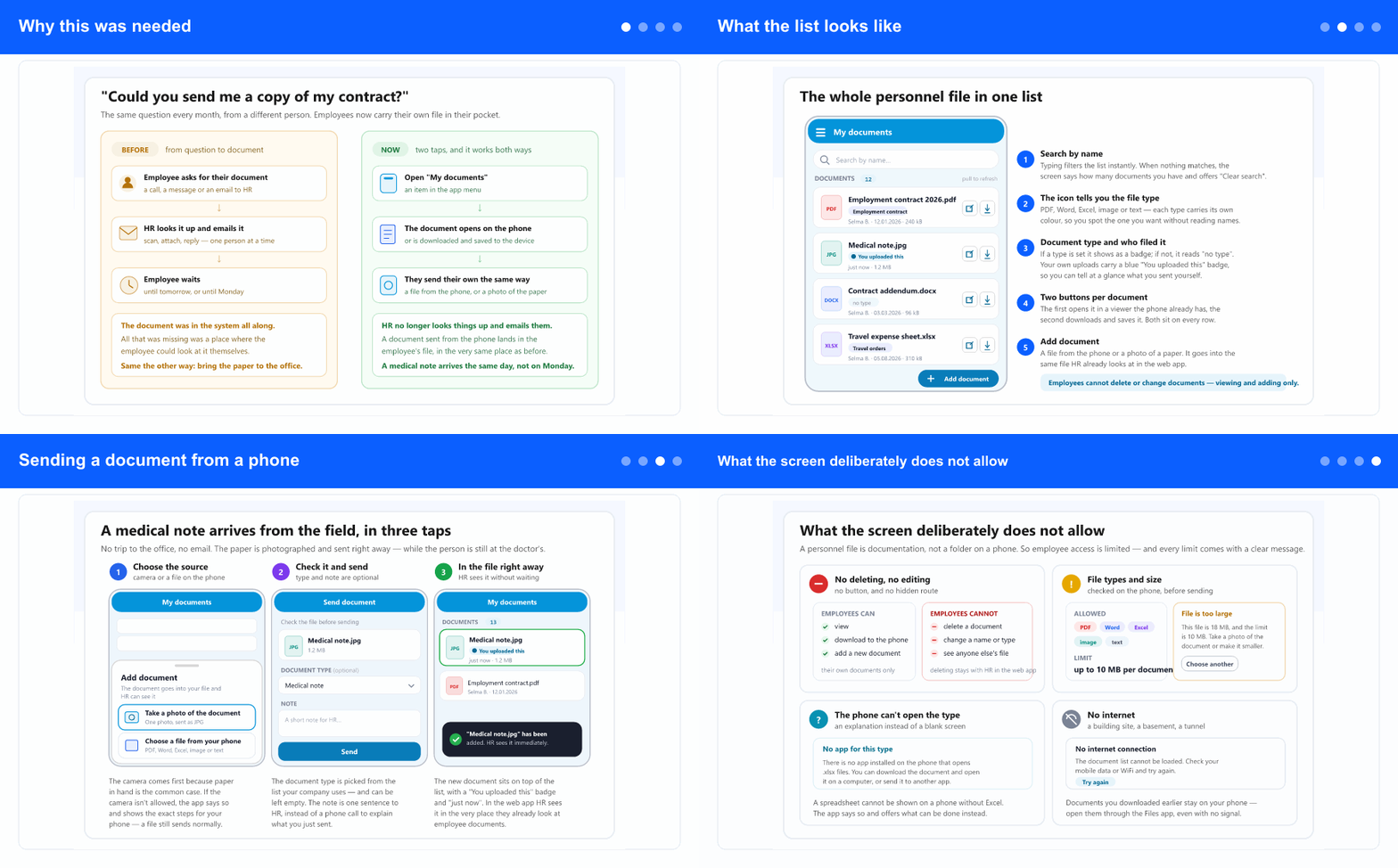
Employee documents were already in the system — HR sees them on the employee card, under the Documents tab. All that was missing was a place where the employee themselves could look at them. So every requested contract went through a call or an email: someone asks, someone looks it up, someone scans and attaches, someone replies — one person at a time, over and over.
It was the same in the other direction. A medical note, a confirmation, a statement — all of it was carried into the office, or photographed and sent as a private message, leaving someone else the job of moving it into the system. If the person was in the field, on a site or in another town, that route took a day or two.
Now the same list exists on both sides: HR sees it in the web app, the employee on their phone. Nothing is copied and nothing is retyped — it is one and the same file.
What the list looks like
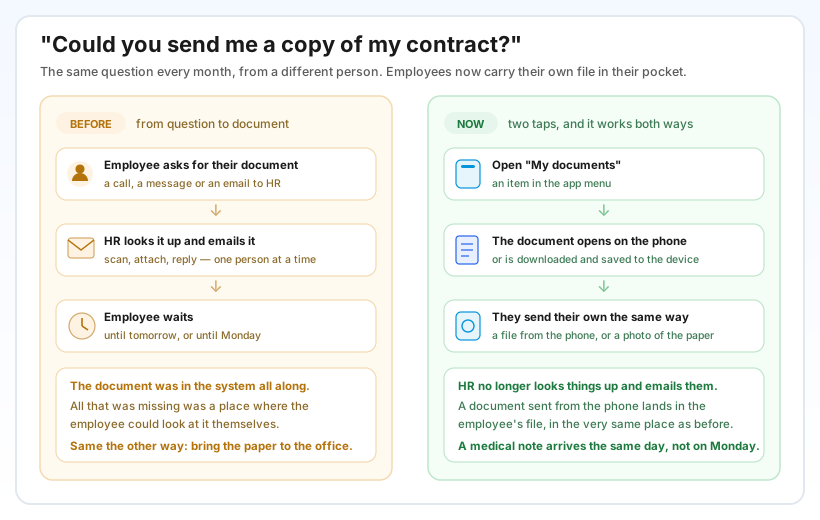
You open the screen from the app menu, the My documents item. At the top is search by name, filtering the list as you type; if nothing matches, the screen says how many documents you have in total and offers Clear search. You refresh the list by pulling down.
Every row carries a coloured file-type icon — PDF, Word, Excel, image, text — so you find a document by eye, without reading names. Next to the name sits the document type as a badge (or no type, if none is set), then who filed it, the date and the size. Anything you sent carries a blue You uploaded this badge, so it stands apart from what HR filed.
Each row has two buttons. The first opens the document in a viewer the phone already has; the second downloads and saves it to the device, confirming "… has been saved to your device". If the file is still empty, the screen doesn't leave it blank: it says No documents yet, explains where documents come from and offers Add your first document.
Sending a document from a phone
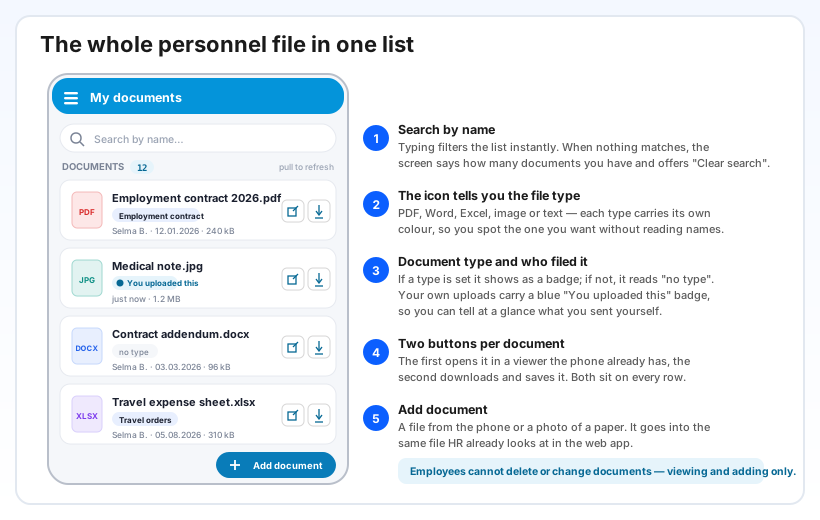
The Add document button sits in the bottom-right corner and offers two routes. Take a photo of the document captures one photo and sends it as an image — deliberately the first option, because paper in hand is the common case. Choose a file from your phone accepts PDF, Word, Excel, an image or text, up to 10 MB.
Before sending you get a short form: you see which file you are sending and its size, you can pick a document type from the list your company uses (optional — it can stay empty), and add a note for HR. That single sentence replaces the phone call explaining what was sent and why.
After Send, the document sits at the top of your list with a You uploaded this badge and a just now stamp, and the confirmation says HR can see it immediately. There is no approval step and no waiting — the document is in the file, in the very place HR already looks at employee documents.
What the screen deliberately does not allow
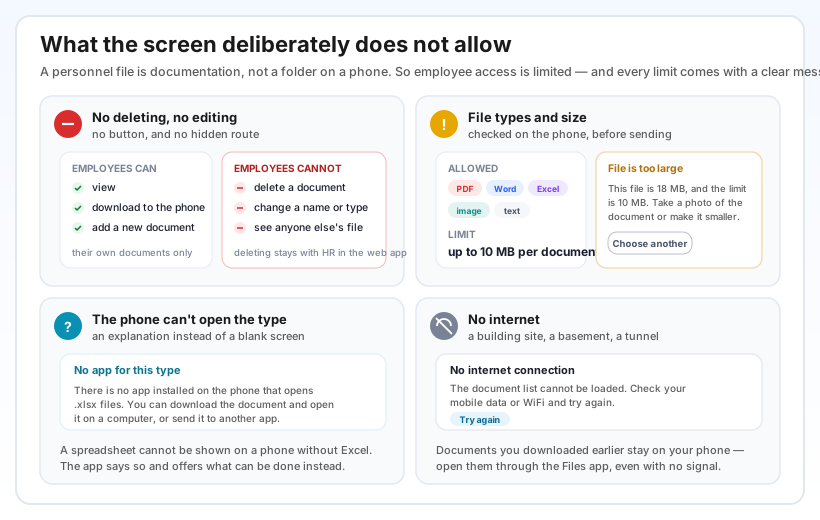
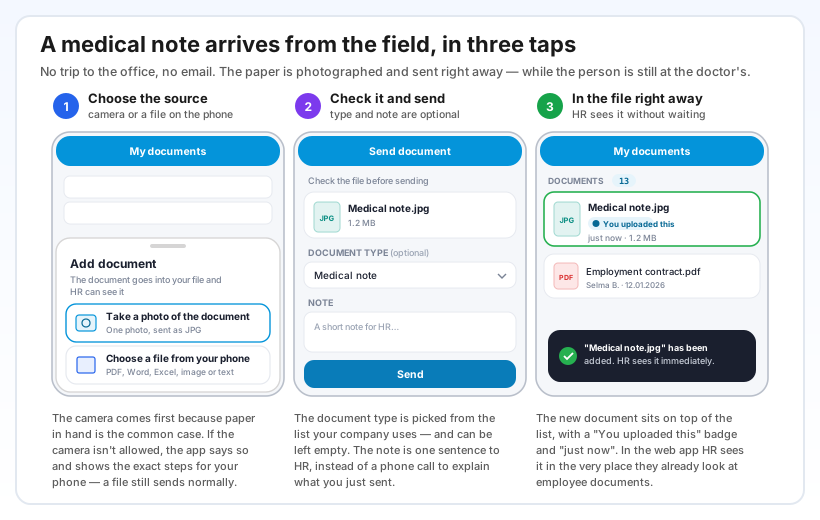
Employees cannot delete or change documents. There is no button, and no hidden route either. They can view, download and add new ones — and only their own. Deleting and editing stay with HR in the web app. A personnel file is documentation, not a folder on a phone, and that difference is deliberate.
Limits are checked before sending, on the phone. If a file is of the wrong type or too large, the app says so before anything is sent, and says it concretely: "This file is 18 MB, and the limit is 10 MB. Take a photo of the document or make it smaller." Next to the message sits Choose another, so you carry straight on.
When the phone cannot open a file type — a spreadsheet on a phone without Excel, say — the app doesn't show a blank screen; it says there is no app for that type and suggests downloading the document to open on a computer, or sending it to another app.
With no internet connection — in a basement, a tunnel, on a building site — the list cannot load and the screen says so plainly, with Try again. Anything you downloaded earlier stays on the phone and opens through the Files app, signal or no signal.
If the camera is not allowed, the app doesn't stop: it says a file from the phone can still be sent without that permission, and for the camera it shows the exact steps for your phone (Android and iPhone each get their own).
Why it helps
HR stops being a copy shop. Looking up, scanning and emailing copies one person at a time disappears. The employee finds their own document in three seconds, without anyone's help.
Paperwork arrives while it is still fresh. A medical note photographed at the doctor's is in the file before the person gets home — not at the end of the week, after it has been chased and reminded about.
Fewer lost documents. When there is one obvious route for sending, documents stop circulating through individuals' private messages and inboxes and landing in the file only if someone remembers.
Employees can see what is theirs. The contract and its addenda are available without asking and without waiting — which is a matter of the relationship, not only of speed.