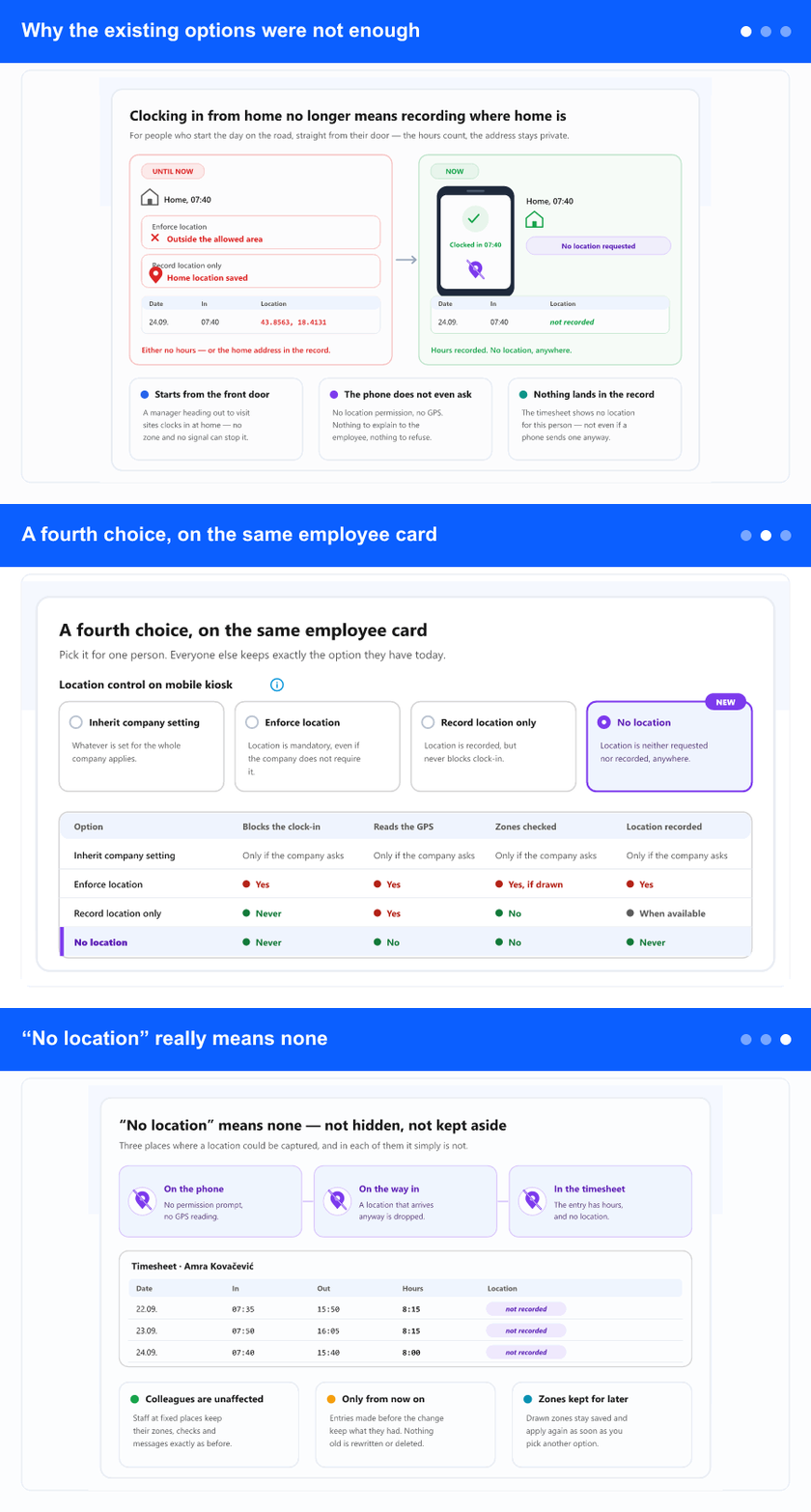
Why the existing options were not enough
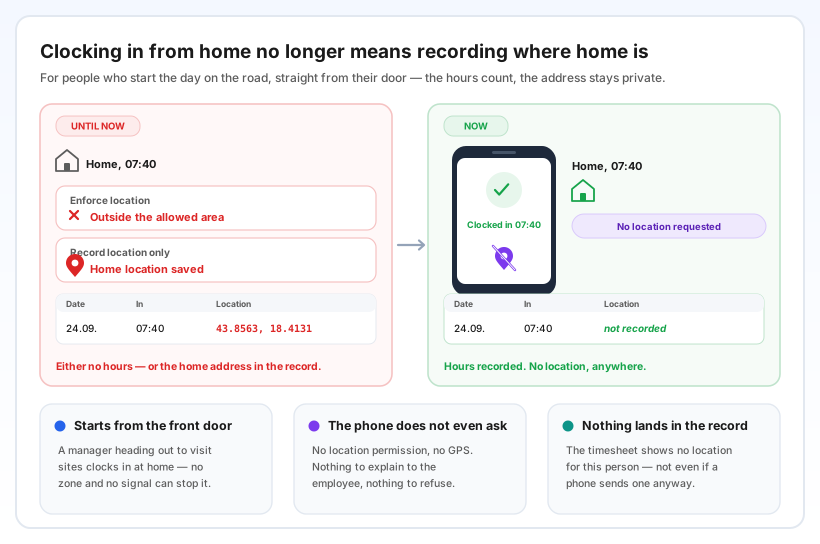
Some people do not start their day at a workplace. A manager who sets off from home to visit five restaurants, an area lead who drives straight to the first shop — for them the day begins at their own front door.
Until now that left two unhappy choices. Enforce location refused the clock-in, because home is outside every work zone. Record location only let it through — but wrote the home location into the timesheet, day after day. The hours were saved, and so was where the person lives.
No location closes that gap. The clock-in always goes through, and there is simply nothing about the location to save.
A fourth choice, on the same employee card
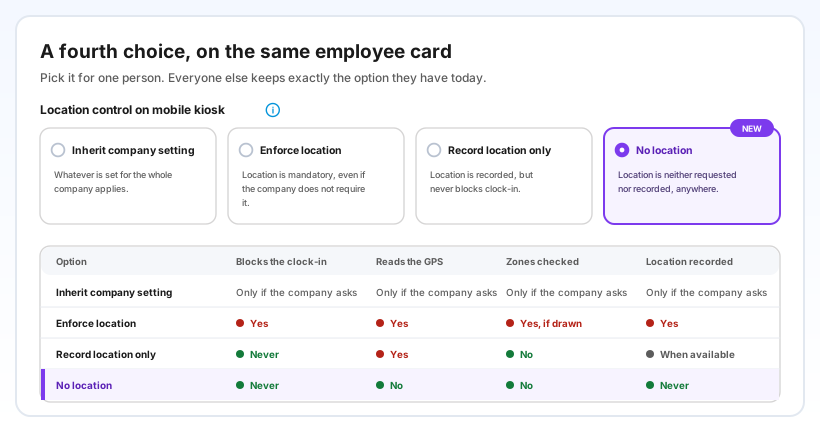
Open the employee, go to the mobile kiosk tab, and under Location control on mobile kiosk you now see four options:
- Inherit company setting — the company decides. Every employee still starts here.
- Enforce location — location is required and the work zones are checked.
- Record location only — never blocks, and the location is written down when the phone can read it.
- No location — the new one. Never blocks, the phone's location is not read, and nothing is written down.
The difference between the last two is the whole point. Record location only is for drivers and field crews whose starting point you do want to see. No location is for people whose starting point you should not keep — usually because it is their home.
As with Record location only, the work zones are switched off for that person, because a zone could only stop them. The zones you drew stay saved, and the screen says which option switched them off.
“No location” really means none
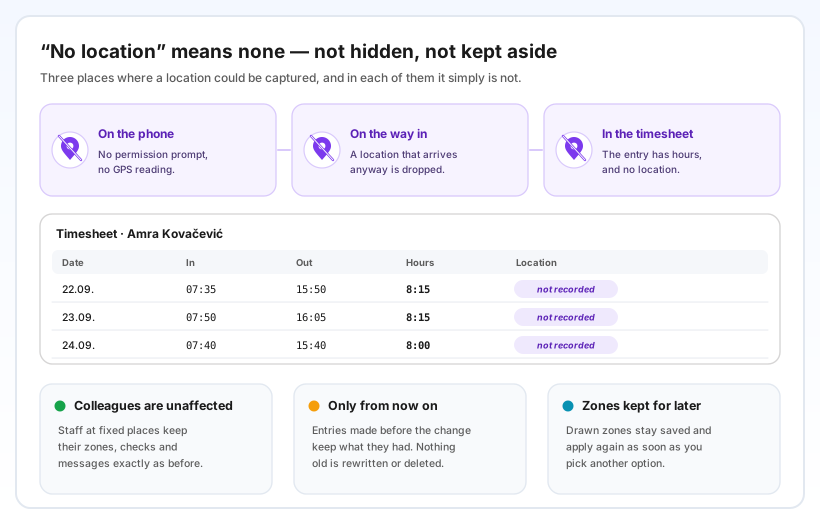
On the phone, the app does not ask for location permission and does not read the GPS. There is nothing to explain to the employee and nothing for them to refuse.
On the way in, a location that arrives anyway — from an unusual phone, an old setting, anything — is dropped rather than saved.
In the timesheet, the entry has its date, times and hours like every other one, and no location. Approvals, reports and payroll see ordinary hours.
Why it helps
Privacy you can promise. You can tell a manager plainly that clocking in from home does not put their home address into company records — and it is true.
No lost hours. People who start the day on the road clock in the moment they leave, not when they reach the first site — and no zone or weak signal stands in the way.
Everyone else keeps their rules. It is chosen per employee. Colleagues on fixed shifts keep the same zones, checks and messages as before.
No app update to wait for. The option works with the app your people already have, as soon as you select it on the card.
Step-by-step: The mobile kiosk: switching it on and the three location options (step 6 covers the location control on a single employee) · Earlier: Location as a record, not a barrier — per employee