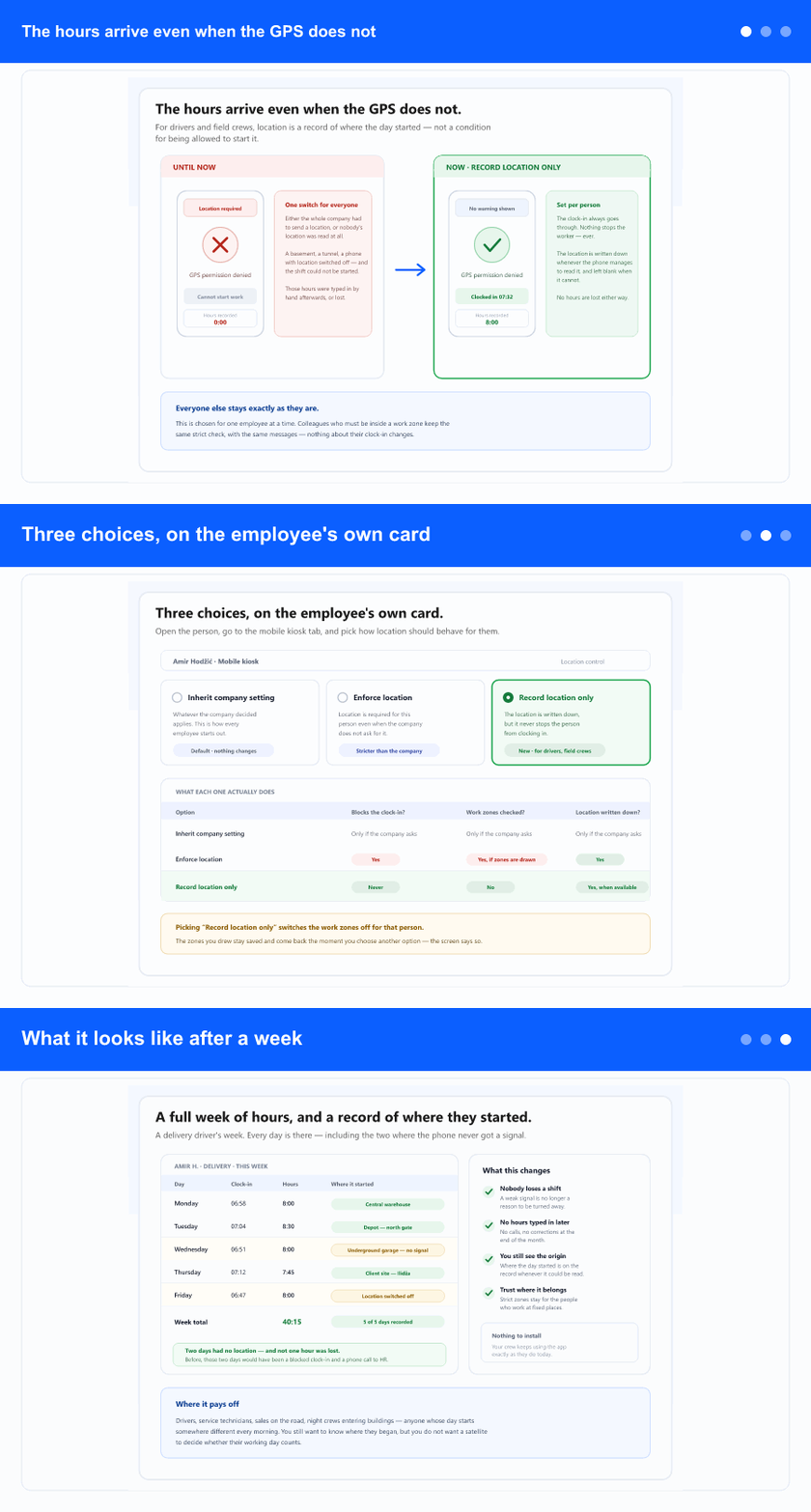
The hours arrive even when the GPS does not
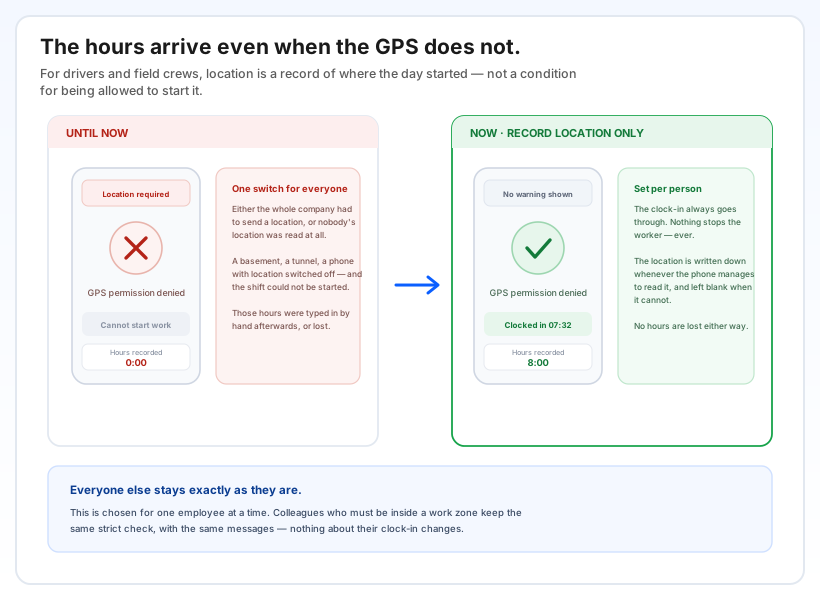
Until now this was one switch for the whole company. Either everybody had to send a location to be allowed to clock in, or nobody's location was read at all. There was no middle.
That middle is exactly where a lot of people work. A driver in an underground garage, a technician inside a building, someone whose phone has location switched off — for them a satellite signal decided whether the working day could start. When it did not arrive, the shift could not be opened, and those hours were typed in by hand later or quietly lost.
Now you can put that person on Record location only. The clock-in always goes through — a denied permission, a timeout, a poor signal, none of it stops them. The location is written down whenever the phone manages to read it, and left blank when it cannot. Either way, the hours are recorded.
Three choices, on the employee's own card
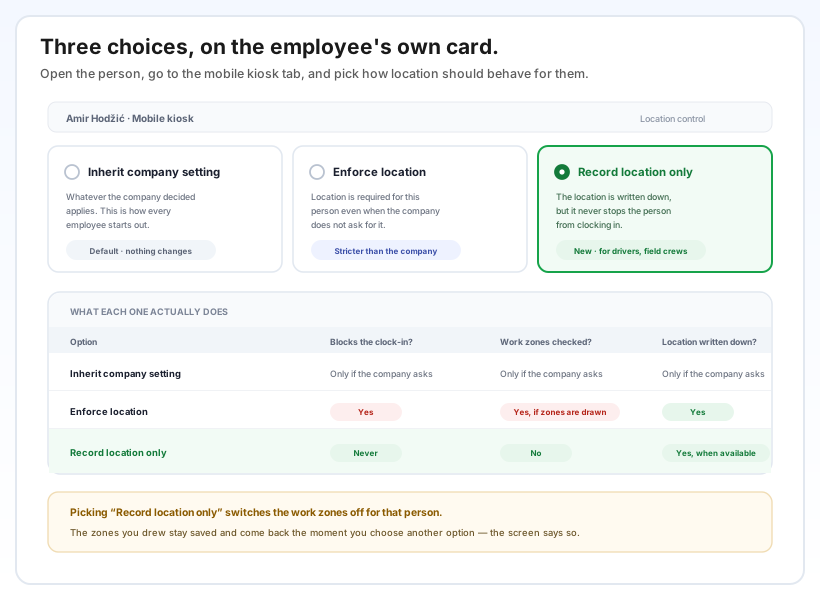
Open the employee, go to the mobile kiosk tab, and the choice sits at the top of the screen with a short explanation of each option:
- Inherit company setting — whatever the company decided applies. This is where every employee already is.
- Enforce location — location is required for this person, and the work zones are checked, even if the company does not ask for it. Useful the other way round: one person you want held to a fixed place in a company that is otherwise relaxed.
- Record location only — the new one. Never blocks, and the work zones are not checked.
One thing worth knowing before you choose: “Record location only” switches the work zones off for that person. That follows from what the option means — if nothing may stop them, a zone cannot stop them either. The zones you drew stay saved and come back the moment you pick another option, and the screen tells you so rather than leaving you to guess.
An info button next to the choice lays out all three side by side, so you can check the difference without leaving the screen.
What it looks like after a week
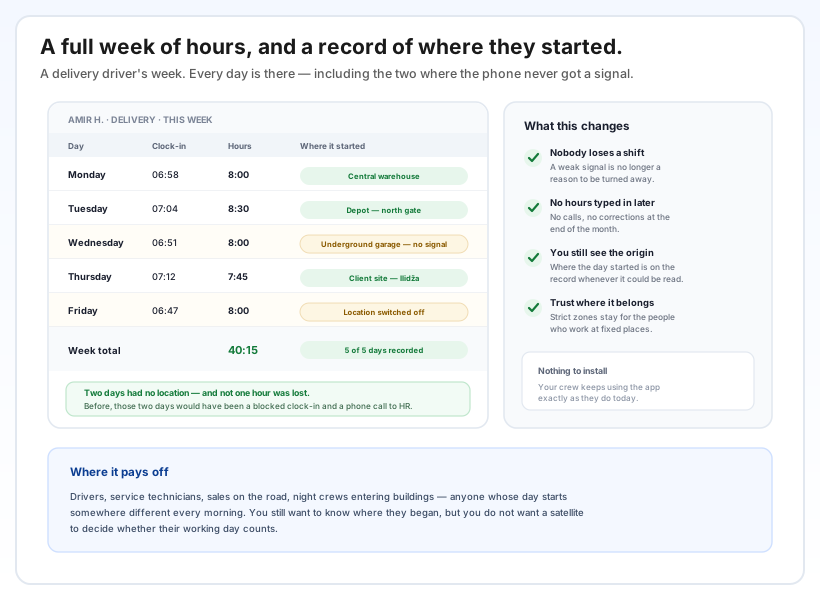
Nobody loses a shift to a weak signal. The days that used to end in a blocked clock-in and a phone call to HR are simply recorded.
Nothing gets typed in afterwards. No corrections at the end of the month, no reconstructing someone's Wednesday from memory.
You still see where the day started — on every clock-in where the phone managed to read it. That was the point of asking for location in the first place, and you keep it.
Strictness stays where it belongs. Colleagues who work at fixed places keep the same checks and the same messages; nothing about their clock-in changes.