What changed, at a glance
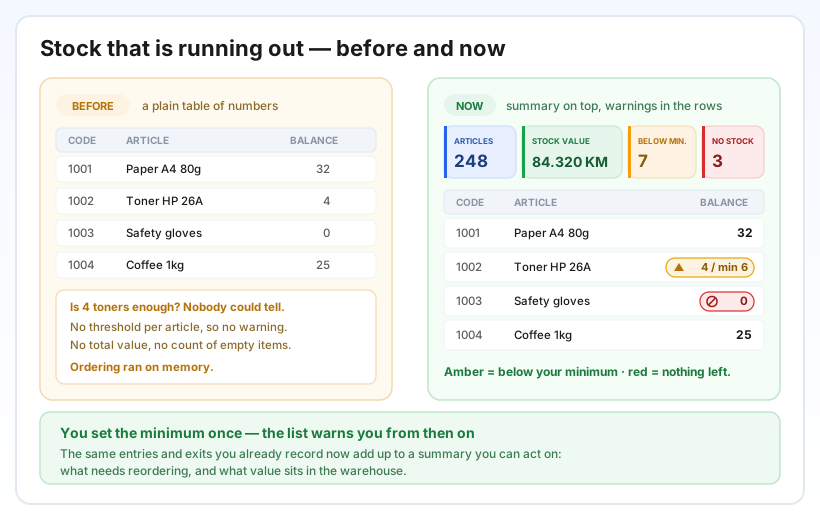
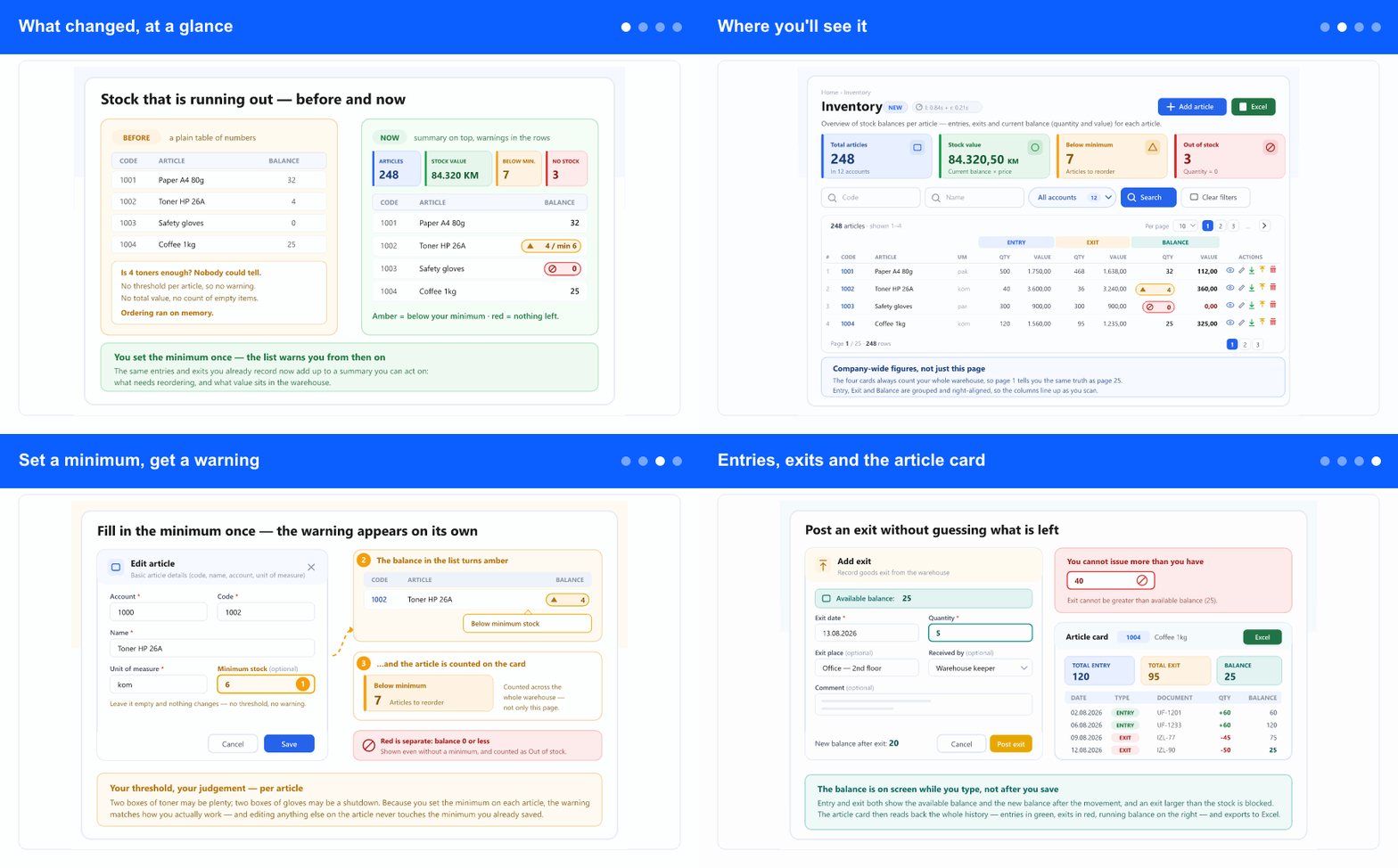
Until now the stock list answered only one question — how much of this article do we have? Whether that amount was enough was left to whoever remembered. There was no threshold on an article, so there was nothing to warn against, and no total to show management what the warehouse was worth.
Now you write the minimum once per article and the list does the watching. Nothing about how you record entries and exits changes; the same figures simply add up into a summary and a warning.
Where you'll see it
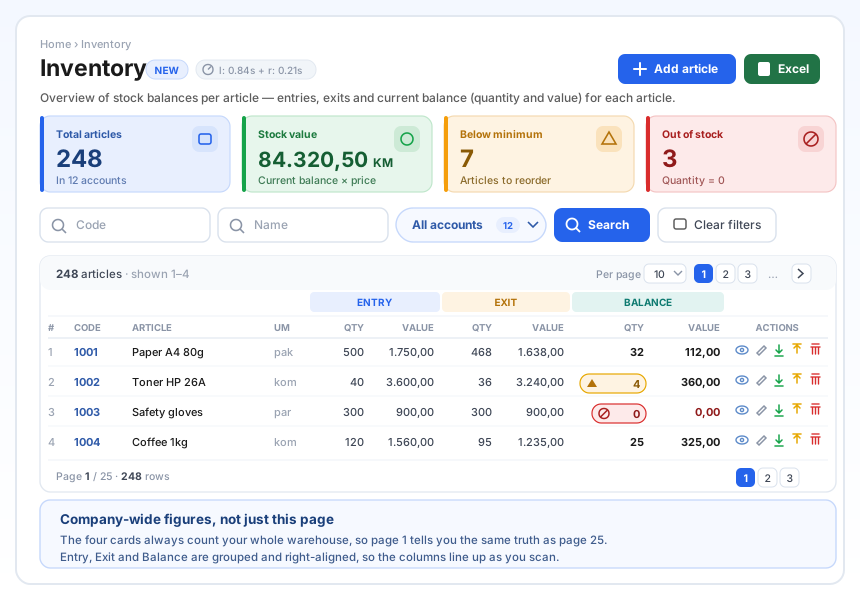
In the left menu, open Inventory (under the ADM tab, if the tab strip is shown). Above the list you'll find four cards: Total articles, Stock value, Below minimum and Out of stock. They always count your whole warehouse, not just the page you happen to be on — so page 1 and page 25 tell you the same thing.
The list itself is easier to read: Entry, Exit and Balance now sit under grouped, colour-marked headings, quantities and values are right-aligned so the digits line up, and every column keeps its full text in a tooltip when the screen is narrow. Search by Code or Name, narrow down to a single account, then use Clear filters to start over. The page counter and page-number buttons appear both above and below the list and stay in step, and Excel export works exactly as before. Deleting an article now asks for confirmation in a clear warning dialog that names the article you are about to remove.
Set a minimum, get a warning
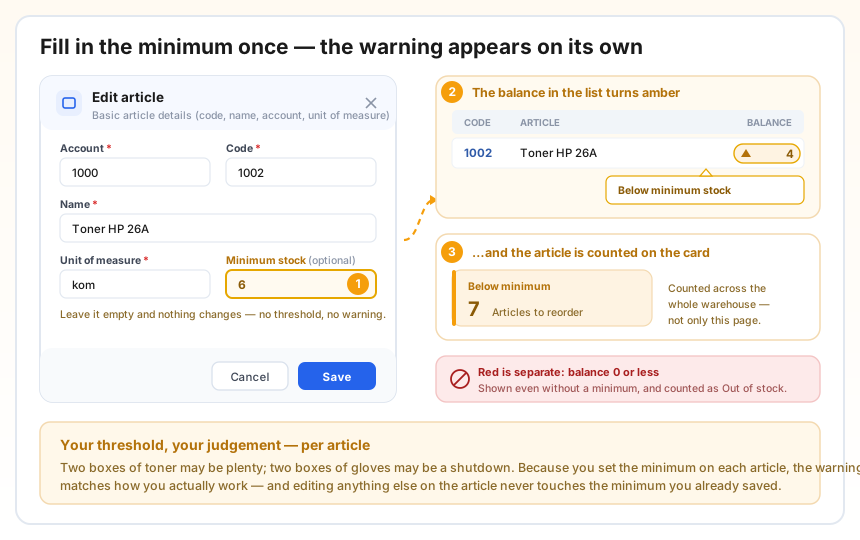
Open an article with Edit (or create one with Add article) and you'll see a new field: Minimum stock. It is optional — leave it empty and nothing changes for that article. Fill it in, and from then on the balance in the list carries an amber warning whenever it falls below your number, with a hover text that says Below minimum stock. That same article is counted on the Below minimum card, labelled Articles to reorder.
A balance of zero or less is treated separately: it always shows a red warning, with or without a minimum, and is counted as Out of stock. So amber means order soon and red means there is nothing left.
The threshold is yours to judge, per article — two boxes of toner may be plenty while two pairs of gloves can stop a shift. Editing anything else on the article never disturbs the minimum you already saved, and a negative minimum is refused.
Entries, exits and the article card
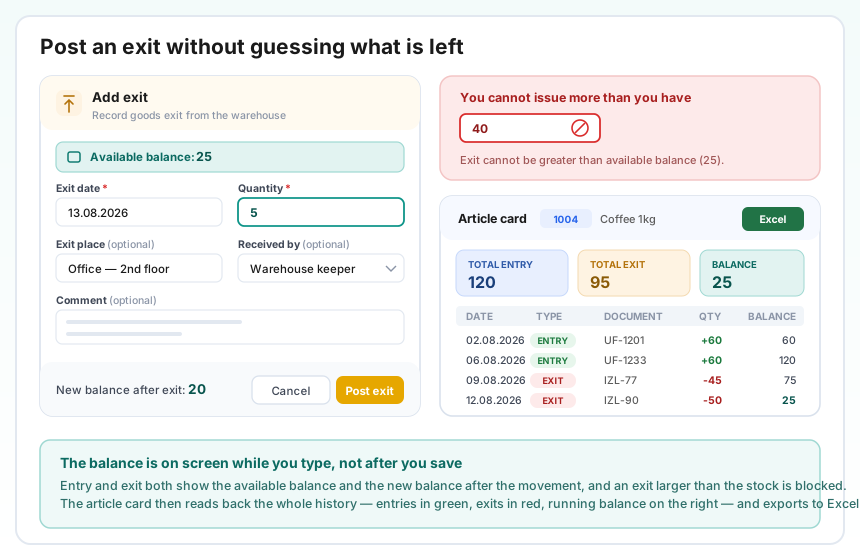
Add entry and Add exit now show the available balance at the top and the new balance after the movement at the bottom, updating as you type the quantity. An exit larger than what is actually on the shelf is refused before it is posted, with the available amount named in the message — so the warehouse can no longer be pushed into a negative balance by a typo. Every field you used before is still there.
The Article card was tidied up in the same spirit. It opens with three totals — Total entry, Total exit and Balance — above the movement history, where entries and exits are colour-coded and the running balance is on the right. You can still filter by date range, search by document or entry number, correct a comment, remove a movement, and export the card to Excel.
Why it helps
Ordering stops relying on memory. The number on the Below minimum card is the shopping signal: when it is not zero, something needs reordering. The amber rows in the list tell you which articles they are.
Management gets a figure, not a table. Stock value answers "how much money is sitting in the warehouse" without anyone exporting and summing a spreadsheet, and Out of stock shows how many articles have run dry.
Fewer corrections later. Because the balance is visible while an entry or exit is being typed — and an impossible exit is blocked outright — mistakes are caught at the moment of entry instead of during a stock count.