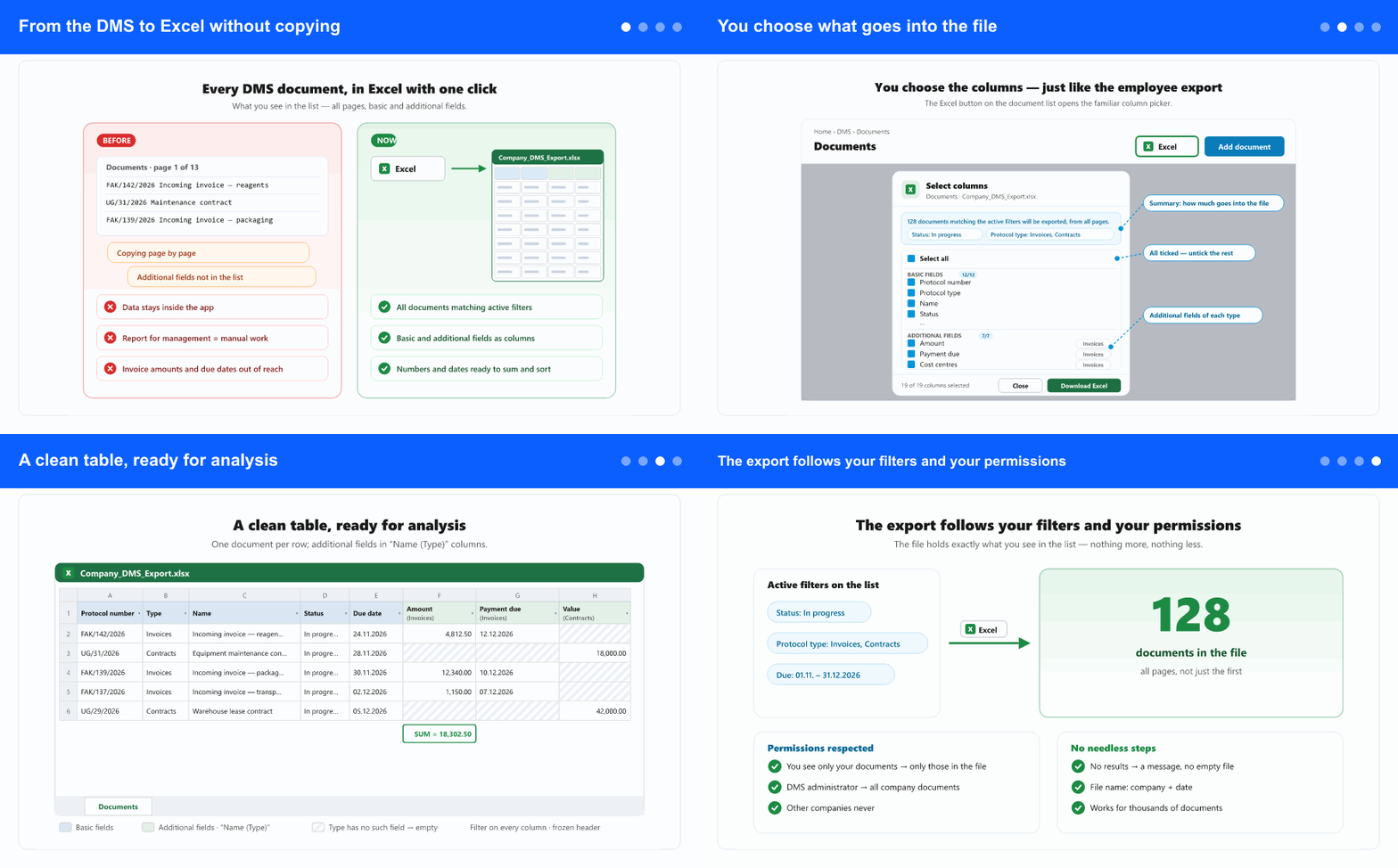
From the DMS to Excel without copying
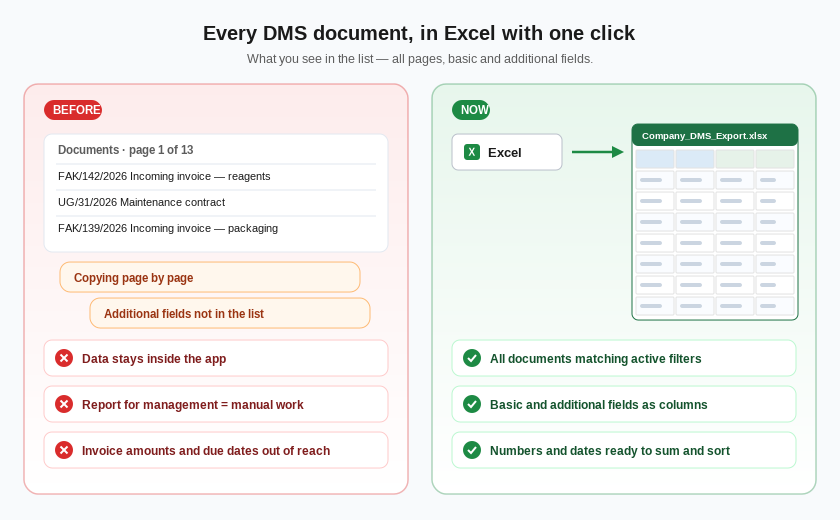
Management asks for an overview of this month’s incoming invoices, with amounts and payment due dates. Until now that meant opening document after document and copying the data into a spreadsheet.
Now you filter the list, click Excel, and a few seconds later you have a file with every document. Amounts and due dates from the additional fields sit in their own columns, ready to sum, sort and filter.
You choose what goes into the file
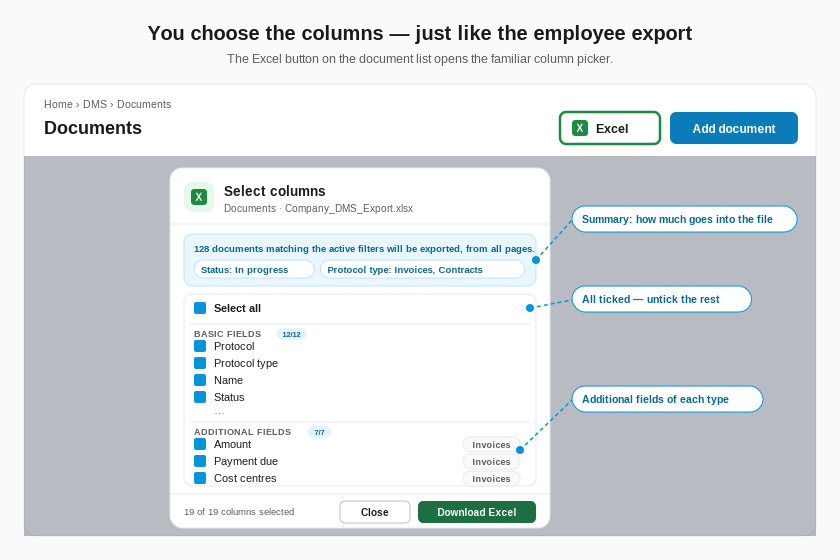
The Excel button sits in the header of DMS → Documents, right next to Add document. It opens the same column picker you already know from the employee export.
The top of the dialog tells you how many documents go into the file and which filters apply, so there are no surprises. Columns come in two groups. Basic fields are the protocol number, type, name, status, client, assignee, who created the document and when, due date, departments, sending method and date sent. Additional fields are the fields your company defined per document type, such as an invoice amount or a contract value. Everything is ticked; untick what you don’t need.
A clean table, ready for analysis
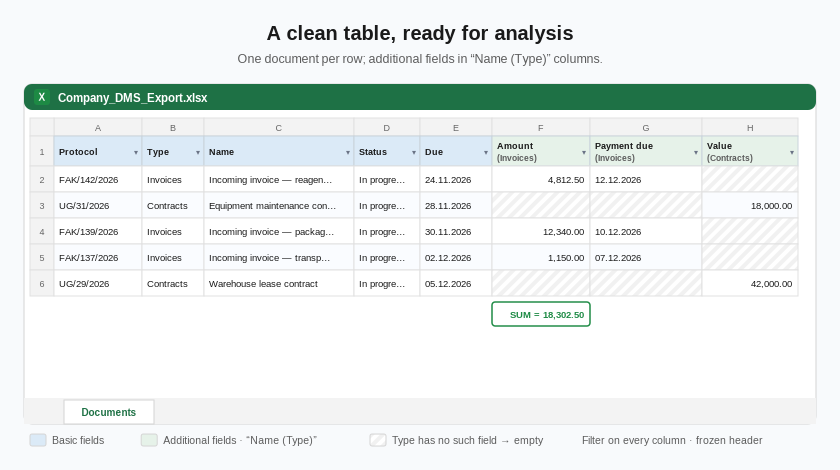
Each document is one row. Additional fields are named “Name (Type)”, such as Amount (Invoices), so it is always clear which document type a column belongs to. If a document’s type has no such field, the cell stays empty.
Amounts are real numbers and dates are real dates, so sums, sorting and filters in Excel work straight away. Multiple-choice fields are written as values separated by commas. The header row has a filter on every column and stays visible while you scroll.
The export follows your filters and your permissions
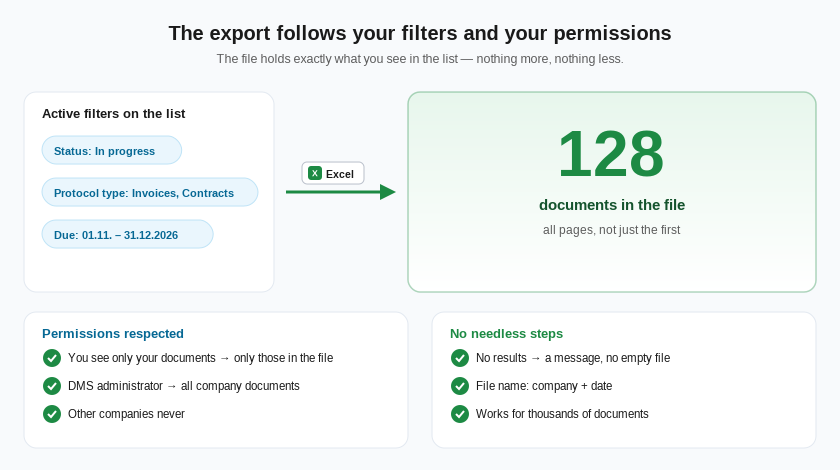
The file holds exactly what you see in the list: the same filters (search, status, type, client, employee, due date) and the same order, but from all pages, not just the first. With no filters you get every document.
The export respects permissions just like the list. Someone who sees only their own documents gets only those. A DMS administrator gets all company documents. When a filter returns no documents, you get a message instead of an empty file.
Why it helps
- A report in a minute, not an hour. Build an overview of invoices, contracts or decisions with a filter and one click.
- Additional fields finally leave the app. Amounts, due dates and values you enter in the DMS can now be summed and compared.
- No copying errors. Data goes straight from the DMS into the table.
- A familiar routine. The same column picker as the employee export.
The steps are in the guide Exporting DMS documents to Excel.