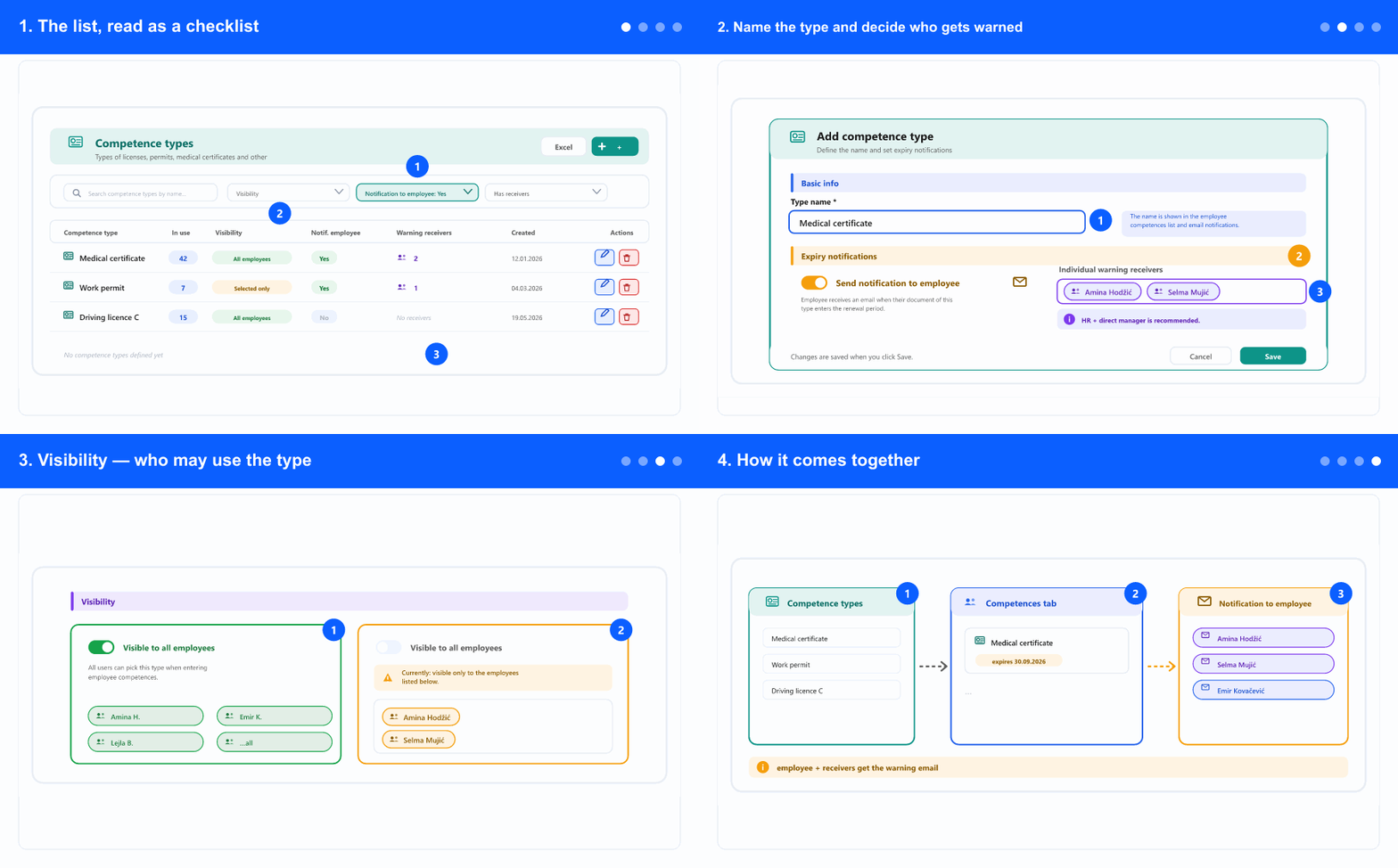
1. The list, read as a checklist
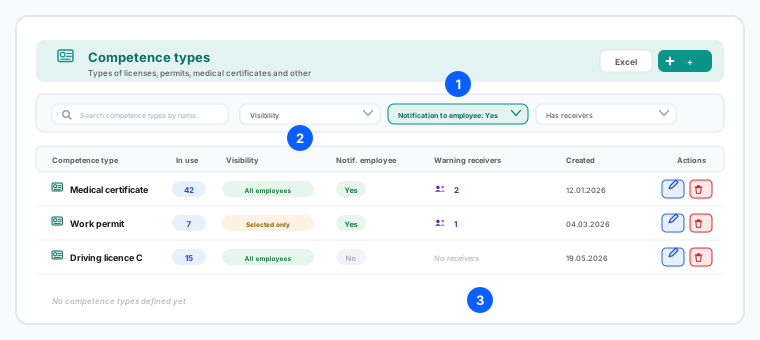
- In the left menu, open the ADM tab, expand Settings and select Competence Type. The tabs (ADM / DMS / CRM / ATS) appear only when your company uses more than one module.
- Each row shows the type, how many records are In use, its Visibility, whether the employee is notified, and how many Warning receivers it has.
- No receivers is the column to hunt for. A type with no receivers and no employee notification means expiry dates are recorded but nobody is told — the tracking looks fine and quietly does nothing.
- Use the Has receivers filter set to Without receivers to find exactly those types in one click.
- The other two filters are Visibility (All employees / Selected only) and Notification to employee (Yes / No). Excel exports what you see.
2. Name the type and decide who gets warned
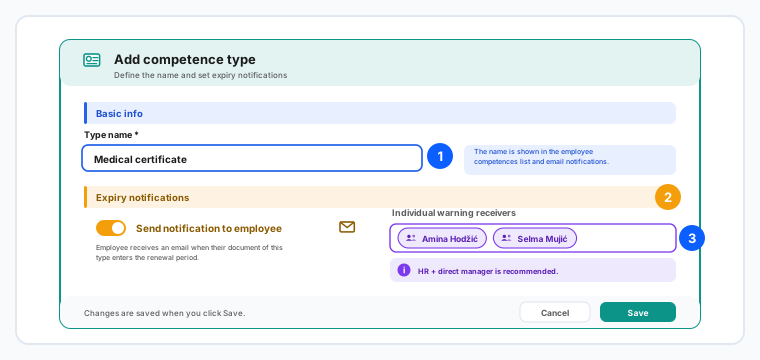
- Click Add competence type and enter the Type name — the only required field. Name it as the document is actually called: Medical certificate, Work permit, Driving licence C.
- The name appears in the employee competences list and in the emails, so a vague name produces a vague warning.
- Turn on Send notification to employee so the person themselves gets an email when their document enters the renewal period. It goes to the address on their profile — worth checking that it is filled in.
- Add Individual warning receivers — the people who should know regardless of whether the employee acts. The recommendation in the app is HR plus the direct manager: HR to arrange the renewal, the manager because they lose a person who cannot legally work.
- Set both. The employee notification is a reminder; the receivers are the safety net for when the reminder is ignored or the address is wrong.
- When editing an existing type, the header tells you how many records are in use — read it before renaming, because the old name is already in emails people have received.
3. Visibility — who may use the type
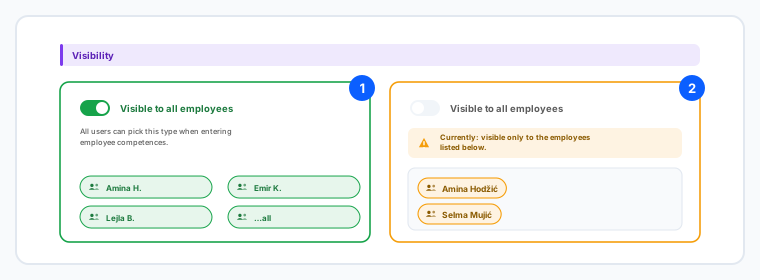
- With Visible to all employees on, anyone entering competences can pick this type. That is the normal setting.
- Turn it off and the type becomes visible only to the employees you list below — use this for categories that concern one group and would only be noise for everyone else.
- Do not confuse the two lists in this window: warning receivers get the emails, while visibility decides who can pick the type when recording a document. The same person can be in one and not the other.
- Click Save. This window does not save as you type — nothing is stored until you press Save, and Save stays disabled while nothing has changed.
4. How it comes together
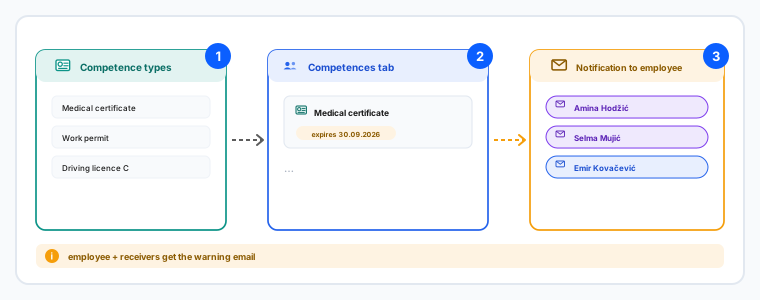
- The type on its own does nothing. Someone records an actual document on an employee's Competences tab, picks this type and enters the expiry date.
- That date is what triggers everything: when the document enters the renewal period, the employee (if enabled) and every warning receiver get an email.
- So set the type up before people start recording documents of that kind. Types added afterwards do not retro-warn about documents already entered without them.
- If warnings are not arriving, check in this order: does the type have receivers, is the employee notification on, and does the recorded document actually have an expiry date.
Deleting a type that records already use is refused — reassign or remove those records first. Renaming a type changes it everywhere, including in future emails, but not in emails already sent.
Related: Fill in and change an employee's basic data · Set up positions, and the skills each one requires.