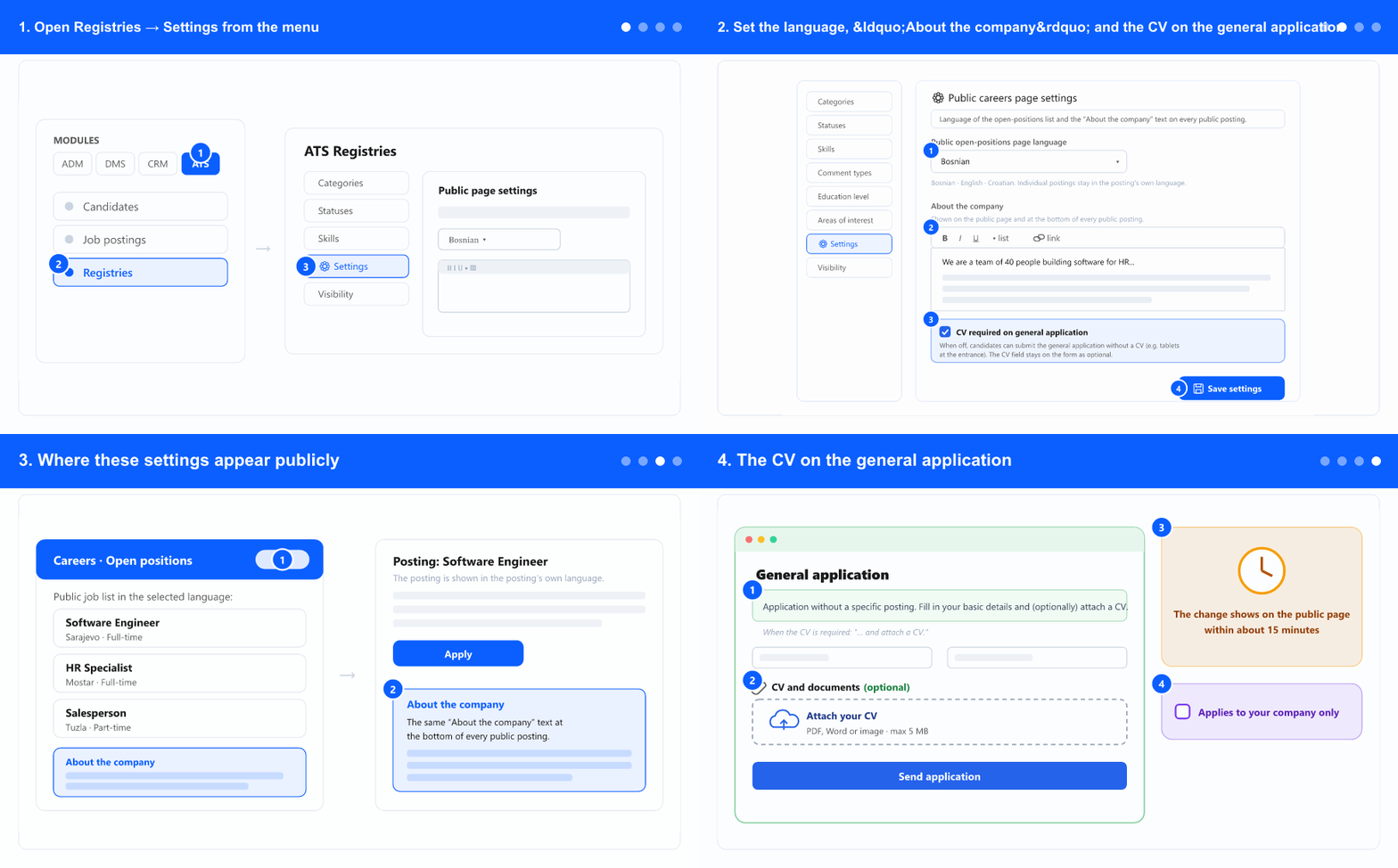
1. Open Registries → Settings from the menu
- In the left menu, open the ATS tab. The tabs (ADM / DMS / CRM / ATS) appear only when the company uses more than one module — otherwise the items are visible right away, so move on to the next step.
- Choose Registries. The ATS Registries screen opens with a vertical list of tabs on the left.
- In that list, click the Settings tab (gear icon). Your company's current public page settings are loaded.
- Don't see Registries or the Settings tab? They are shown only to users with the right to edit ATS registries — contact your company administrator.
2. Set the language, “About the company” and the CV on the general application
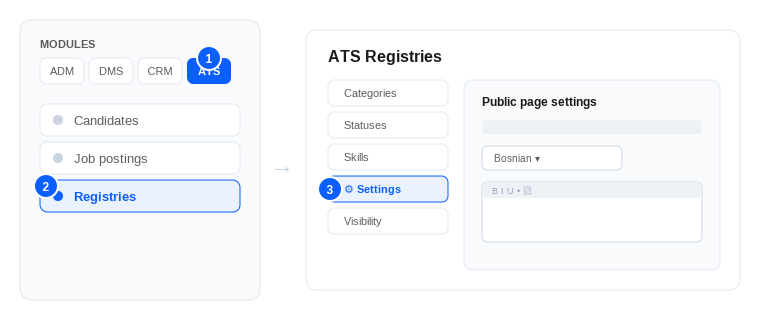
- In the Public open-positions page language dropdown, choose a language: Bosnian, English or Croatian. If you leave — Default (Bosnian) —, Bosnian is used.
- The language applies to the public list of open positions. Individual postings are always shown in the posting's own language (see step 3).
- In the About the company editor, write a short description of the company — what you do, culture, benefits. The editor is WYSIWYG: you can make text bold, italic, add a list or a link using the toolbar above the field.
- Under the editor is the option CV required on general application, on by default. Turn it off if candidates send the general application without a CV, e.g. through tablets at the entrance. The CV field then stays on the form as optional (see step 4).
- Click Save settings. The language and the About the company text apply immediately to the public careers page; a change to the CV option on the general application shows with a short delay (step 4).
3. Where these settings appear publicly
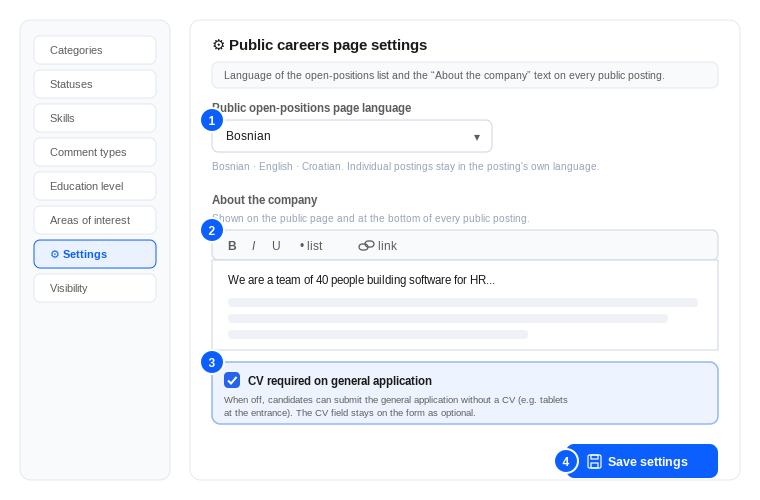
- The selected language applies to the public list of open positions that candidates see on your careers page.
- The About the company text is shown on the public page and at the bottom of every public posting, so a candidate sees it no matter which posting they arrived through.
- The content of the postings themselves (title, description, requirements) is edited separately, in the Job postings module — this tab covers only the shared public page settings.
4. The CV on the general application
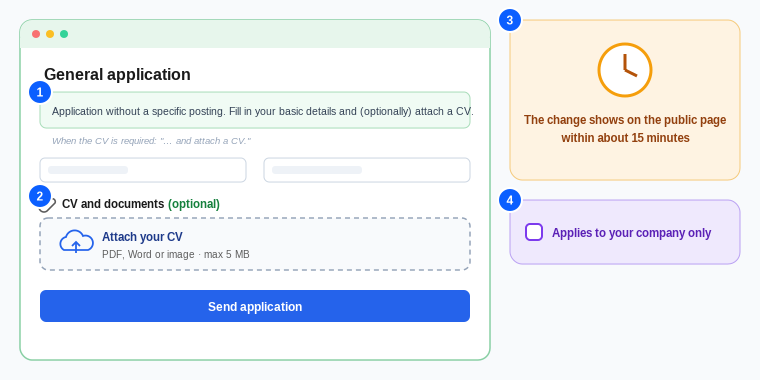
- When the option is on (the default), the general application intro reads "Application without a specific posting. Fill in your basic details and attach a CV.", the CV and documents section has an asterisk, and an application without a CV is not sent. The candidate sees "A CV is required to submit your application."
- When you turn it off, the intro becomes "…Fill in your basic details and (optionally) attach a CV." and the CV and documents section gets the label (optional). The application goes through without a CV; if the candidate does attach one, its format and size are checked. A candidate without a CV appears in the ATS like everyone else, just without a document.
- The new setting shows on the public general application page with a delay of up to about 15 minutes. If you open the form right after saving and still see the old state, wait a few minutes and refresh the page.
- The setting applies to your company only and to the general application only. For applications to a specific posting you decide on each posting with the option CV required to apply; see the guide Create a job posting.
The settings and the Settings tab may depend on your permissions. If you can't see something or can't save, your company administrator can confirm your rights.