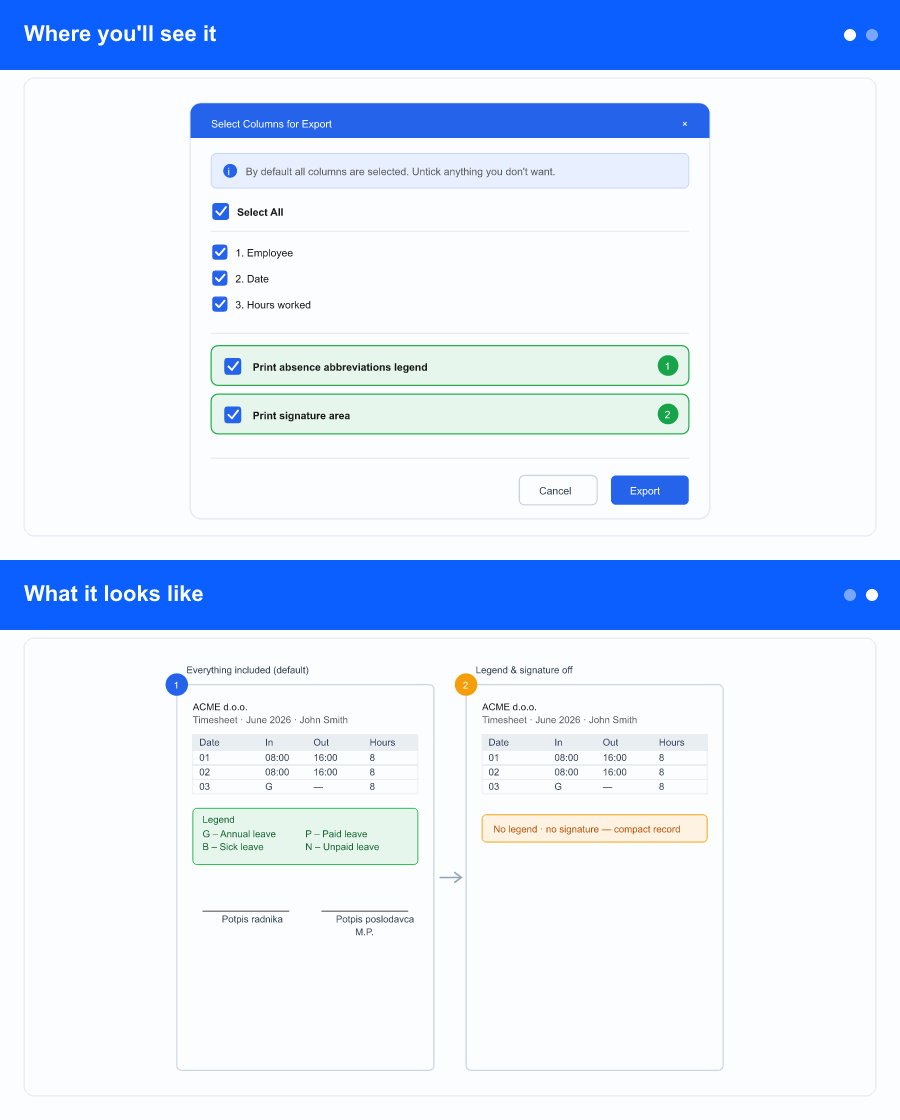
Where you'll see it
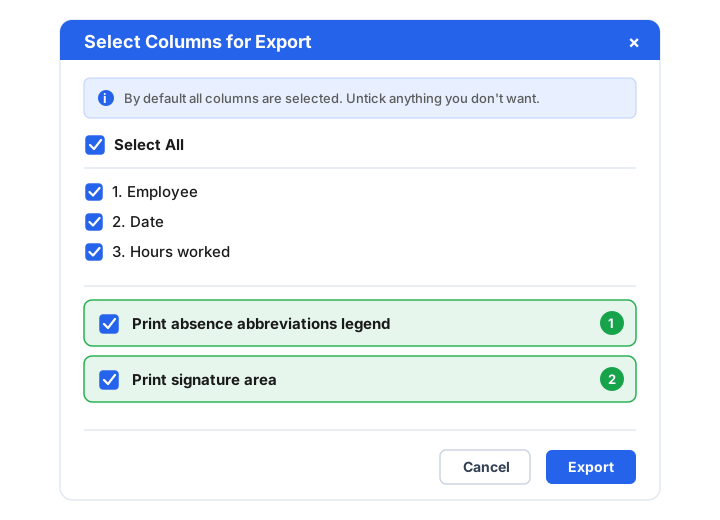
On the detailed timesheet screen, when you generate or preview the PDF, the familiar column picker opens. Below the list of columns there are now two extra options:
- Print absence abbreviations legend — the small list explaining each absence code.
- Print signature area — the employee/employer signature lines with the stamp spot (M.P.).
Both are ticked by default, so if you change nothing the printout looks exactly as it does today. Untick either one and that section simply won't appear on the PDF.
What it looks like
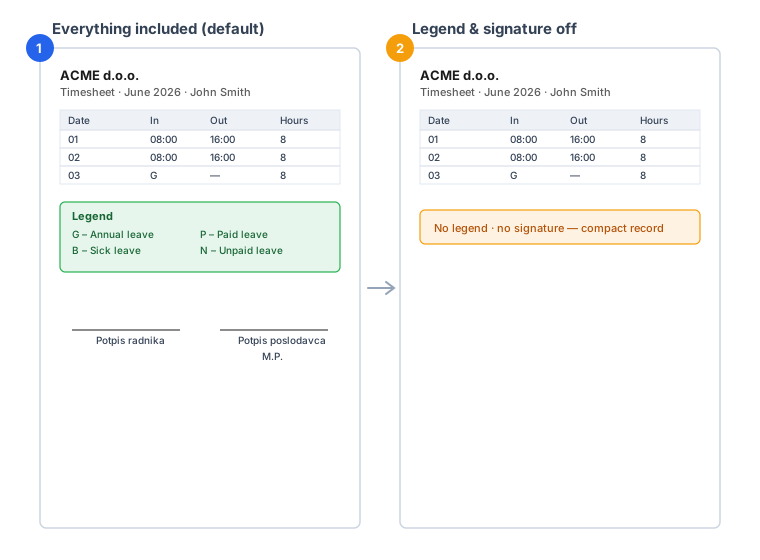
The rest of the timesheet—company name, employee details, columns and hours—is unchanged. Only the two sections you choose are added or left out. Print a single employee or select several and print them all at once: the same choice is applied to every page in the batch.
Why it helps the business
Different situations call for different printouts. Sometimes you need the fully formatted, sign-ready record with the legend and signature lines; other times you just want a compact overview of hours for a quick check or an internal file. Until now both sections always printed, so anyone who didn't want them had no choice.
Because most people print many timesheets at once, being able to set this once in the picker—and have it apply to the whole batch—saves time and paper, and keeps each printout tailored to what it's actually for.