The one-at-a-time work it removes
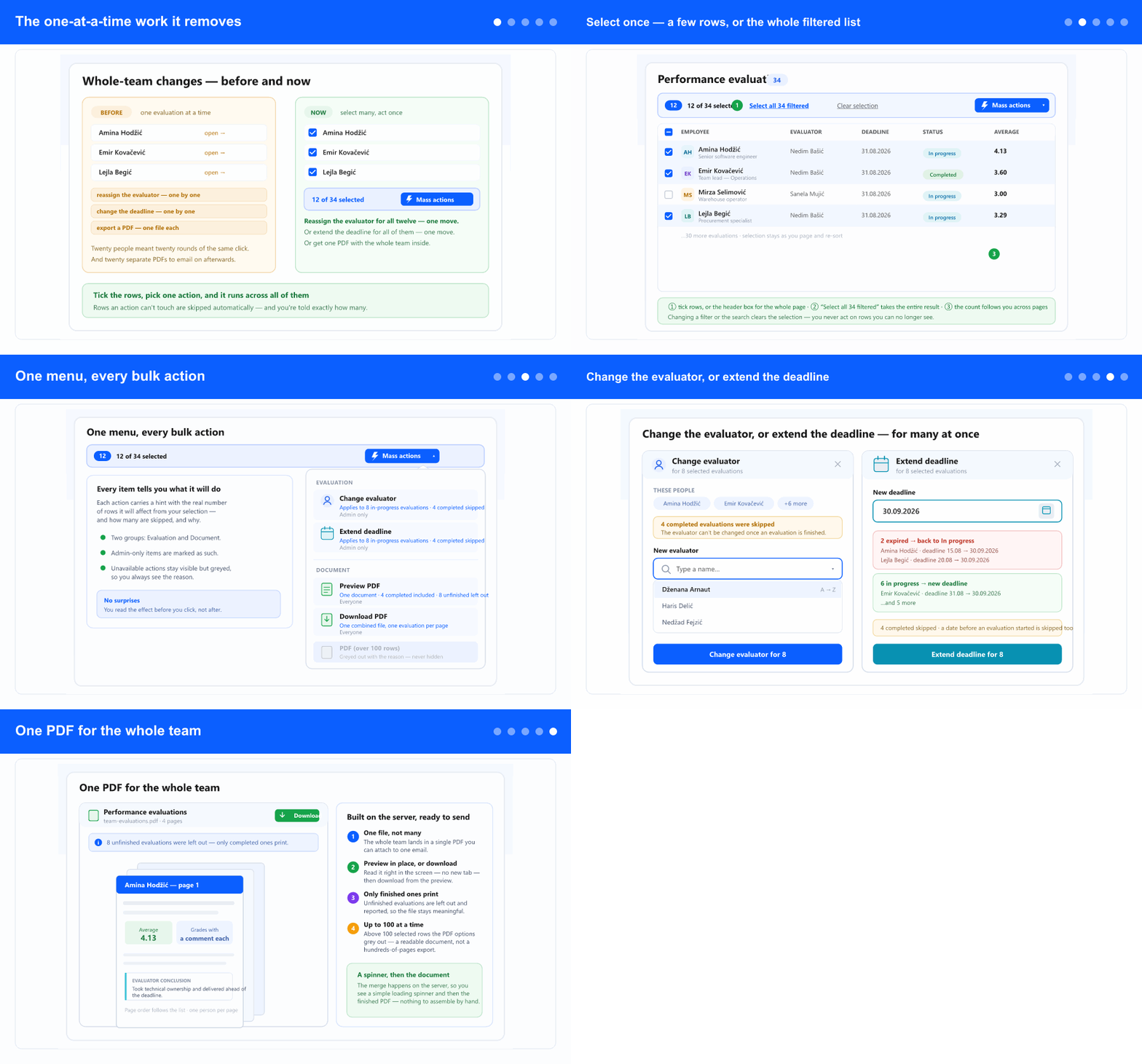
When a colleague leaves, when a review cycle slips, or when a manager asks for “everyone's evaluations in one file”, the work used to be the same each time: open one evaluation, make the change or export it, close it, and start again on the next person. For a team of twenty that meant twenty rounds of the same clicks — and, for PDFs, twenty separate files to gather up afterwards.
Now the list does the repeating for you. You choose the people once, choose the action once, and it runs across the whole selection.
Select once — a few rows, or the whole filtered list
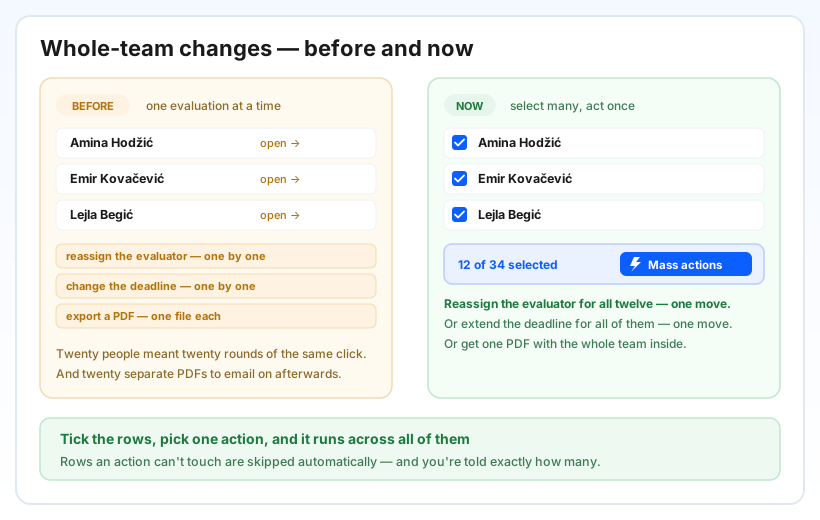
Every row now has a checkbox, and the header has one that ticks the whole current page at once. Above the list, a selection bar appears the moment you tick something — it shows how many of how many are selected and gives you a Mass actions button. Tick a row's checkbox and it selects it without opening anything.
Need more than the page you're on? The bar offers “Select all N filtered”, which selects the entire result behind your current filters and search — not just the visible page. Your selection is remembered as you page through the list, change the number of rows per page, and re-sort. Changing a filter or the search clears it on purpose, so you never act on rows you can no longer see.
One menu, every bulk action
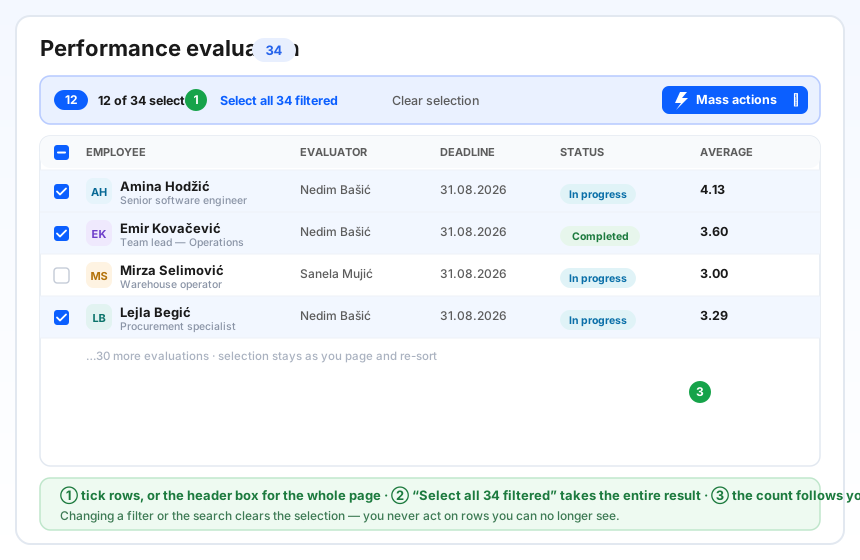
The Mass actions button opens one grouped menu: an Evaluation group (Change evaluator, Extend deadline) and a Document group (Preview PDF, Download PDF). Every item carries a hint with the real number of rows it will act on from your selection — and how many will be skipped, and why. So you read what an action will do before you click it, not after.
Actions you can't run right now stay visible but greyed, with the reason shown — an admin-only action for a non-admin, or the PDF options when you've selected more than 100 rows. Nothing silently disappears.
Change the evaluator, or extend the deadline
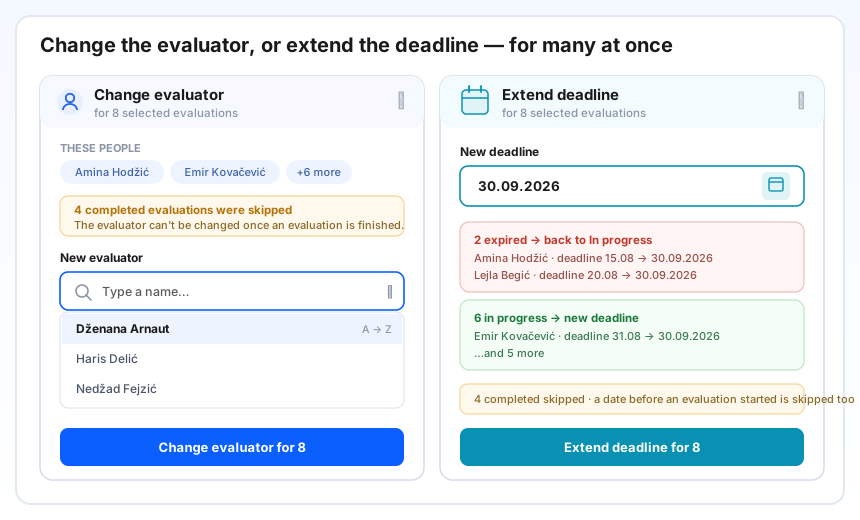
Change evaluator (for company administrators) hands a batch of evaluations to a different person — useful when someone leaves or responsibilities move. Pick the new evaluator from a searchable, alphabetical list, and the confirm button names exactly how many it will change. Finished evaluations are skipped — their evaluator is settled — and so is any row already assigned to the person you picked.
Extend deadline (also for administrators) moves the “editable until” date for a batch. Pick one new date; it applies to every unfinished evaluation in the selection. An expired evaluation whose deadline you push into the future comes back to “In progress” so grading can continue. Finished evaluations are skipped, and so is any row where the new date would fall before that evaluation was even started.
In both cases, if part of your selection can't be changed, the action still runs on the rest — and tells you clearly how many it changed and how many it skipped.
One PDF for the whole team
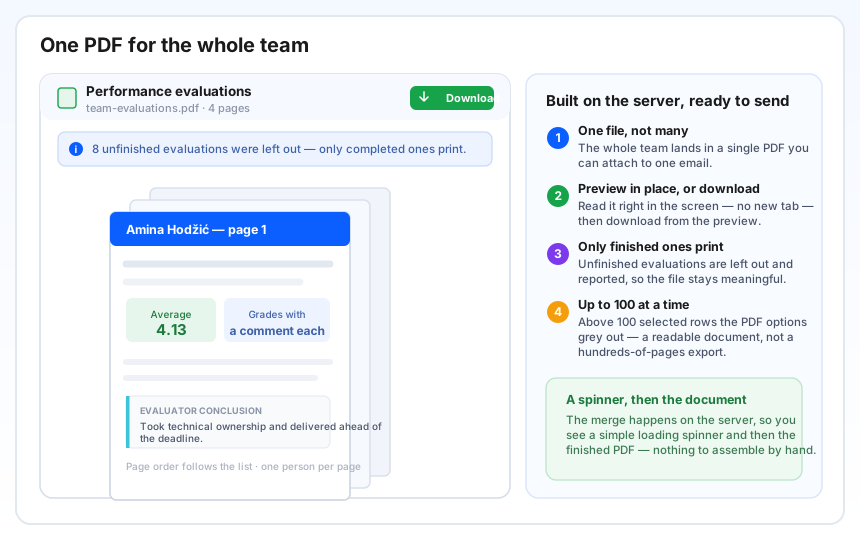
Instead of exporting each person separately, Preview PDF and Download PDF give you one combined document — each evaluation on its own page, in the same order as the list. Preview opens it right inside the screen, with no new browser tab, and you can download it from there. Only completed evaluations are printed; any unfinished ones in your selection are left out and reported, so the file stays meaningful.
The document is assembled on the server, so you simply see a loading spinner and then the finished PDF — there's nothing to stitch together by hand. To keep that one file readable, the PDF options are available for up to 100 selected rows; above that they grey out, with the reason shown.
Why it helps
Reviews come in waves — end of cycle, a reorganisation, a manager who wants the whole department in one place. This turns those moments from an afternoon of repetitive clicking into a single, deliberate action. You choose the people once, you see exactly what will happen (including what will be skipped) before you commit, and you get one clean result — a reassignment, a new deadline, or a single PDF ready to send on.
Because ineligible rows are skipped rather than blocking the whole action, a mixed selection just works: the parts that can change, change; the parts that can't are reported. No hunting for the “wrong” row before you can proceed.