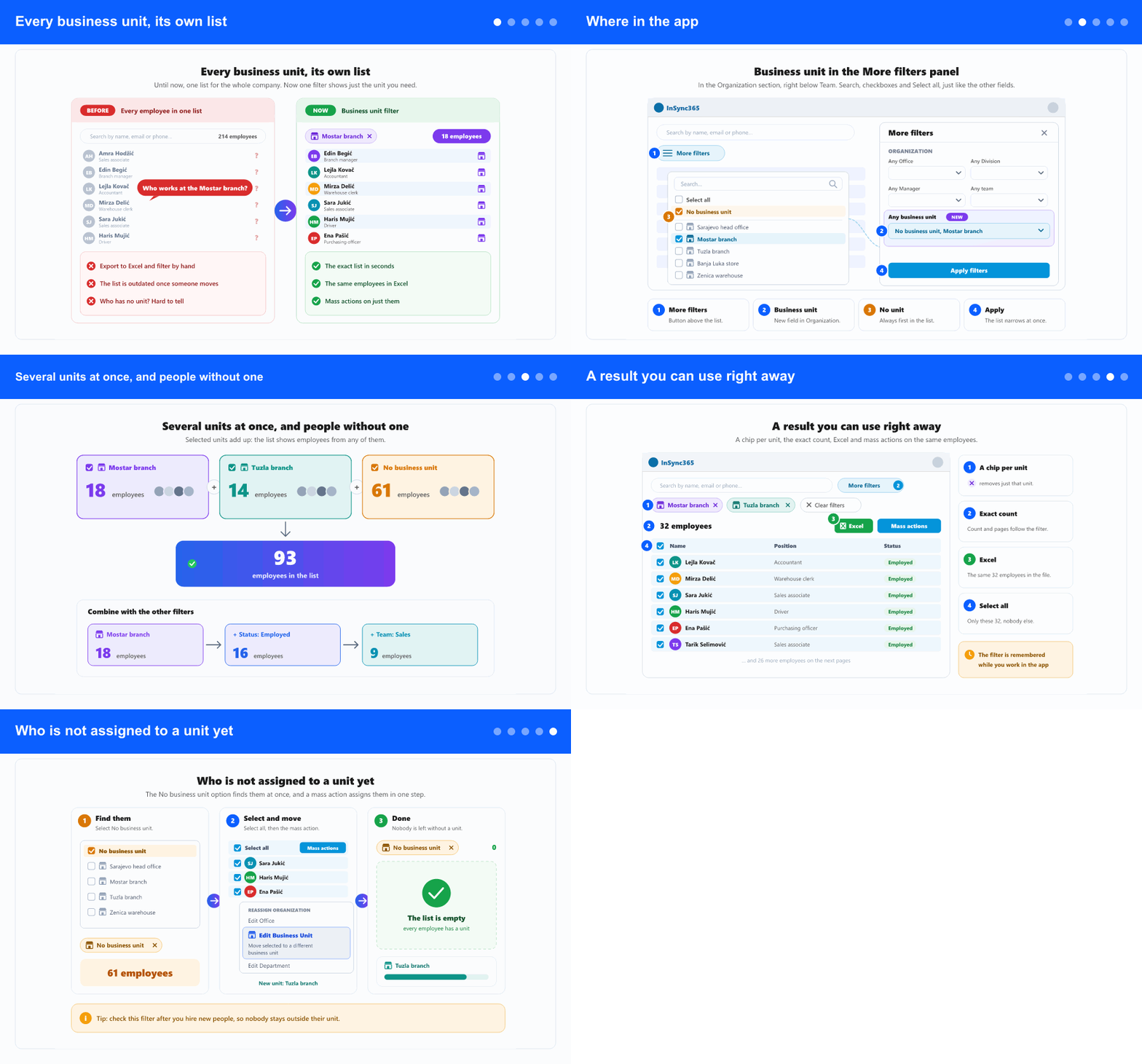
Every business unit, its own list
When a company works in several locations, most questions are about one unit: who works at that branch, who needs to hear about a change at that location, who goes to training at that warehouse. The employee list now answers that directly, without Excel and without tidying up a list by hand. The list is always accurate, because it follows what is in the app at that moment.
Where in the app
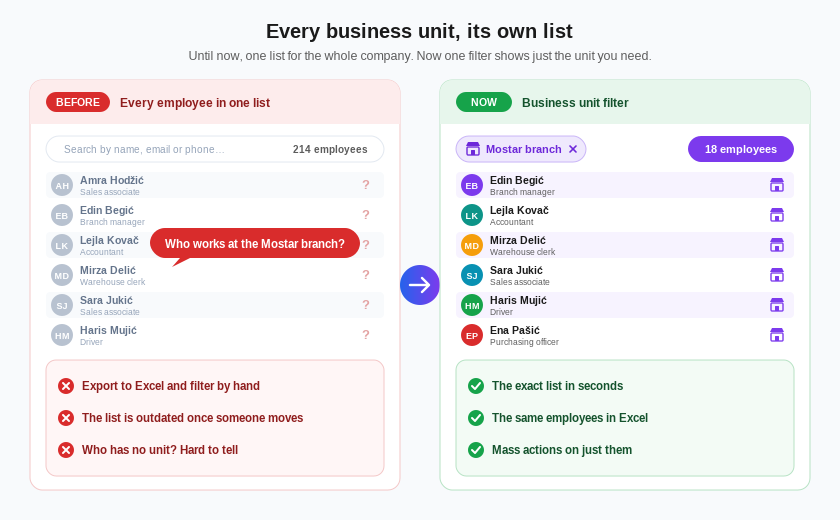
On the Employees page, open More filters. In the Organization section, next to offices, divisions, managers and teams, there is a new field, Any business unit. It works like the fields next to it: search units by name, tick them or use Select all, then click Apply filters.
The No business unit option is always first, with your company's units below it in alphabetical order. Only companies that have business units see the field, so for everyone else the panel looks the same as before.
Several units at once, and people without one
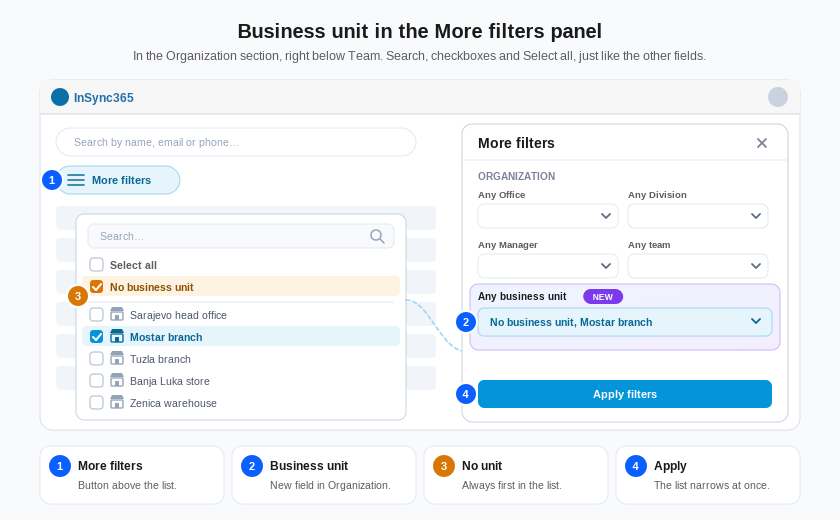
- Several units at once. When you select two or more units, the list shows employees from any of them. One filter gives you, for example, everyone from two branches in the same city or from a whole region.
- No business unit. This option shows the employees who have no unit yet. Select it on its own or together with other units.
- With the other filters. Business unit works together with search, status, office, team, roles and the other list filters, so you narrow the list as far as you need, e.g. only Mostar branch employees in the Sales team.
A result you can use right away
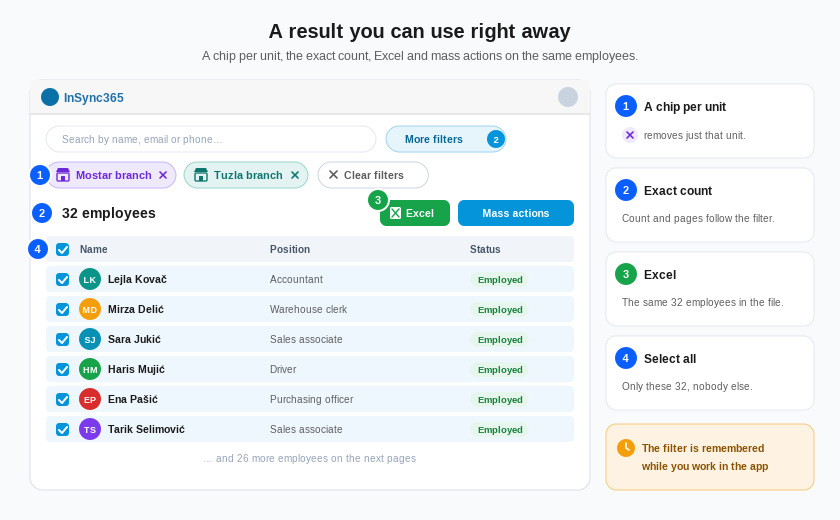
Each selected unit gets its own chip above the list. Clicking ✕ on a chip removes just that unit, and Clear filters removes all filters at once. The employee count and the list pages follow the filter, and the More filters button shows how many extra filters are active.
The same selection carries through: the Excel export contains the same employees you see in the list, and Select all selects only them, so Mass actions work on exactly those people. The filter is remembered while you work, so it is still there when you come back to the list.
Who is not assigned to a unit yet
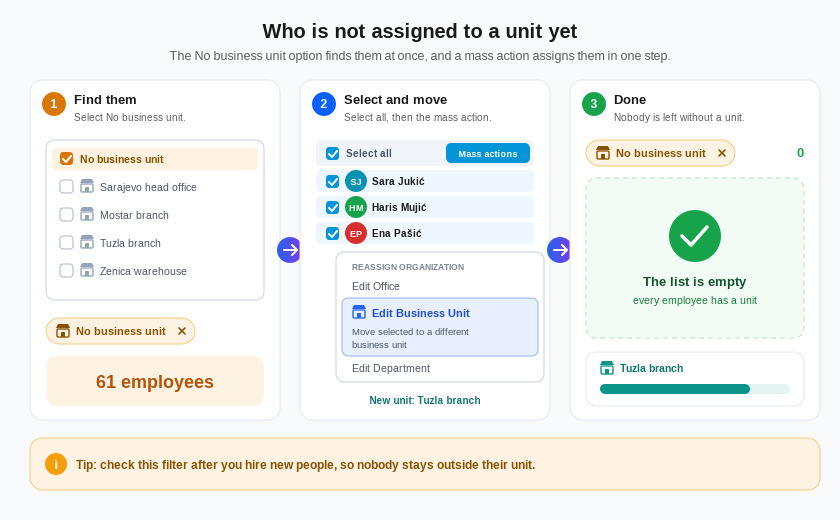
The No business unit option is the quickest way to tidy up your data. Select it and you see right away who has not been assigned. Then click Select all, open Mass actions and choose Edit Business Unit: all selected employees move to the unit you pick, in one step.
When you look at the same filter again and the list is empty, every employee has a unit. It is a good habit to check this after you hire new people.
Why it helps
- A list per location in seconds. No exporting the whole company and filtering by hand in Excel.
- Several units in one view. A region, a city or a group of branches in one list.
- Clean data. “No business unit” shows at once who is not assigned, and a mass action fixes it.
- Excel exactly per unit. The export contains only the filtered employees.
- Safer mass actions. “Select all” never reaches anyone outside the selected units.