Business data no longer hides in the document name
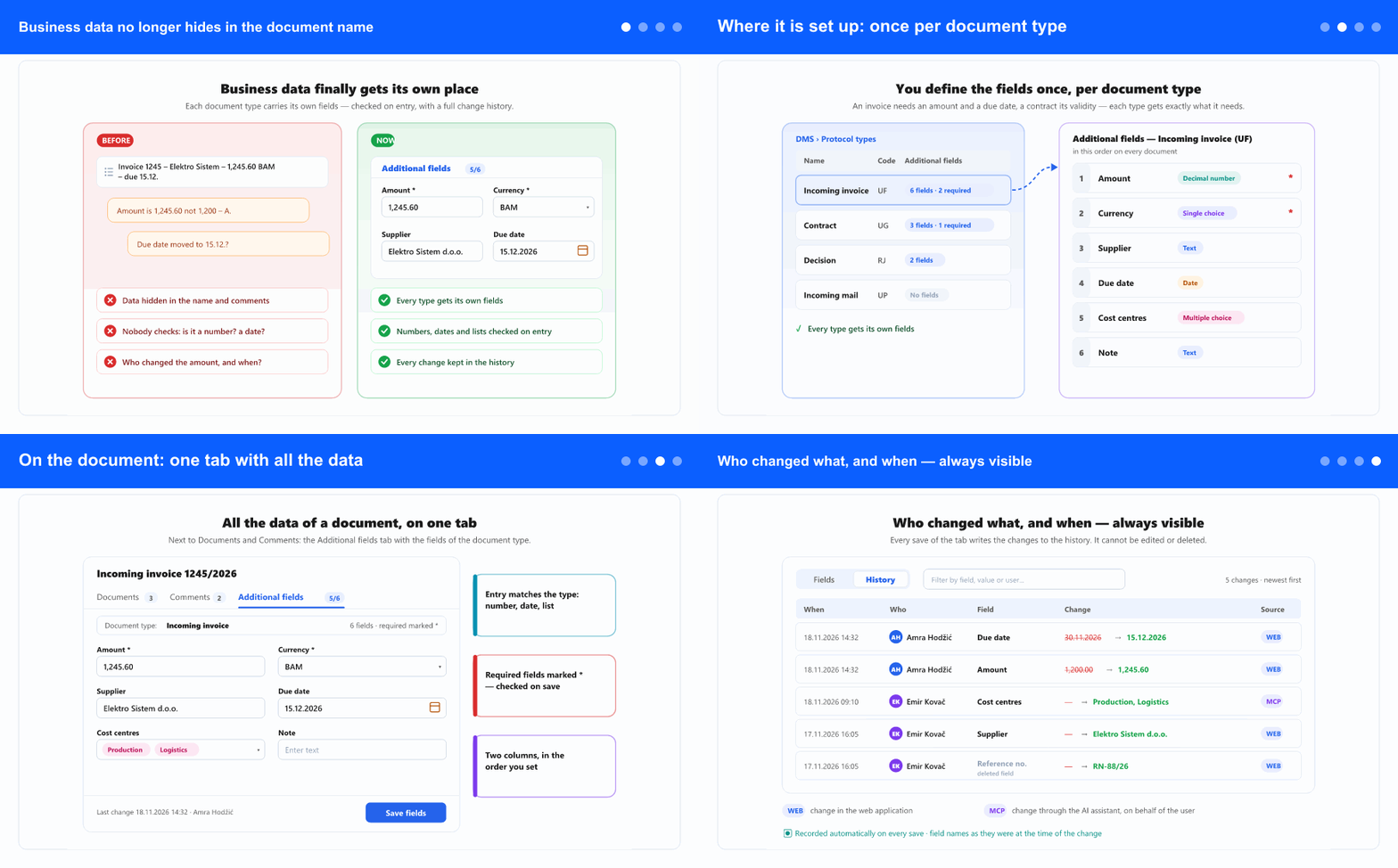
An incoming invoice in the DMS used to look like this: "Invoice 1245 – Elektro Sistem – 1,245.60 BAM – due 15.12." When the amount changed, someone wrote a comment. Whether the amount was really a number or the due date a real date, nobody checked, and a month later nobody knew who had changed the figure.
Now every document of that type has an Additional fields tab with exactly the fields you need: Amount, Currency, Supplier, Due date. The name stays short, and the data stays in order.
Where it is set up: once per document type
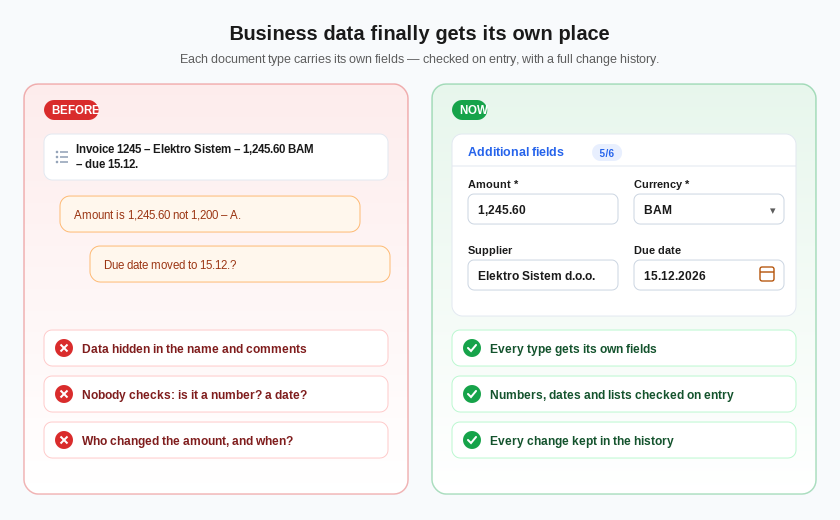
Fields are defined by the company administrator on DMS → Protocol types. A new Additional fields column shows how many fields each type has and how many are required. One click opens the list of fields for that type.
For each field you choose a name, a type and whether it is required. The types cover everyday needs: text, whole number, decimal number, date, single choice and multiple choice, the last two with your own list of options (for example currencies or cost centres). You decide the order in which fields appear on the document.
Fields are set up separately for each type: an invoice gets the amount and due date, a contract its validity, a decision its number and date. A type without fields works exactly as before.
On the document: one tab with all the data
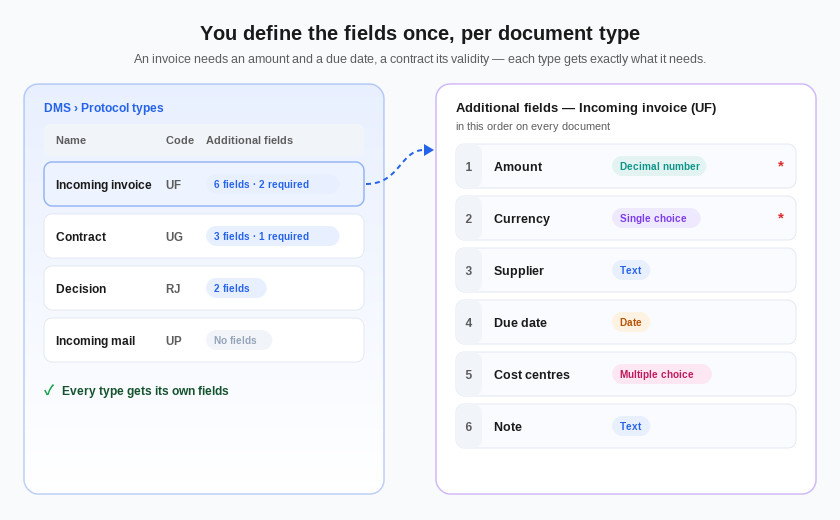
On the document details, next to Documents and Comments, there is now a third tab, Additional fields. The counter on the tab (for example 5/6) shows at a glance how many fields are filled in. The fields are laid out in two columns, in the order the administrator set.
Entry follows the field type: an amount only accepts a number, a date is picked from a calendar, a currency from a list, and cost centres can take several values. Required fields are marked with * and are checked when you save the tab. An invalid value is marked on the field itself, so you know exactly what to fix. Creating a new document is not blocked, so the data can be added later.
The fields appear on all documents of that type, including those created before. If a document changes type, it shows the fields of the new type, and the values of the old type are kept and come back if the type is changed back.
Who changed what, and when — always visible
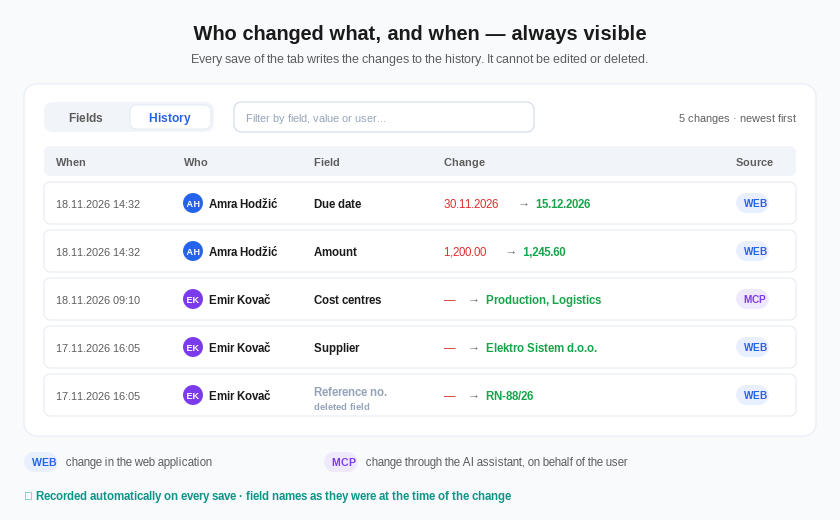
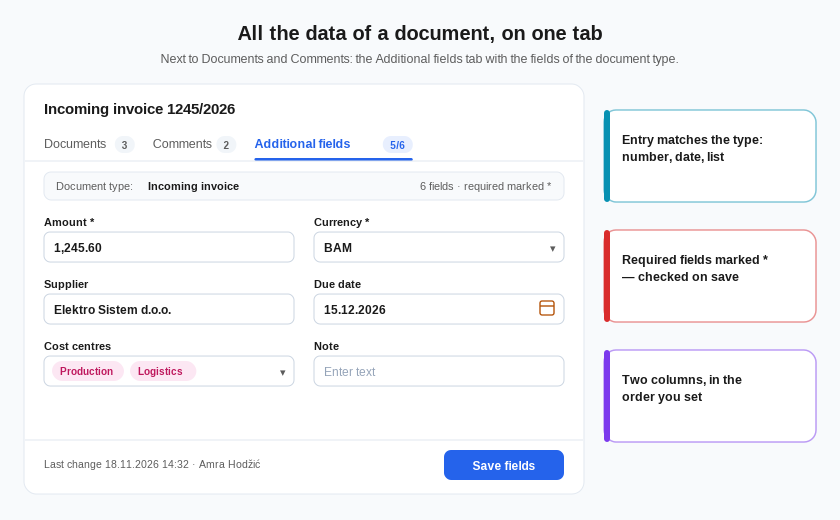
Next to the fields is the History view. Every save of the tab records only the fields that actually changed: when, who, which field and the change from the old to the new value. The history cannot be edited or deleted, and you can filter it by field, value or user.
The data can also be read and filled in through the InSync AI assistant, with the same rights and checks as in the app. Such changes are marked MCP in the history, so it is always clear whether the person changed a value themselves or through the assistant.
Why it helps
- Data you can rely on. An amount is a number and a due date is a date, and required data is not forgotten.
- Everything about a document in one place. There's no more decoding names and scrolling through comments.
- Clear accountability. For every change of an amount or a due date you know who made it and when, which helps with audits and disagreements.
- Each type gets exactly what it needs. Invoices, contracts and decisions each have their own fields, and types without fields stay as simple as before.
The steps are in the guide DMS additional fields: setting up and filling in.