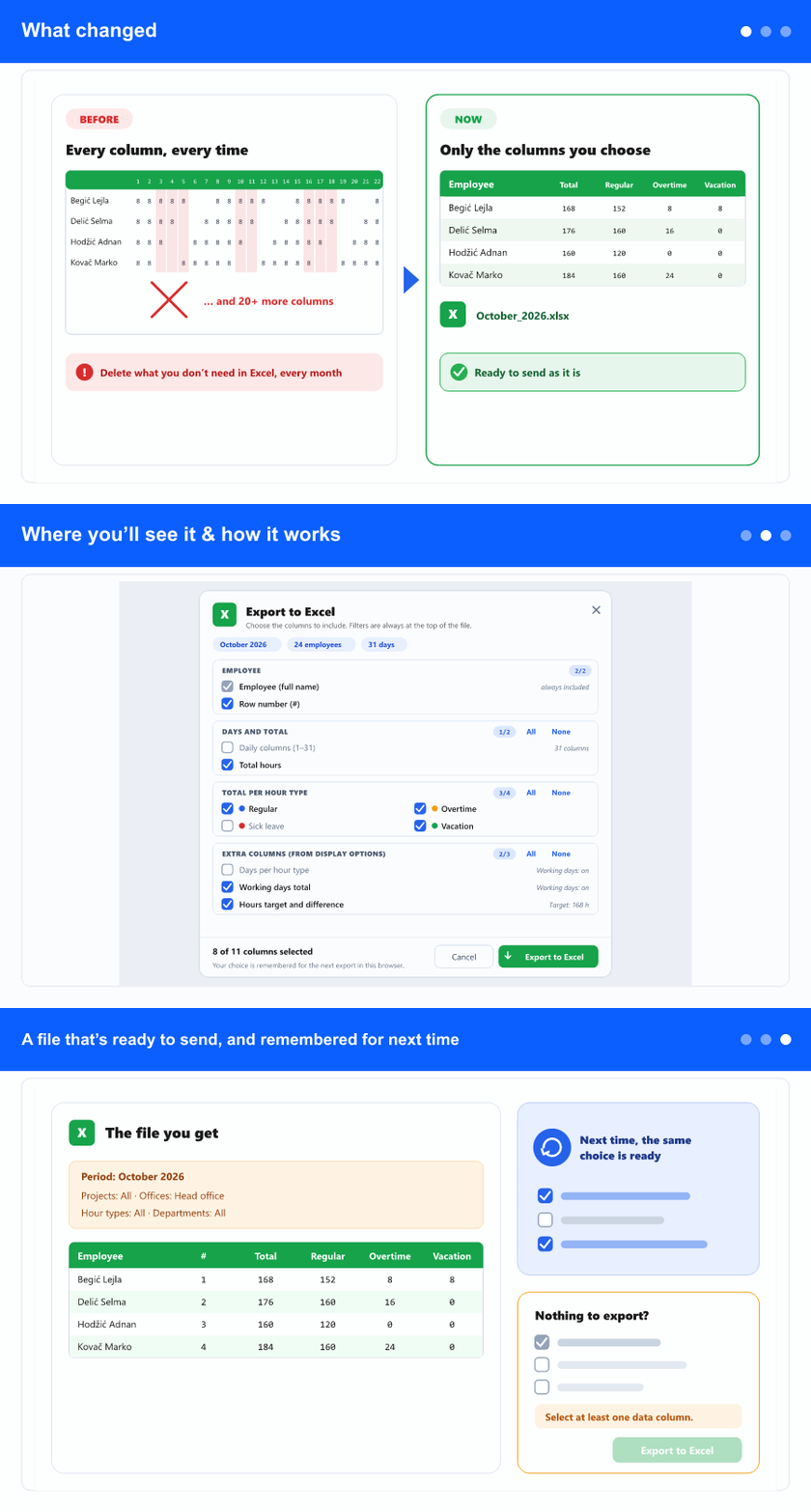
What changed
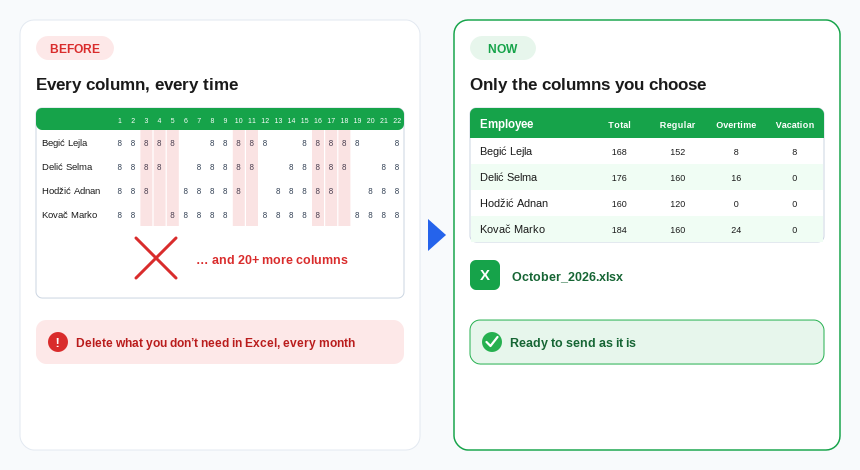
Until now, Excel on this report always exported everything: a column for every day of the month, a total for every hour type and every extra column. Anyone who only needed totals for payroll first had to delete dozens of columns by hand, every month. Now clicking Excel opens a short Export to Excel window where you tick exactly what you want in the file.
Where you’ll see it & how it works
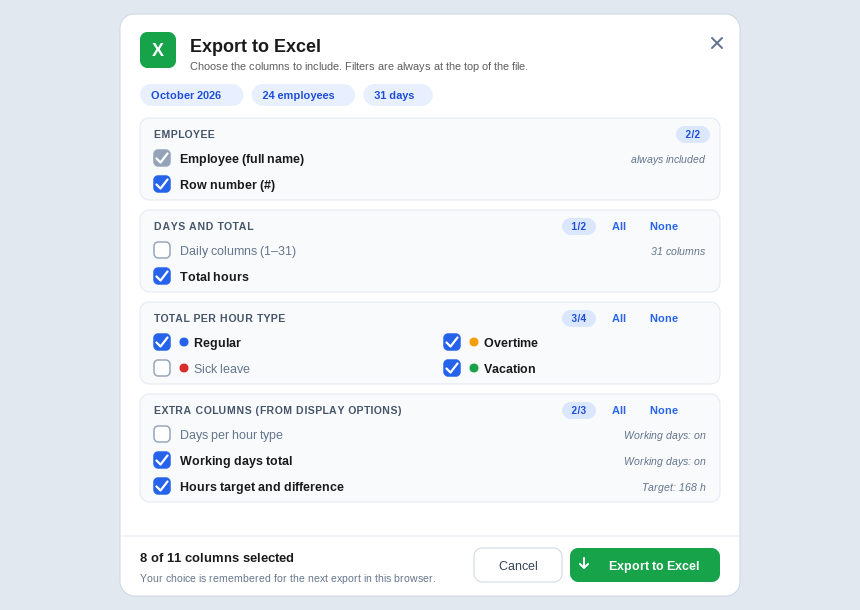
On the Daily by employee report, click Excel in the header. At the top of the window you see what you are exporting: the month, the number of employees and the number of days. Below, the columns are grouped:
- Employee: the employee’s name is always included, and the row number (#) is optional.
- Days and total: all daily columns with one tick, and Total hours.
- Total per hour type: one tick per hour type, marked with its colour. When Day/Night is turned on in the display options, this group shows Day hours and Night hours instead.
- Extra columns: Days per hour type, Working days total and Hours target and difference. They appear only when the matching display option is on, and the window tells you which option added each one.
Every group has All and None, and the footer counts how many columns are selected. Click Export to Excel to download the file, or Cancel to close the window without changing anything.
A file that’s ready to send, and remembered for next time
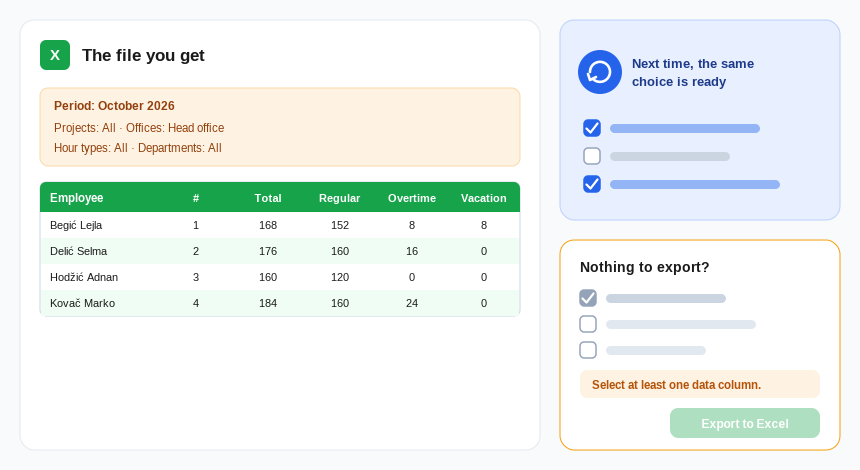
The file always starts with the filters you used (period, projects, offices, hour types, departments), so anyone who opens it knows exactly what it covers. Under them you get only the columns you picked. The data follows your report as you see it on screen: if you filtered the report to certain people, the file contains only those people.
Your choice is remembered in your browser, so next month you just click Excel and then Export to Excel. If a new hour type is added in the meantime, it is included automatically. And if you untick every column with data, the window reminds you to select at least one data column before it lets you export.
Why it helps
The monthly export to payroll or to the accountant becomes a two-click job instead of a cleanup session in Excel. Fewer manual edits mean fewer mistakes, such as a deleted column that was actually needed or a total that no longer matches. Everyone gets a file with exactly the columns they work with.