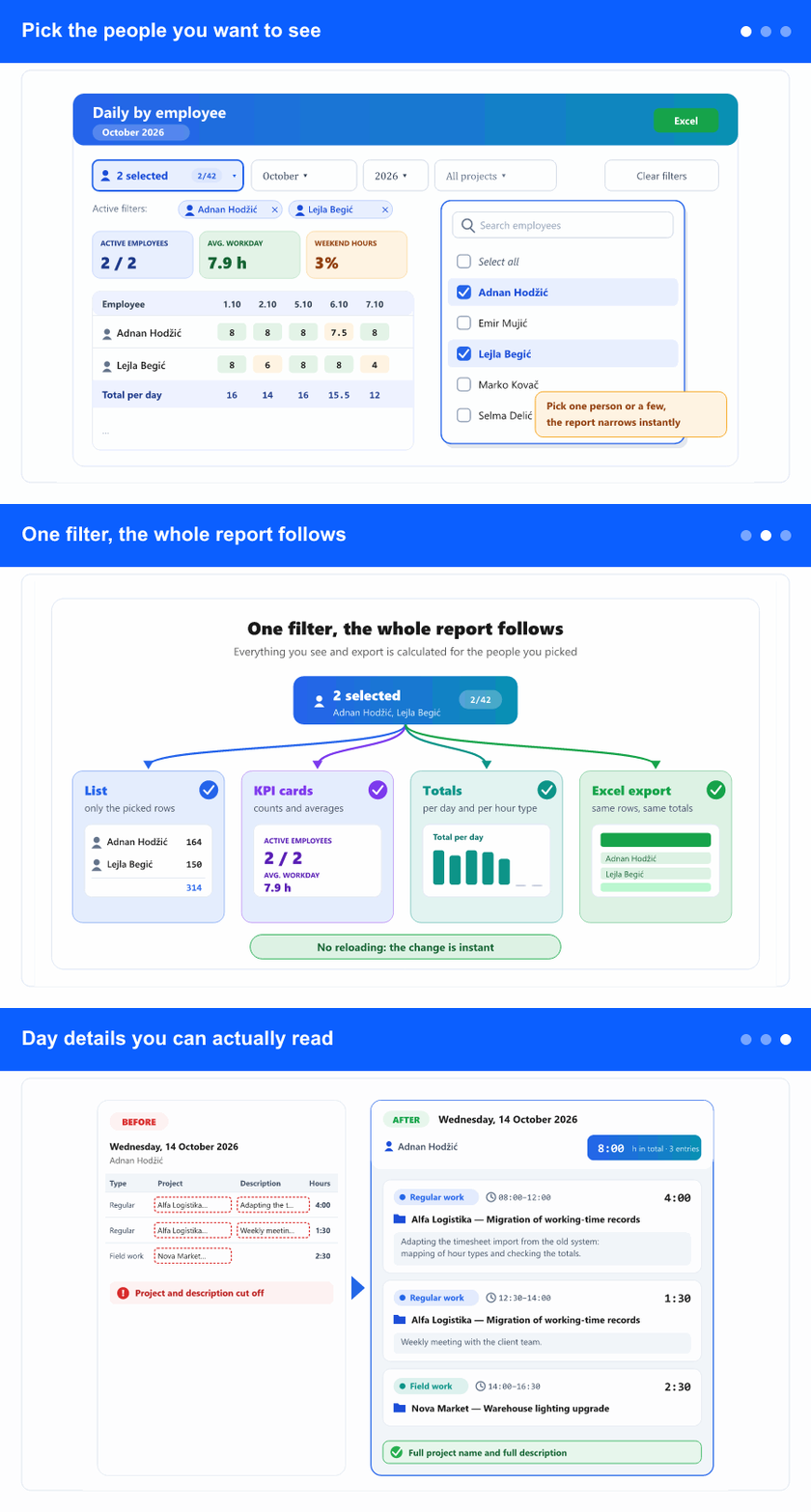
Pick the people you want to see
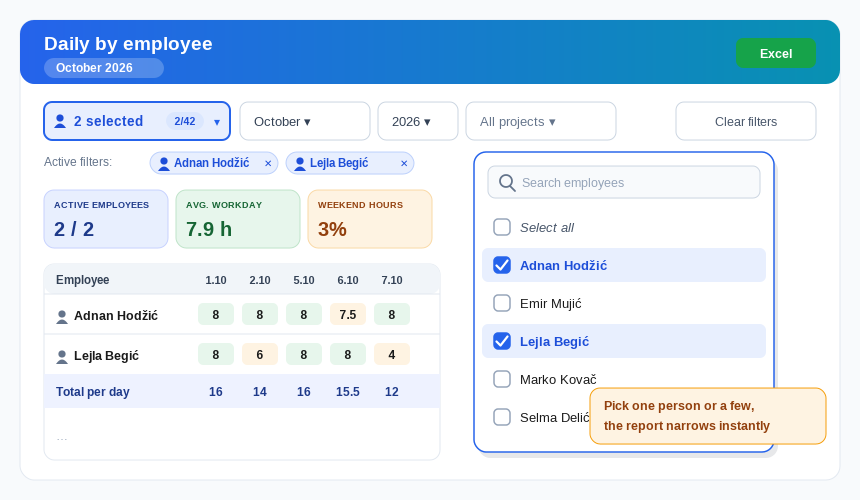
The Employees filter is the first filter on the left of the report. Open it, type part of a name to search, and tick one person, a few, or use Select all. When nothing is ticked, everyone is shown. The closed filter tells you how many are selected out of the total (for example 2/42), and each picked person shows up as a chip under Active filters. Clear filters brings everyone back.
The list offers exactly the people who appear in the report you loaded for that month, sorted alphabetically. If you have the right to see only your own team, you only see your own team here as well.
One filter, the whole report follows
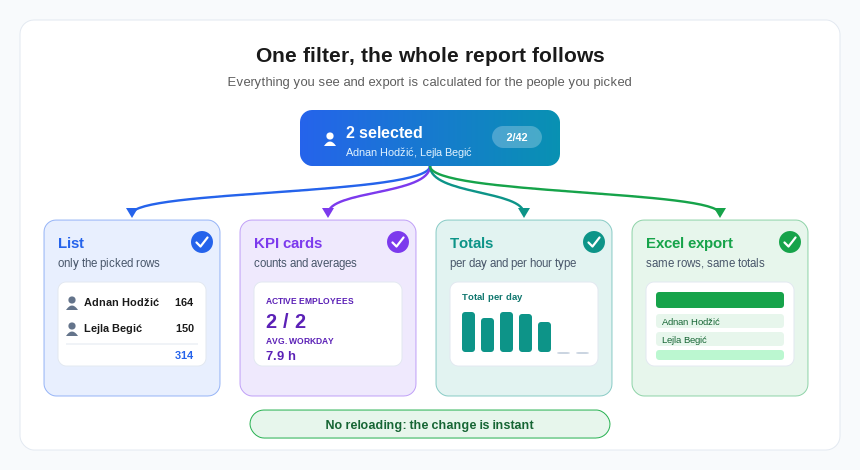
The filter does not just hide rows. Everything on the page is recalculated for the people you picked: the list, the KPI cards (active employees, average workday, weekend hours, anomalies), the total per day and the totals per hour type. Hour types that only the hidden people used disappear from the columns. The Excel export contains the same rows and the same totals you see on screen.
The change is instant. The report doesn’t reload, because it works on the data that is already open. When you move to another month and press Search, your choice is kept for everyone who also appears in the new month.
Day details you can actually read
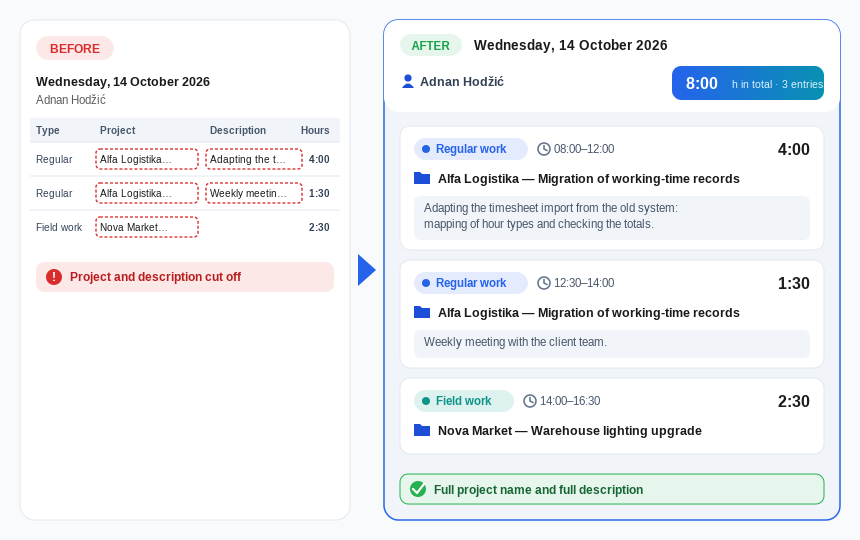
Click any cell in the report to open the day details for that person and day. Instead of a narrow table where the project and description ended in “…”, every entry is now a card. The top line of each card shows the hour type, the time from–to and the duration. Under it you get the full project name and the full description, including line breaks as the employee typed them. Entries are listed in time order, and entries without a time come last. Cards without a description simply leave that part out.
Why it helps
Checking one team, a few people on a project, or a single employee before payroll no longer means exporting everything and filtering in Excel. The numbers you see, and the file you send on, belong to exactly the people you chose. In the day details you no longer have to guess what “Migration of wor…” meant: you can read what each person worked on, in full, right in the report.