Why copying last month's contract was risky
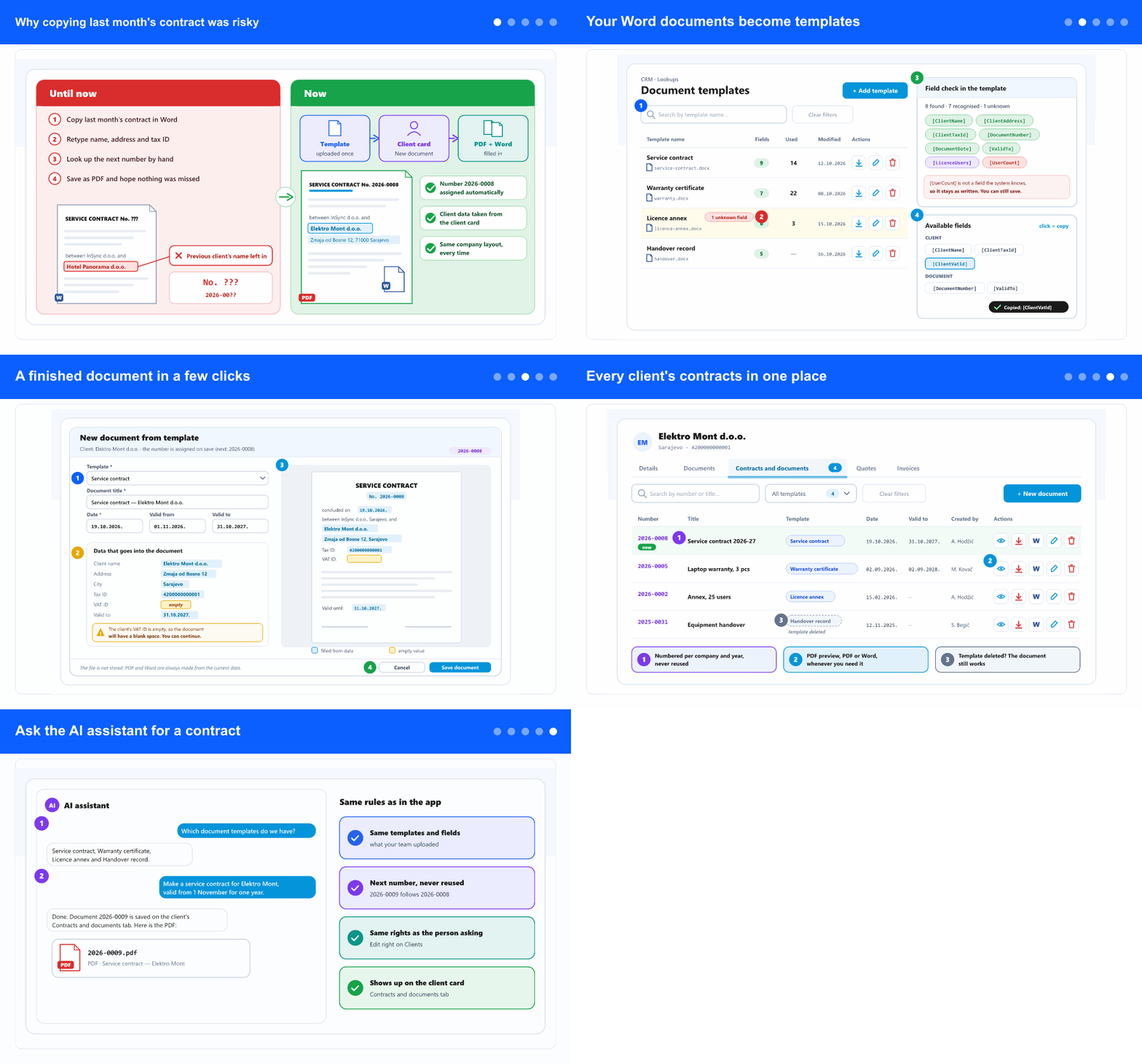
Most companies keep their contracts, warranty certificates and annexes as Word files. Every new document starts as a copy of an old one: someone opens last month's contract, retypes the client's name, address and tax ID, looks up which number comes next, and saves a PDF. It takes time, and sooner or later a document goes out with the previous client's name still in it, or with a number that was already used.
Now the template is uploaded once. Every document after that is filled in from the client card, so the data is the same data your team already keeps in CRM.
Your Word documents become templates
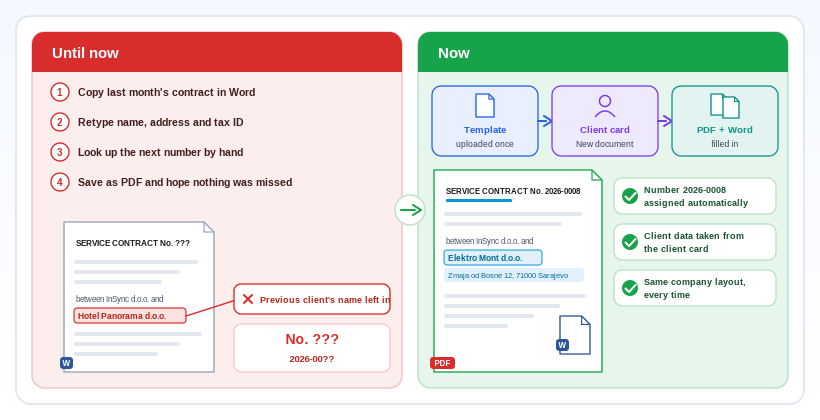
In the left menu, under CRM → Lookups, you will find Document templates. A template is your own Word (.docx) document in which the places for client data are written as fields in square brackets, for example [ClientName], [ClientTaxId] or [DocumentNumber]. Fields can be written in English or Bosnian; both are recognised.
- Checked as soon as you upload. The system shows which fields it recognises (green) and which it does not (red), with a hint on how to fix them. An unknown field never blocks saving. It simply stays in the document as written.
- All fields at hand. Next to the upload you see every field you can use: the client's details, the document's number, title, date and validity, and your own client custom fields. A click copies the field, ready to paste into Word.
- One list for the whole company. For each template you see how many fields it has and how many documents were made from it. A template that contains an unknown field is marked, so you can correct it before anyone uses it.
A finished document in a few clicks
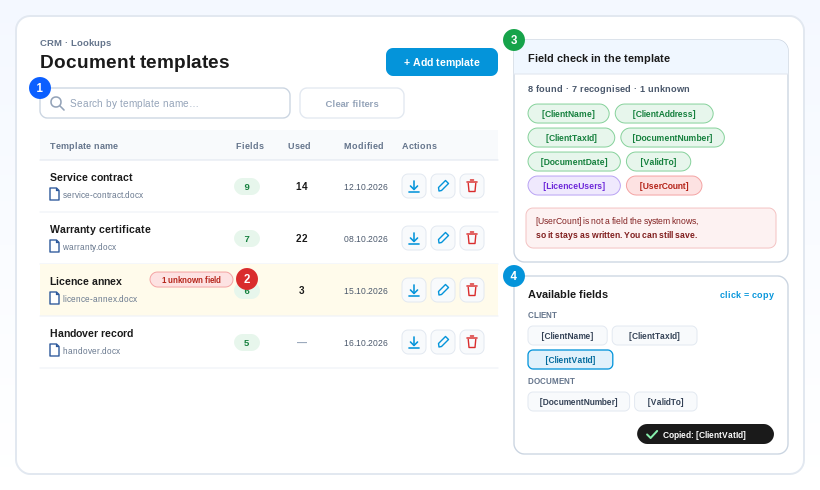
Open a client and go to the new Contracts and documents tab. Click New document, pick a template, and the title is suggested for you. Set the date and, if the document has one, the Valid from and Valid to dates, for example the end of a warranty or a contract.
Before you save, you see exactly what will go into the document. The client data is listed on the left and the PDF preview is on the right. If a detail is missing on the client card, for example a VAT ID, it is shown in yellow with a warning. You can fill it in first or continue, and the document will have a blank space instead of a stray field name.
When you click Save document, the number is assigned, for example 2026-0008. Numbering runs per company and per year, and a number is never reused, even if a document is deleted.
Every client's contracts in one place
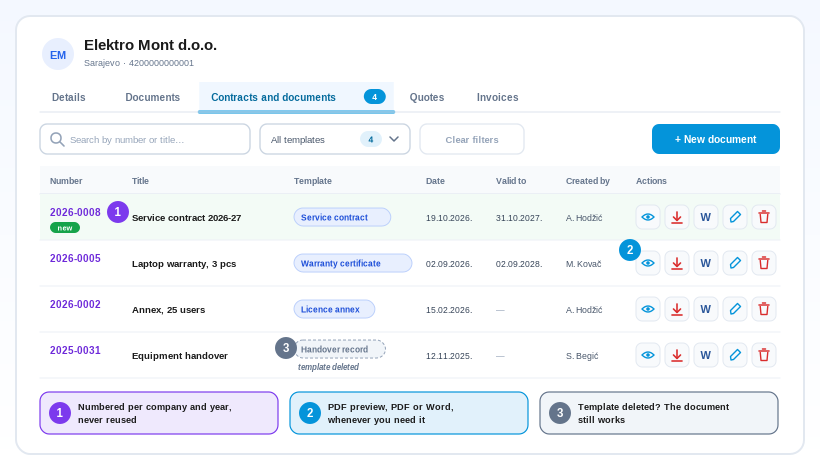
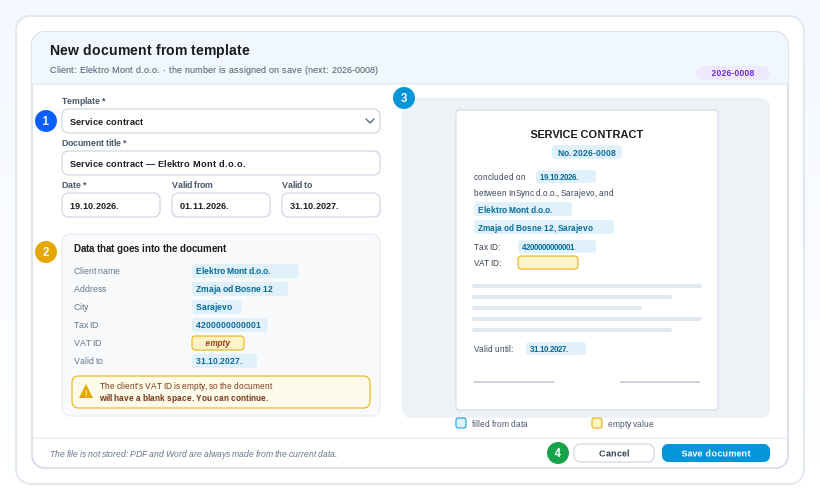
The Contracts and documents tab lists everything made for that client, with number, title, template, date, Valid to and who created it. You can search by number or title and filter by template.
Every row has the same five actions: PDF preview, Download PDF, Download Word (when you want to make a final edit before sending), Edit and Delete. If a template is later removed from the list, the documents made from it stay with the client, are marked template deleted, and can still be downloaded.
Ask the AI assistant for a contract
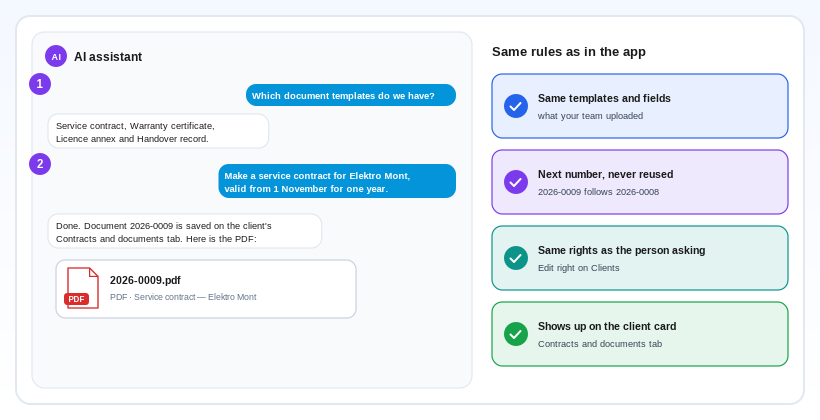
If your company has connected an AI assistant to InSync 365, it can now prepare client documents too. Ask it "Which document templates do we have?" or "Make a service contract for Elektro Mont, valid from 1 November for one year." The assistant uses the same templates and the same numbering as the screen. It saves the document straight away and gives you the PDF, and the document appears on the client's Contracts and documents tab like any other.
Why it helps
Minutes become seconds. No copying old files and no retyping. Pick a template, check the preview, save.
No wrong names or numbers. Client data comes from the client card, and the number is assigned by the system, in order and never twice.
Your layout, every time. The template is your own Word document, so every contract and warranty looks the way your company wants it to.
Everything in one place. Each client's contracts, warranties and annexes are on their card, easy to find, preview and send again.
More about the module: CRM overview