Where you'll see it
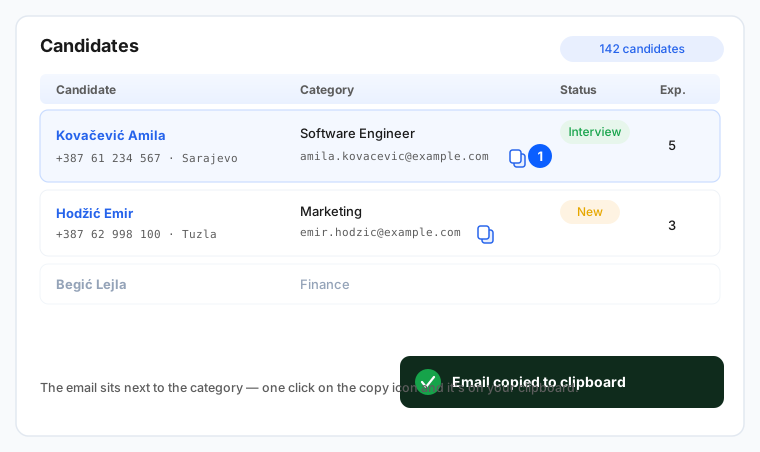
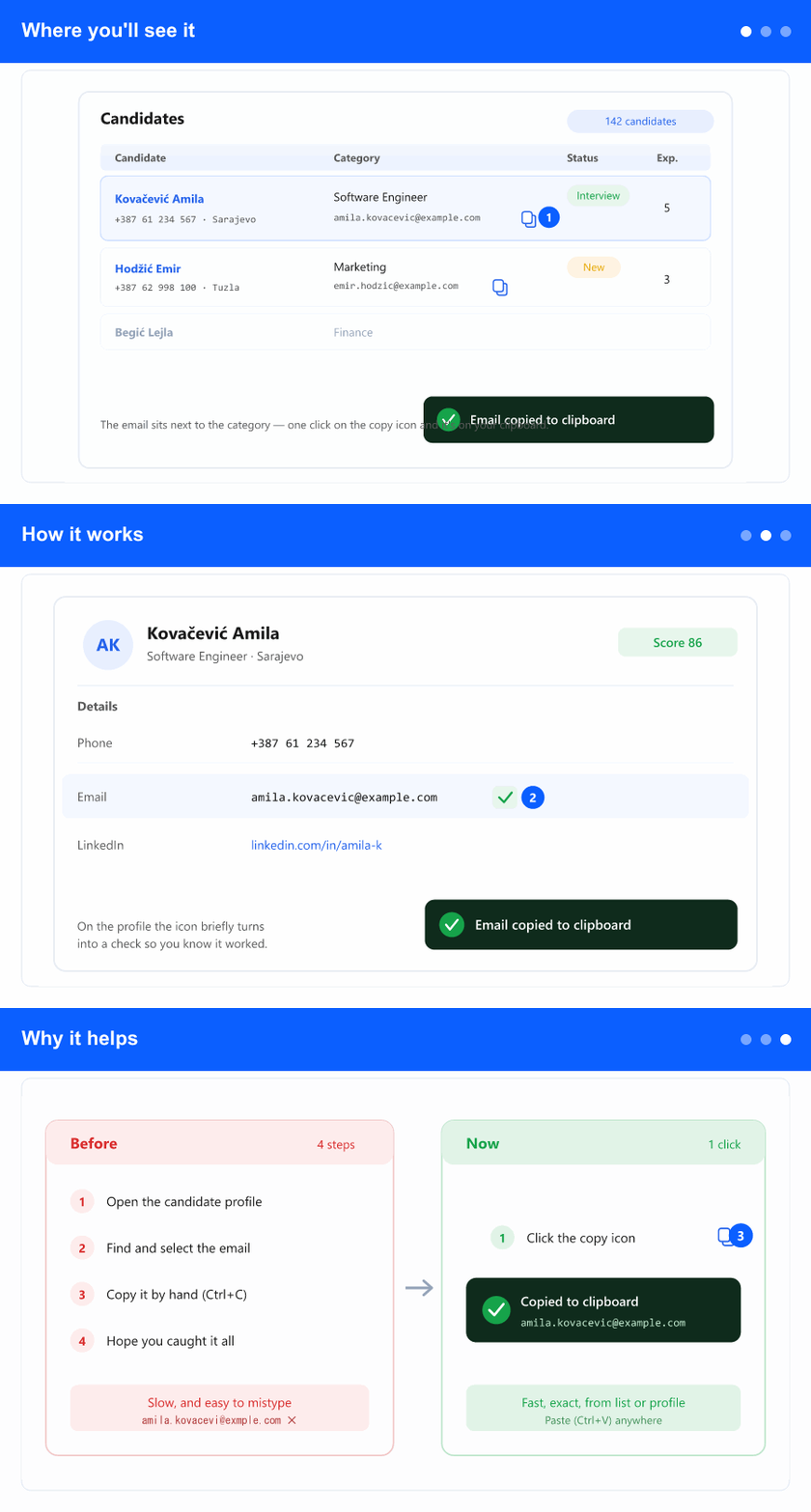
The copy icon appears in two familiar places in the ATS area. On the candidate list, the email now shows in the row—next to the category—with a small copy icon beside it. On the candidate profile, the same icon sits right next to the email address in the details. On a phone, it's there too—next to the email in the quick-contact row at the top of the profile and on each list card.
How it works
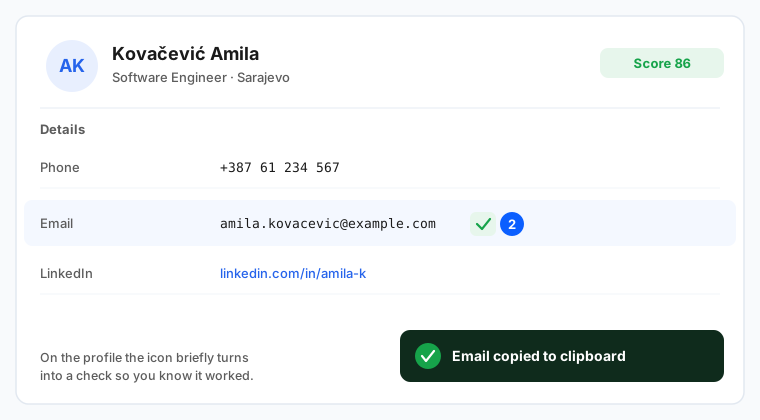
Click the copy icon and the email is placed on your clipboard instantly. A short confirmation appears—"Email copied to clipboard"—and the icon briefly turns into a check mark so you know it worked. Then just paste (Ctrl+V) wherever you need it. If a candidate has no email on file yet, the icon simply isn't shown—nothing to copy, no empty button. On a narrow screen a long address is shortened with "…", while the copy icon always stays on the same line, easy to reach.
Why it helps
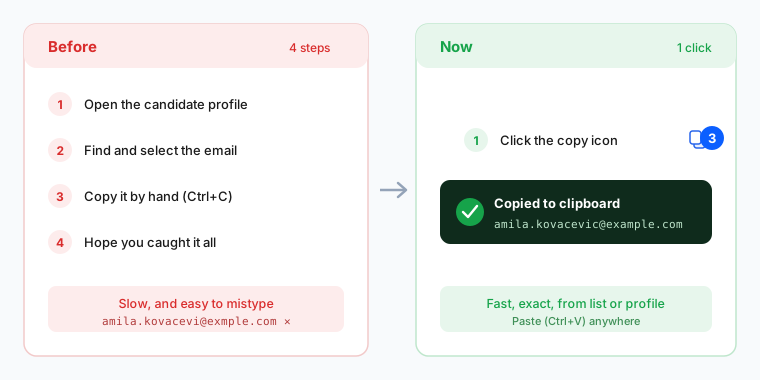
Recruiters contact candidates all day. Before, getting an address meant opening the profile, selecting the text by hand, and hoping you caught the whole thing—easy to miss a character and send to the wrong place. Now it's one click from the list, without even opening the profile, or one click from the profile when you're already there. Fewer steps, no typos, faster outreach.