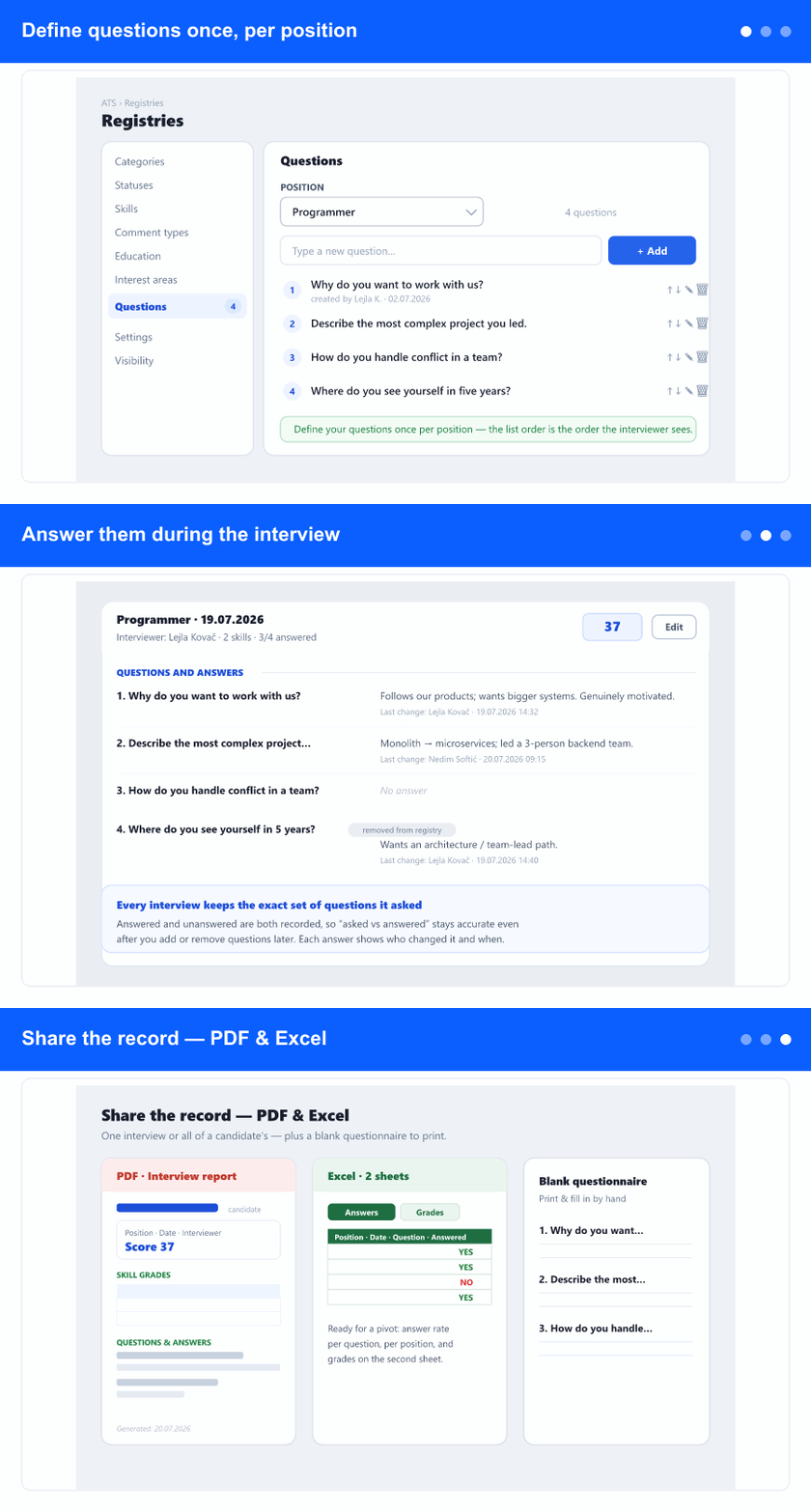
Define questions once, per position
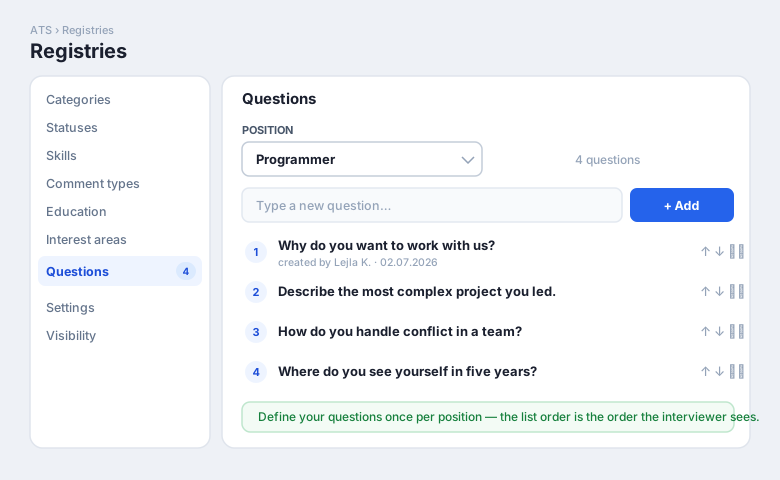
In the ATS area open Registries and choose the new Questions tab. Pick a position and build its list of questions: add, edit, reorder with the up/down arrows, or remove. The order you set here is exactly the order the interviewer will see. Set it up once and every interview for that position starts from the same, consistent list—so nothing important gets forgotten and every candidate is asked on the same basis.
Answer them during the interview
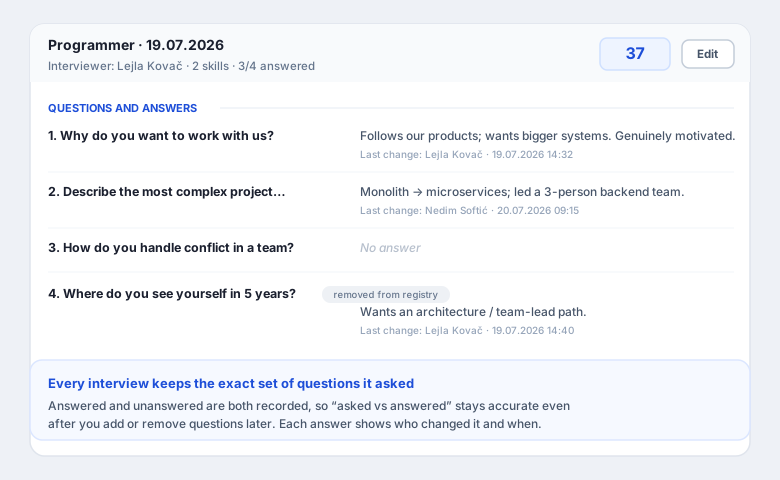
When you run an interview for a position, its questions appear right under the skills. Type the candidate's answer next to each one—answers are optional, and you can come back through Edit to fill in or refine them later. Each answer shows who last changed it and when. Crucially, every interview remembers the exact set of questions it asked: answered and unanswered alike are recorded, and the session shows an “X / Y answered” count. So even after you add or remove questions on the position later, the picture of what was actually asked at each past interview stays accurate—and a question removed later still shows up on the interviews where it was used.
Share the record — PDF & Excel
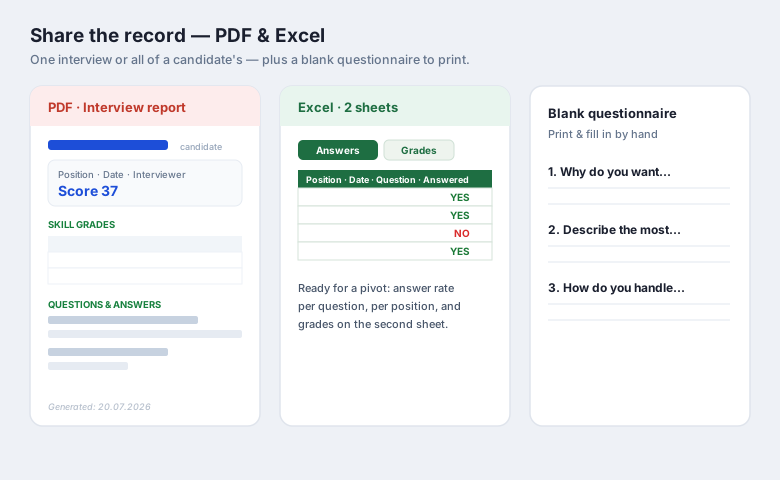
From a candidate's interviews you can produce a clean PDF report—for a single interview or for all of the candidate's interviews at once—showing the position, date, interviewer, score, skill grades and every question with its answer. You can also export to Excel (two sheets: answers and grades) ready for filtering and pivoting—how many questions were answered, per position and per candidate. And in Registries you can print a blank questionnaire for a position, to fill in by hand when a laptop isn't practical.