Where you'll see it & how it works
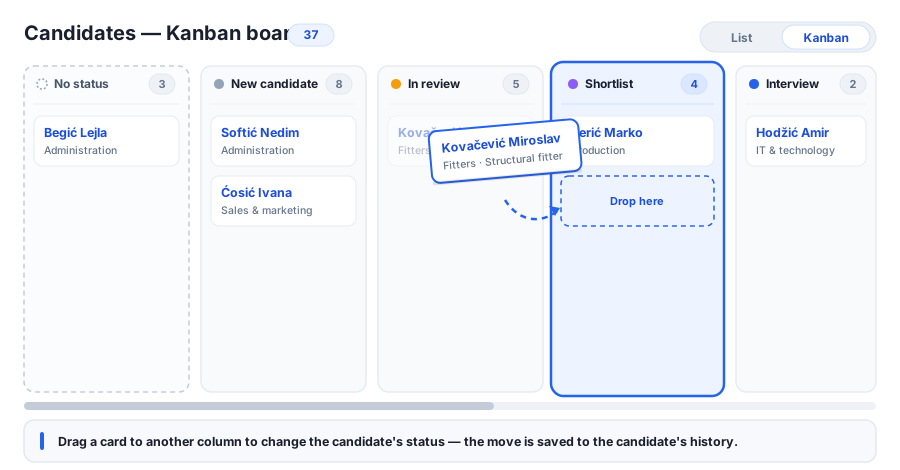
In the left menu, open the ATS tab (if shown) and choose Candidates — Kanban. It's the same people you see on the Candidates list, shown as a board: a small List / Kanban switch at the top lets you move between the two views at any time.
Each column is a recruitment status (New candidate, In review, Shortlist, Interview, Hired, Rejected…), and every card shows the candidate's name, category and position of interest, with a count on each column header. To move someone forward, just drag their card into another column — the status changes immediately and the move is written to the candidate's change history, exactly as if you'd edited it on the profile. A dedicated No status column collects candidates who don't have a status yet; drag a card there to clear its status. Click any card to open that candidate's full profile.
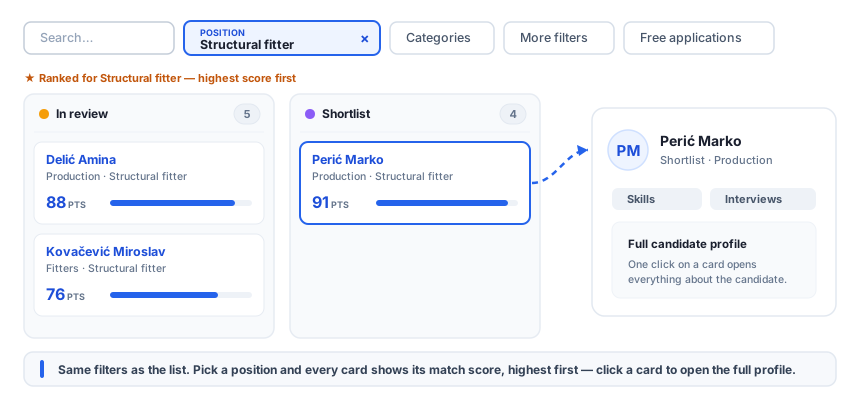
The board carries the same filters as the candidate list — search, category, skills, the posting a candidate applied to, and the advanced filters behind More filters. Pick a position and each card shows that candidate's match score with a fill bar, ordered highest first inside every column, so the strongest candidates rise to the top wherever they are in the pipeline. (The status filter isn't needed here — the columns already are the statuses.)
Organize your board
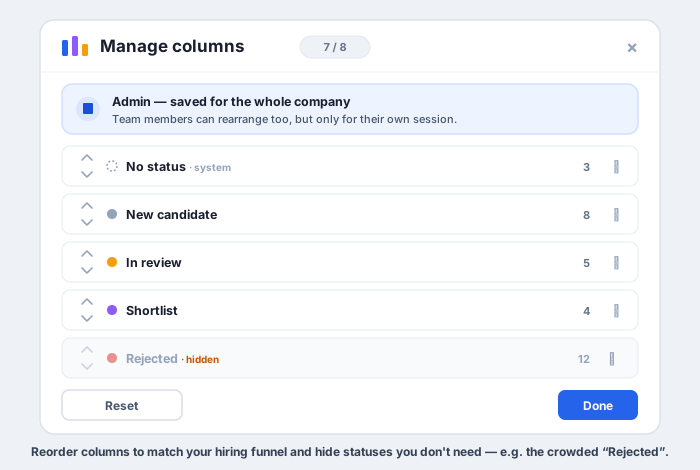
Open Manage columns to shape the board around your process. Reorder the columns so they read left-to-right like your hiring funnel, and hide statuses you don't want cluttering the view — for example a busy Rejected column with hundreds of cards. Who your changes apply to depends on your role: an administrator saves the layout for the whole company so everyone sees the same board, while other team members can rearrange freely too — their version is kept just for their current session and never changes the company layout.
Why it matters for the business
A list tells you who applied; a board tells you where everyone is. Seeing candidates spread across status columns makes the state of hiring obvious at a glance — which stages are crowded, where people are stuck, and who's close to an offer — without opening records one by one.
Moving a candidate becomes a single drag instead of opening a profile and editing a field, and because every move is recorded, the history stays complete and auditable. The No status column surfaces candidates who slipped through without being triaged, and hiding noisy statuses keeps attention on the people who are actually in play. Managers get a clean pipeline view, recruiters work faster, and nobody is forgotten between stages.