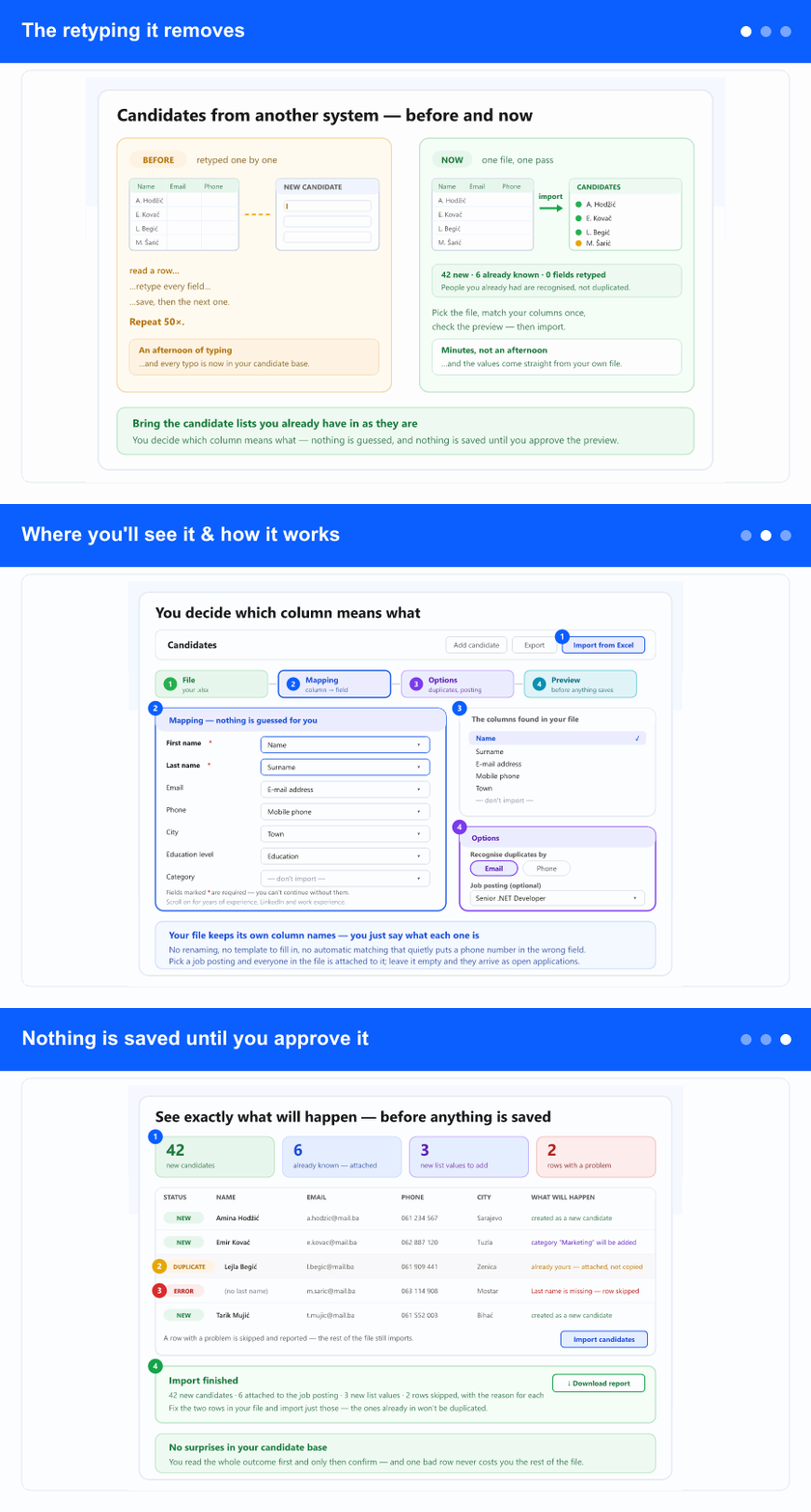
The retyping it removes
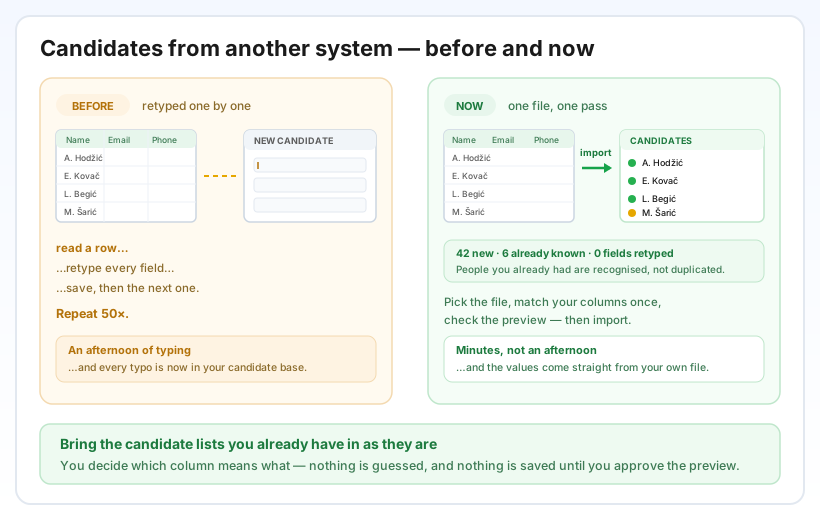
Almost nobody collects candidates in one place only. They arrive from job boards, from an older recruitment tool, from a colleague's spreadsheet — and every one of those can produce an Excel file. Until now, getting them into InSync meant opening the new-candidate form and retyping each person field by field, which is slow, dull, and exactly the kind of work where typos slip into your candidate base.
Now you hand over the file instead. Nothing about your file has to change first: no template to fill in, no columns to rename, no particular order.
Where you'll see it & how it works
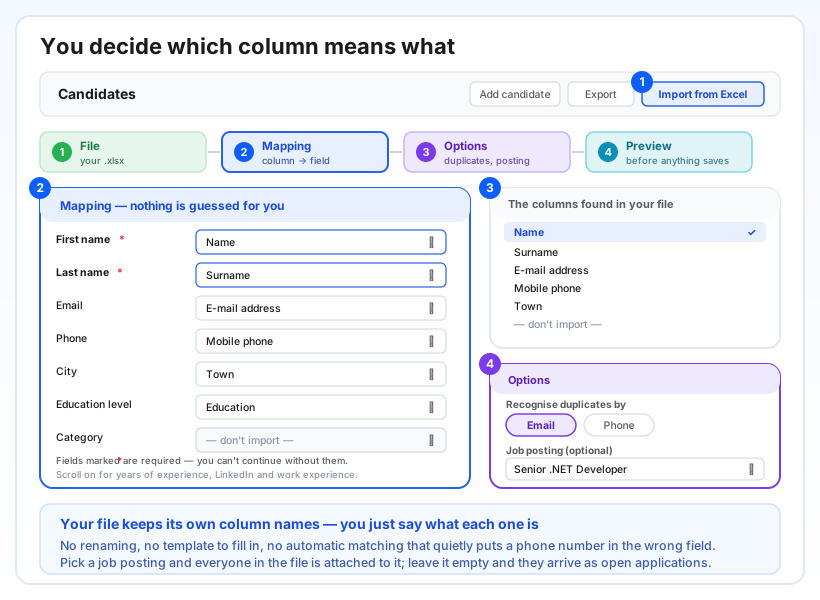
On the Candidates list, right next to Export, there is a new Import from Excel button. It opens a short wizard: pick the file, do the mapping, set the options, read the preview.
The mapping is yours to make. For each field InSync keeps — first name, last name, email, phone, city, education level, category, years of experience, LinkedIn and work experience — you choose one of the columns found in your file, or “— don't import —” to leave it out. Nothing is matched automatically, on purpose: an automatic guess that quietly puts a phone number into the wrong field is far more expensive to clean up than one minute of choosing. First name and last name are required, and the wizard won't let you continue without them.
Then two options. You choose whether the same person should be recognised by email or by phone. And you may pick one job posting — everyone in the file is then attached to it exactly as if they had applied through it. Leave it empty and they arrive as open applications, in the general pool.
New values in your lists are handled for you: if the education level or category in a row doesn't exist yet, it is added to your company's list and assigned, so you don't have to prepare the lists before importing. Existing values are matched as they are, whatever the capitalisation or stray spaces.
Nothing is saved until you approve it
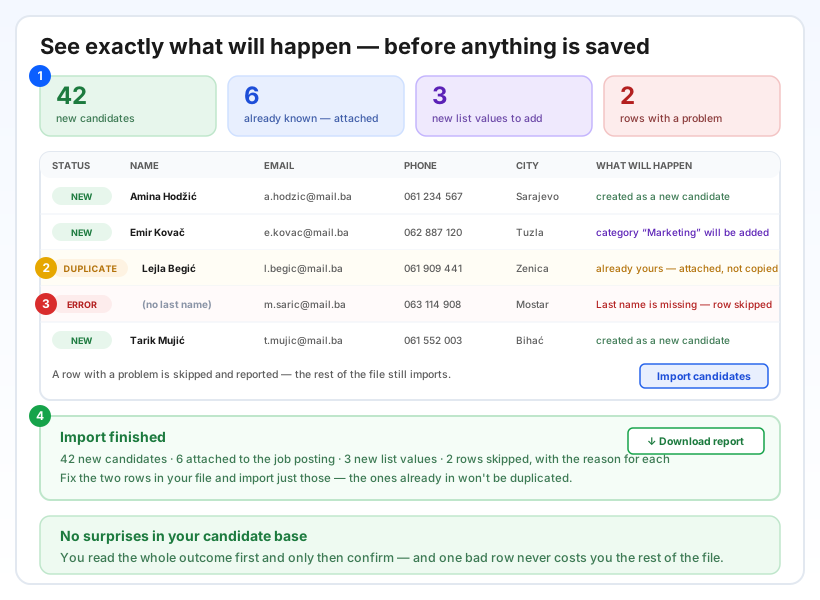
Before a single candidate is created you get the whole outcome in front of you. Each row is marked new, duplicate or error, with the reason spelled out — a missing last name says so, and names the field. Counters at the top tell you how many people will be created, how many you already had, how many new list values will be added, and how many rows have a problem. The import runs only when you confirm.
People you already have are never duplicated. They're recognised by whichever key you chose and, if you picked a job posting, simply attached to it — their existing record is left exactly as it was.
A problem row doesn't cost you the rest of the file: it is skipped, reported, and everything else imports. Afterwards you get a report of what happened — created, attached, new list values, skipped and why — which you can download and keep. Fix those few rows in your own file and import just them; nothing that already came in will be duplicated.
Step-by-step instructions: Import candidates from an Excel file.
Why it helps
The practical effect is that a candidate list stops being stuck wherever it was created. A spreadsheet from a job board, a hand-off from a colleague, the leftovers of an older tool — all of it can become searchable, filterable candidates in your own base in the time it takes to check a preview, instead of an afternoon of copying.
And because you confirm the outcome rather than discovering it, the import is safe to use on real data: you can see the duplicates before they happen, you can see the bad rows before they're skipped, and you keep a downloadable record of what was brought in.