Adding a new card to the system
Added
If you bought cards yourself and want to add them to your device, the process has two parts: first the device reads the card, then you make it active in the app. Until a card is active, the device won't allow access with it.
1. Tap the cards on the device
The device reads each new card and adds it internally to the list. The card then appears in the system, but still won't allow access until you activate it (next step).
- Tap each card on the device, one by one.
- The device reads it and adds it to the system as inactive.
2. Open the card list
In the left menu open Administration → Access cards, then switch to the By card tab. The new cards are in the list, but with the status Inactive.
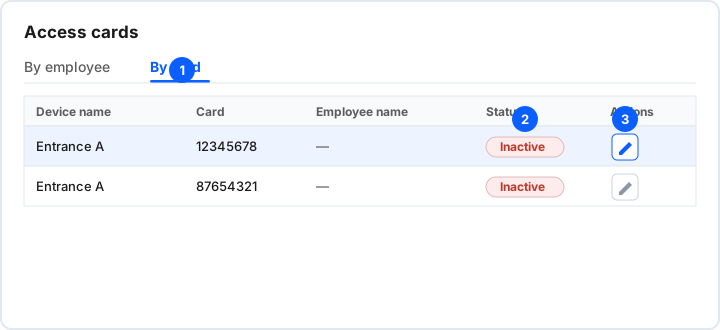
- Open Administration → Access cards and switch to the By card tab.
- Find the new card — its Status column reads Inactive.
- Click the edit button (pencil) in that card's row.
3. Activate the card
In edit mode, turn on the status and save. The card then becomes active and the device allows access with it.
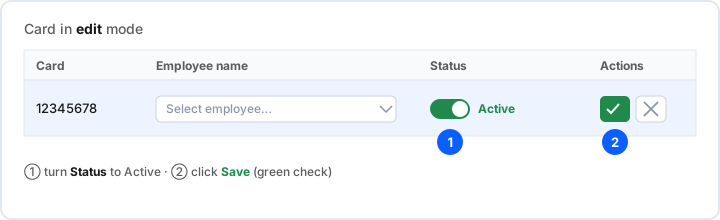
- Turn the Status toggle to Active.
- Click Save (the green check).
Note: while a card is Inactive, the device won't allow access with it. You can activate several cards one after another.